WebP Product Image Delivery Checks: Dimensions, Transparency, and Text
Confirm that the recipient accepts WebP, then inspect the final file’s pixel dimensions, transparent edges, and small text or logos. Compare the original, export, and upload preview rather than treating a smaller file as proof of readiness.
·
A smaller WebP file is not automatically ready for delivery. First confirm the recipient’s format and dimension requirements, then inspect transparent edges, small text, and logos in the final file. If the image will be uploaded, check the resulting preview too. The workflow below is recommended practice, not a compression test or a universal platform acceptance standard.
Establish the delivery requirements first
Google’s WebP documentation describes lossy and lossless compression, with transparency supported in both modes. This means WebP can carry transparency. It does not establish that a particular export retained it, or that a particular product platform accepts WebP.
Ask the recipient which formats are accepted, what pixel dimensions or aspect ratio are required, whether there is a file-size limit, and whether transparent backgrounds are allowed. Browser support is not proof of upload-system support. If requirements are missing, seek confirmation or arrange a trial upload for the recipient to check; do not invent a universal “correct” size.
Keep an untouched original and create a separate delivery copy. The original, exported file, and upload preview serve different purposes and should be checked separately.
Inspect the exported file, not just the editing canvas
Use the following as a review method, not as a claim about tested results.
| Check | What to do | When to revise |
|---|---|---|
| Pixel dimensions and framing | Read the final file’s width × height and compare it with the requirements. Check that the product, shadows, and required text remain in frame | Dimensions or aspect ratio are wrong, or essential content is cropped. Changing dimension values alone does not establish sufficient detail |
| Transparent edges | If transparency is required, place the final file over both light and dark backgrounds, then zoom in on outlines, openings, and translucent areas | Unwanted background color, light or dark fringes, gaps, or background remnants appear |
| Small text and logos | Compare with the original side by side, first at 100% view and then at the expected display size | Characters are missing, strokes merge, logo shapes change, or essential information is difficult to read at display size |
| Accepted format and upload result | Verify the actual exported format. Where an upload destination exists, upload the final file and inspect its preview | The upload is rejected, or the preview introduces cropping, background changes, or unreadable text |
When reviewing edges, distinguish an intentional product shadow from unwanted residue. Not every gray edge should be removed. For text, zooming helps expose local defects, while the expected display size answers a different question: can the reader actually read it?
Fix the cause, then check the file again
For incorrect dimensions, revisit the delivery specification and export settings. For an unsupported format, use a format the recipient accepts. Format verification or conversion alone is not a reason to use an AI image editor.
If the image genuinely needs composition or background changes, retain the original and submit a copy with a specific editing description to the InkRoom image editor. It accepts an existing image and an editing description; available models and parameters depend on the current interface. It does not guarantee subject fidelity, accurate text, or exact output dimensions, and this entry does not establish WebP conversion support.
Whatever tool you use, inspect the exported delivery file again. For product images containing small text or logos, “editing finished” does not mean “text verified.”
Leave a traceable handoff
Record the delivery filename, pixel dimensions, format, and whether transparent edges and essential text were checked. If you performed a trial upload, record the preview result separately. Mark unresolved requirements as awaiting confirmation rather than passed. Keep the original separately so future changes do not depend solely on a delivery version.
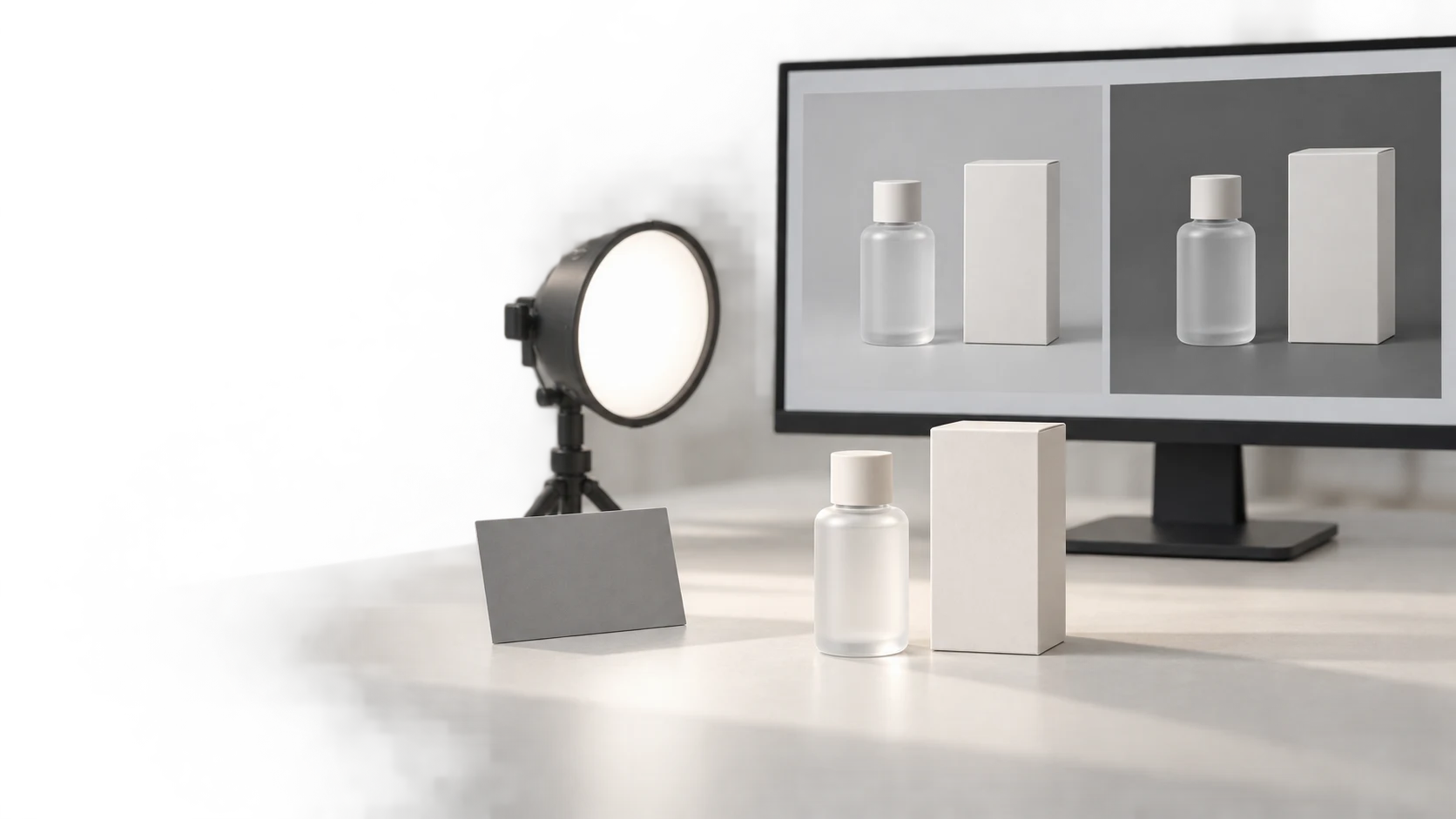
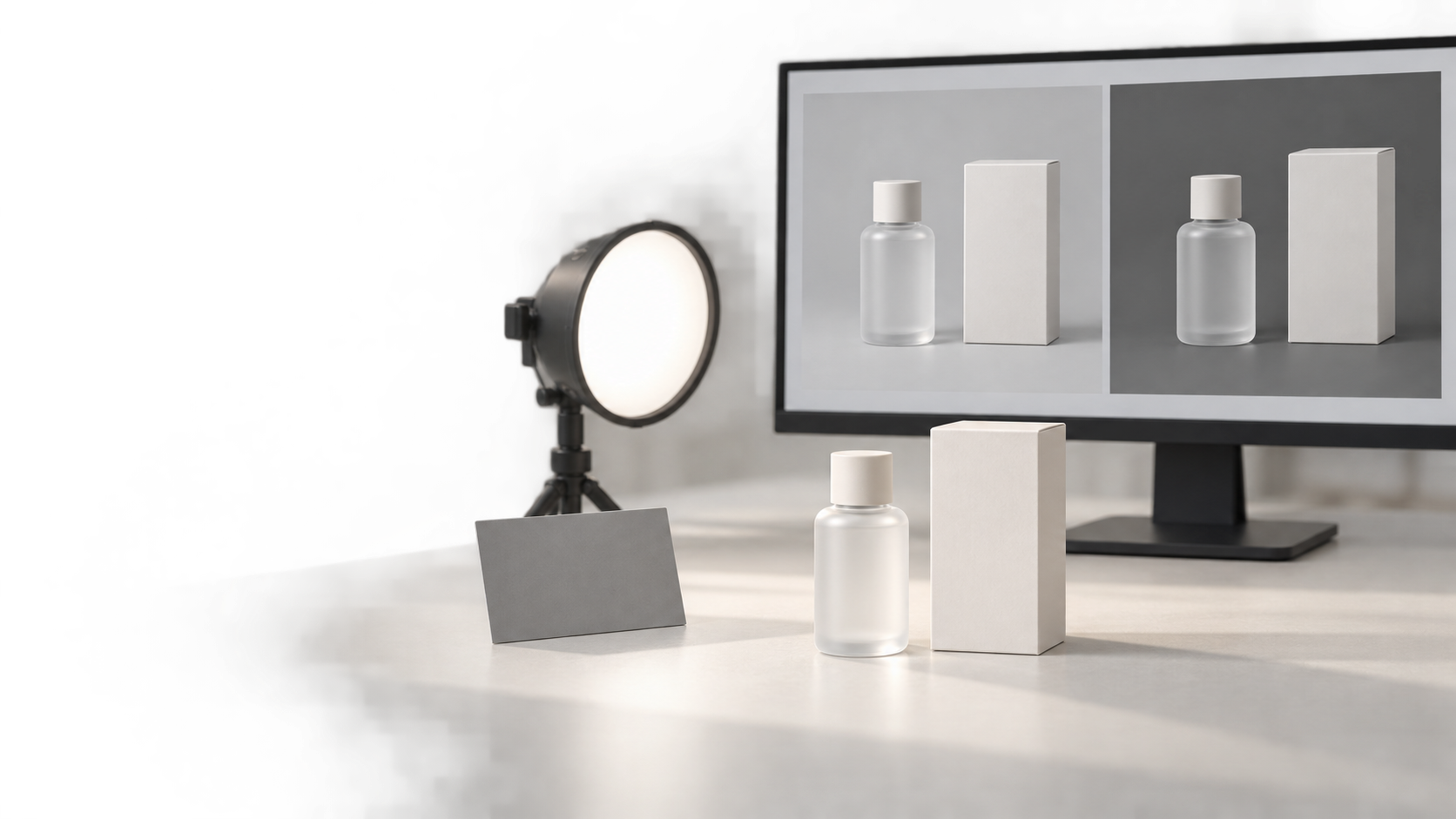
The planned illustration is an AI concept image of an unbranded product photography desk. It illustrates the review setting, not a real shoot, before-and-after comparison, or test result.
Related articles and cases
- Product Photography Focus Stacking: When to Reshoot Instead of Using AI Sharpening
Capture overlapping focus coverage, align and blend real photographs, and use the source frames to decide whether a soft detail needs a mask adjustment or a reshoot.
- How to Choose a Product Photography Backdrop for a Small Space
Choose paper, fabric or boards by the area your camera actually sees—not just the size of the product. Compare maintenance and storage, plan a seamless sweep, and identify problems that need a lighting change or a reshoot.
- Product Image Alt Text: Examples for Main, Detail, and Lifestyle Photos
Write alt text around what each product image contributes. Compare original hypothetical examples for main photos, color variants, texture details, and lifestyle shots, then handle functional images, charts, and CMS entry correctly.
- How to Remove Glare from Glasses in Photos Without Changing the Eyes
Check whether the original eye detail is visible before choosing a reshoot, a local tonal adjustment, or careful retouching. Learn what to change on set and what to check before keeping an edit.
Need composition or background changes? Open the image editor