Product Photography Shot List: Track SKUs, Image Uses, and Reshoots
Build a copyable shot list around buyer questions and specific deliverables. A hypothetical example shows how to track real variants, views, included items, files, ownership, approval, and gaps without confusing reshoots with edits.
·
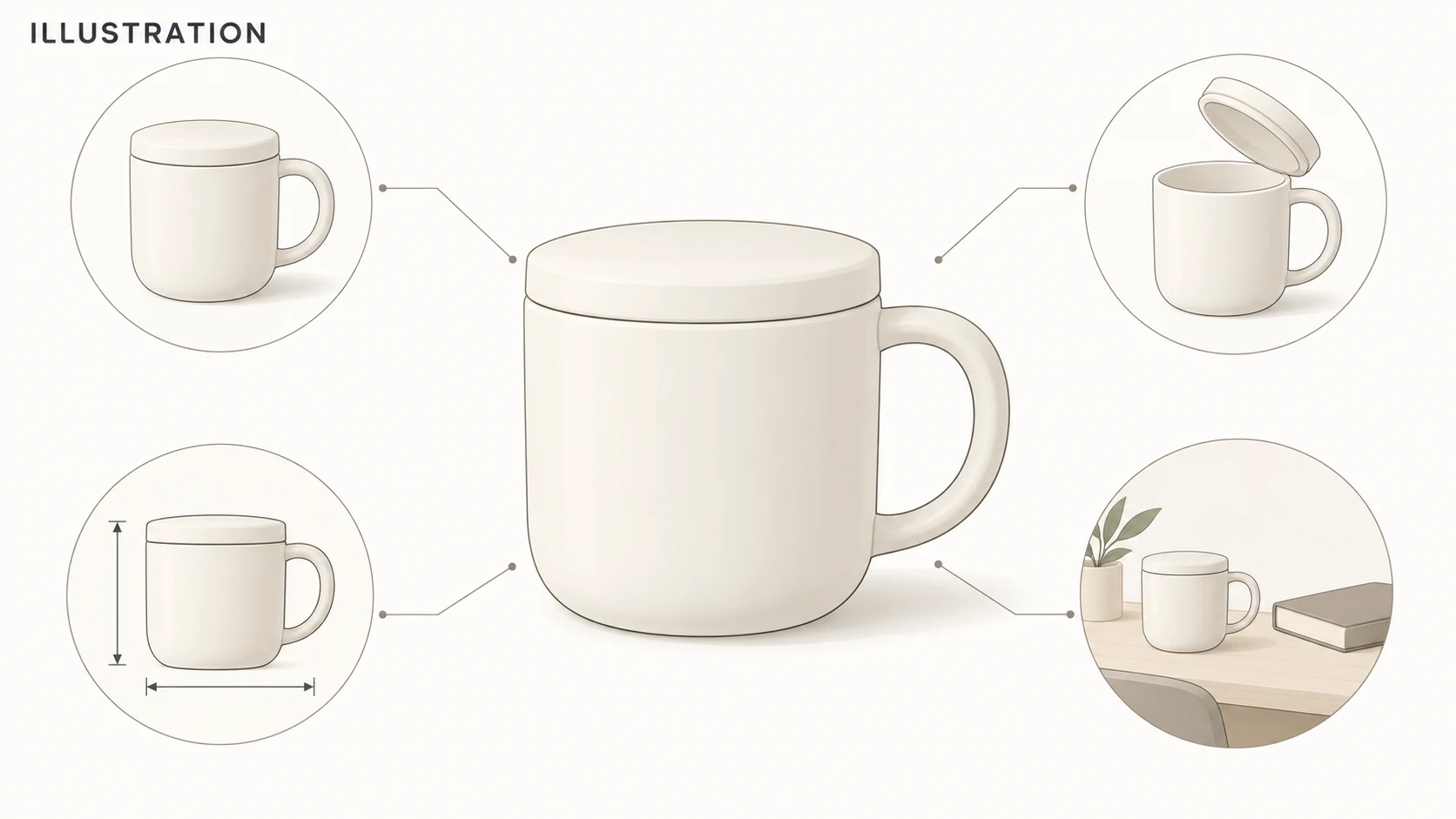
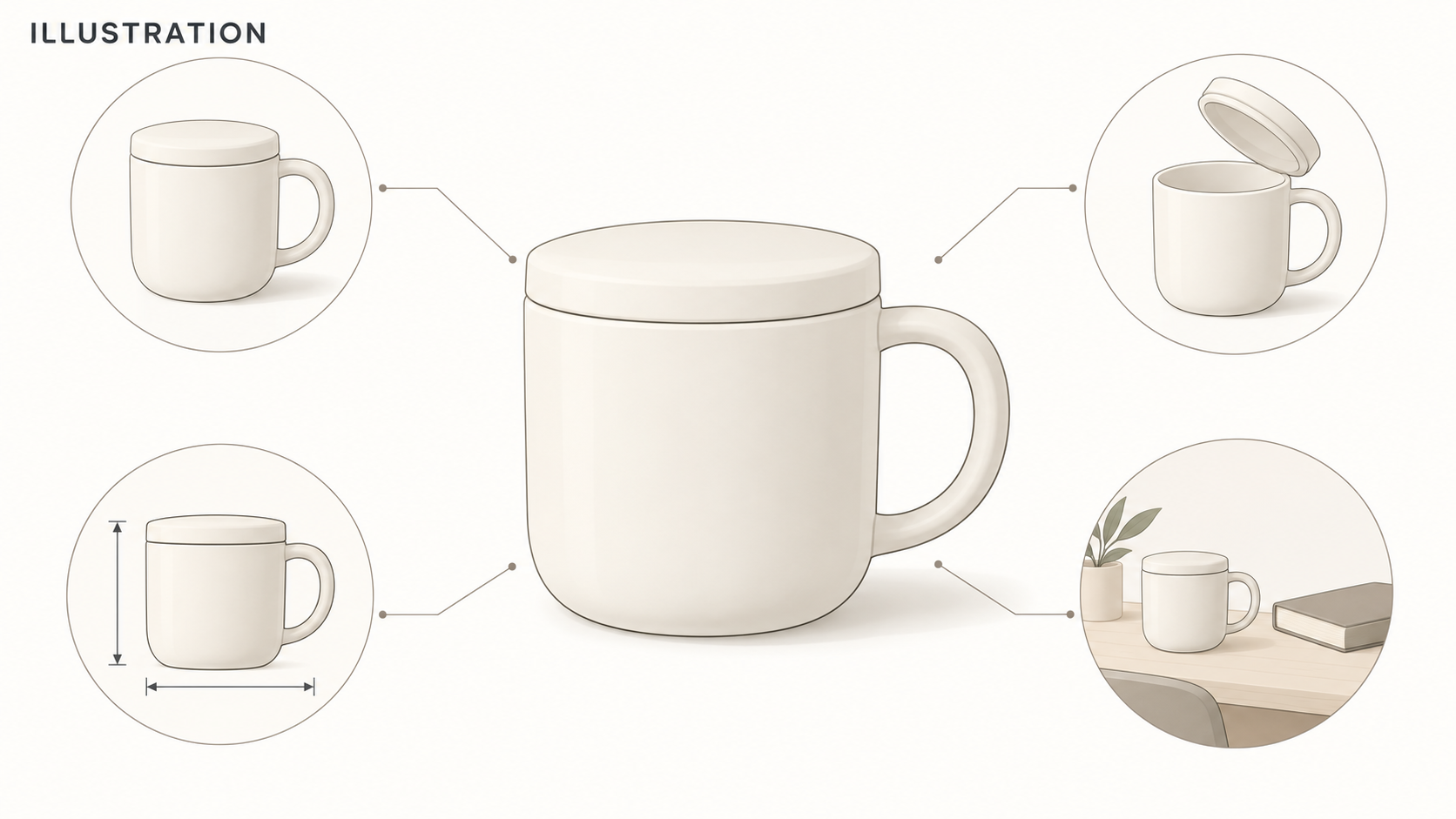
A folder full of photos can still be missing the one view that explains how a product opens. The problem is not necessarily too few pictures. It is that nobody defined what each image needed to show—or what would make it ready to deliver.
Build your product photography shot list with one verifiable image deliverable per row. “Photograph the mug” is a task description. A usable row identifies the SKU, actual variant, intended placement, and information that must be visible.
Choose the questions before the number of shots
Start with what a buyer still needs to understand about each SKU, then choose the views that answer those questions:
- Product identification: A primary image should make the item and its included contents clear.
- Construction: Add close-ups when a closure, connection, interior, or material detail matters to the decision.
- Size: Base dimension annotations on verified product measurements. Perspective and props provide context, not a substitute for measurement.
- Use: Add a context image when handling, positioning, or use is difficult to understand from an isolated view.
This is not a four-image requirement. One photo may answer several questions; a complex item may need several views. Add a deliverable when an unanswered question or an actual channel requirement justifies it.
Squareshot’s guide to product photography types helps distinguish individual, close-up, and lifestyle images. This shot list turns image purposes into trackable deliverables rather than reproducing that taxonomy. Check current official channel documentation separately for pixel dimensions, aspect ratios, backgrounds, and file requirements.
A copyable shot list
The following is a hypothetical project for one ceramic mug with a lid—not a shoot report. The SKU, people, filenames, and statuses are illustrative. The 350 ml capacity is part of the hypothetical product description, not a verified physical measurement.
| SKU | Actual variant | Image use | View / must show | Props and inclusion | Filename | Owner | Acceptance criteria | Status | Gap / next action |
|---|---|---|---|---|---|---|---|---|---|
| MUG-CRM-350 | Cream, 350 ml, with lid | Product-page primary | Front three-quarter; full body, lid, and handle | None; mug and lid included | MUG-CRM-350_main_01_v01.jpg | Photographer A | Match item and contents to physical product; no clipped handle; meet recorded channel specs | To shoot | Confirm channel specs |
| MUG-CRM-350 | Same | Construction detail | Top view, lid removed; rim and lid underside visible | None; mug and lid included | MUG-CRM-350_detail_01_v01.jpg | Photographer A | Rim and lid underside clearly visible; do not infer interior construction from a closed view | To shoot | Prepare open-lid arrangement |
| MUG-CRM-350 | Same | Dimensions | Side view suitable for height and overall width annotations | No scale prop | MUG-CRM-350_size_01_v01.jpg | Editor B | Labels match verified dimensions; readable text; key outline unobscured | Awaiting confirmation | Verified dimensions missing |
| MUG-CRM-350 | Same | Desktop context | Side view showing placement on a desk | Book is a prop, not included | MUG-CRM-350_context_01_v01.jpg | Photographer A | Props do not hide product; image and adjacent copy do not imply book is included | To shoot | Prepare book |
Replace the sample entries with your own product information. Keep each row tied to one deliverable. If one source photo needs two separately delivered crops, give each crop its own row and link both to the source file. Capturing a usable original is not the same as delivering every required placement.
Finish one SKU before expanding the list
Choose a SKU that represents recurring production challenges and complete a sample from capture through export. It need not be the easiest item. If every product in the range has a lid, use the sample to settle the open-lid view.
Review exports at their intended delivery dimensions, not just camera previews. Does the angle explain the construction? Is the product complete within the crop? Are annotations readable? Could a prop be mistaken for an included item?
Replace “looks good” with observable criteria. “Clear detail” can become “both rim and lid underside are distinguishable.” A dimension image is complete only after its labels have been checked against measurement records—not simply because numbers have been added. Leave unconfirmed channel specifications pending rather than inventing a universal value.
Record the sample file and approved positioning and framing requirements, then extend the plan to other SKUs. A different construction needs a revised requirement, not forced conformity to the sample.
Expand real variants, not invented ones
If cream and blue mugs are separate sellable variants, assign each to its real SKU. Recoloring one photo does not establish that another physical variant has been photographed and checked.
Shared dimension or usage images can reduce duplicate work, but only after confirming that they apply to the relevant SKUs. Record the shared file in each applicable row. Similar appearance is not evidence of identical capacity, accessories, or construction.
Use filenames as stable identifiers: SKU, purpose, sequence, and version. Keep the original and increment revisions to v02, v03, and so on. A file’s existence does not mean approval. The designated reviewer should check it before changing the row to “approved,” then record their name and review date.
Does the gap require a reshoot or an edit?
Ask whether the original contains enough real product information.
An unseen lid underside, an obscured handle, the wrong variant, or a missing physical item requires a reshoot or product confirmation. Do not label these gaps “fix in post”: that can turn unknown construction into an asserted product detail.
When an existing photo only needs background or composition adjustment, you can open the InkRoom image editor and provide the original plus an edit description. Available models and parameters depend on the current interface. Editing does not guarantee product fidelity, accurate text, or seamless outpainting. Compare the result with the original and, where needed, physical-product records; inspect details, edges, packaging text, and delivery specifications before updating the status. Editing is not a replacement for photographing missing views or real variants.
Write the next action in the gap field, not just “failed.” For example: “Reshoot top-down with lid removed—Photographer A” or “Adjust background, then recheck handle edge—Editor B.” Keep the previous version, register the revised file, and review whether it actually resolves the question assigned to that row.
Related articles and cases
- Sunglasses Product Photography: Lens Gradients, Temples, and Symmetry
Plan complementary views, separate lens gradients from lighting reflections, and review background edits without losing the product’s geometry, markings, or actual wear.
- Ceramic Product Photography: Glaze, Rims, Feet, and One-of-a-Kind Records
Plan photographs around what a buyer needs to see: the form, interior, handle joins, and foot. Use soft light to describe the surface, measure dimensions separately, and keep each unique piece linked to its original photographs.
- Watch Photography: Clear Dials, Honest Condition
Plan complementary watch photos, separate reflection problems from focus problems, and edit backgrounds without misrepresenting the watch.
- Product Photography Focus Stacking: When to Reshoot Instead of Using AI Sharpening
Capture overlapping focus coverage, align and blend real photographs, and use the source frames to decide whether a soft detail needs a mask adjustment or a reshoot.