Product Photography Lighting Setup: Compare Window Light, One Light and Two
Build a repeatable lighting setup by comparing the same product under window light, one light and two lights. Includes a setup log, material-specific troubleshooting and export checks—without a universal settings recipe.
·
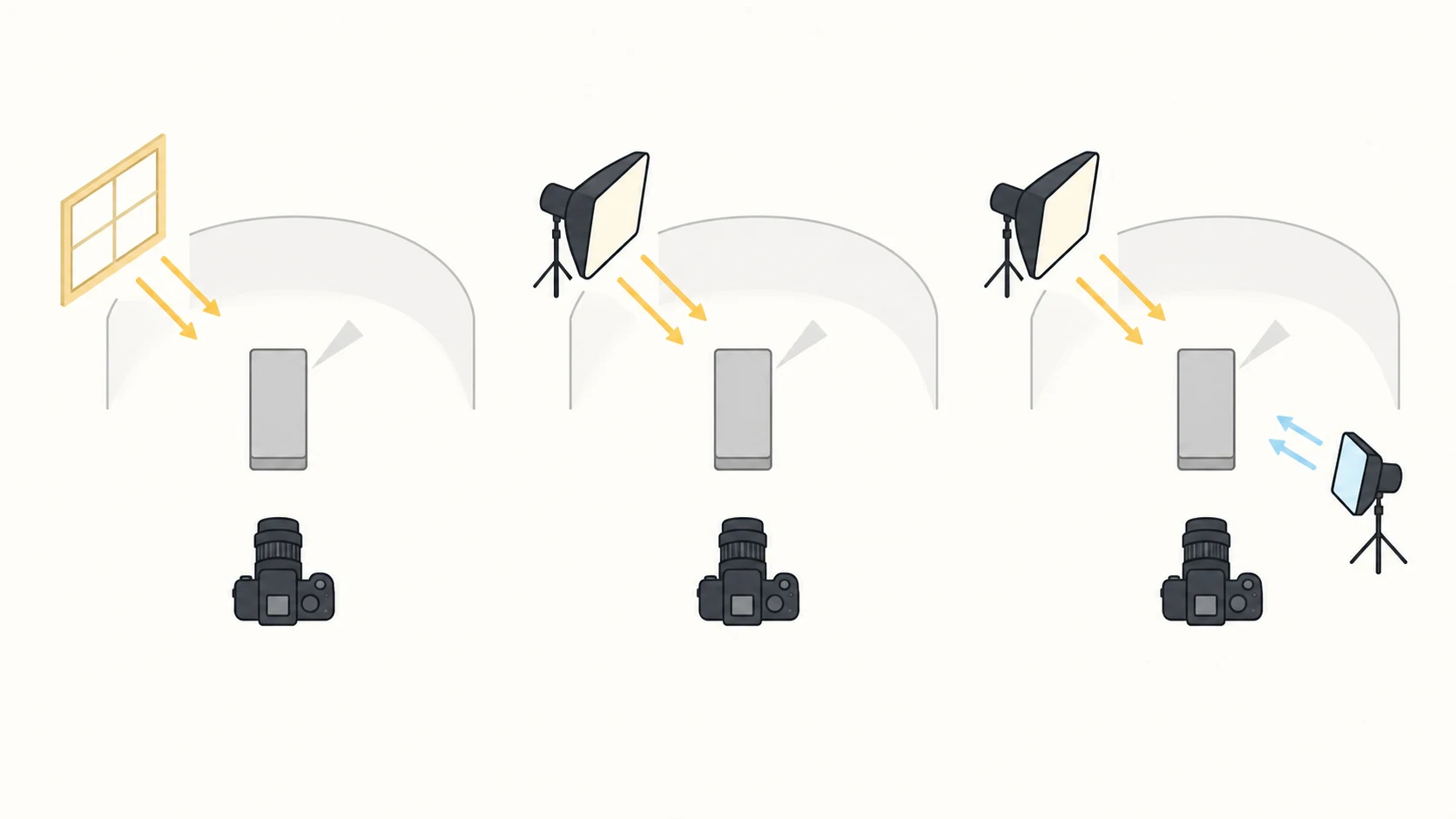
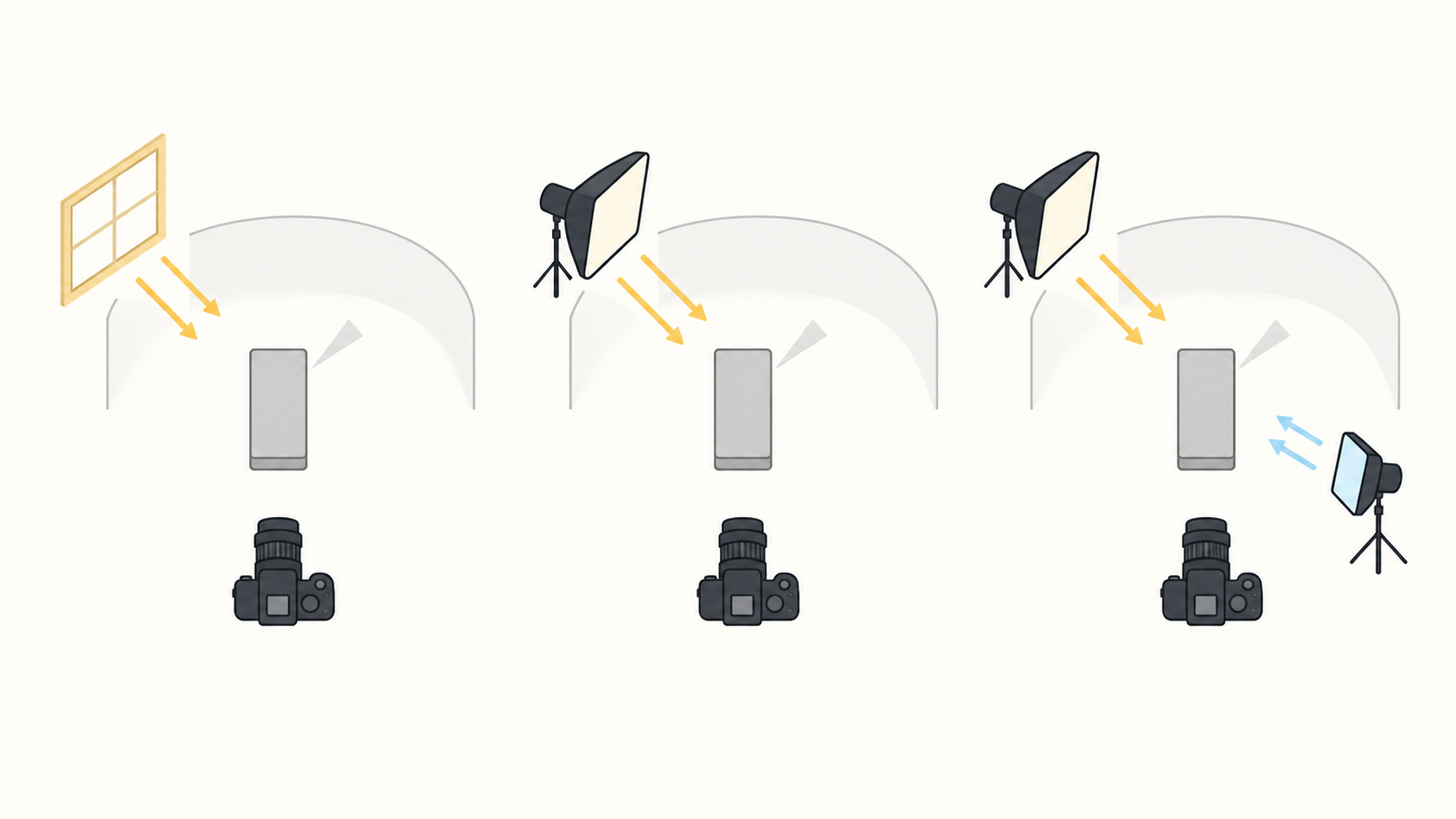
Do you need another light, or does the first one need to move? If you change the camera angle, exposure and background every time you move a light, it is difficult to tell what actually helped.
A useful product photography lighting setup starts with a small comparison: photograph the same item with window light, one artificial light and two lights, then keep the arrangement that meets the brief. The method below is a proposed workflow, not a reported test. Two lights are not assumed to win.
Give all three setups the same job
Choose one concrete objective, such as a readable label with visible shape on the side of the pack. Comparing three unrelated visual styles will not tell you whether another light is useful.
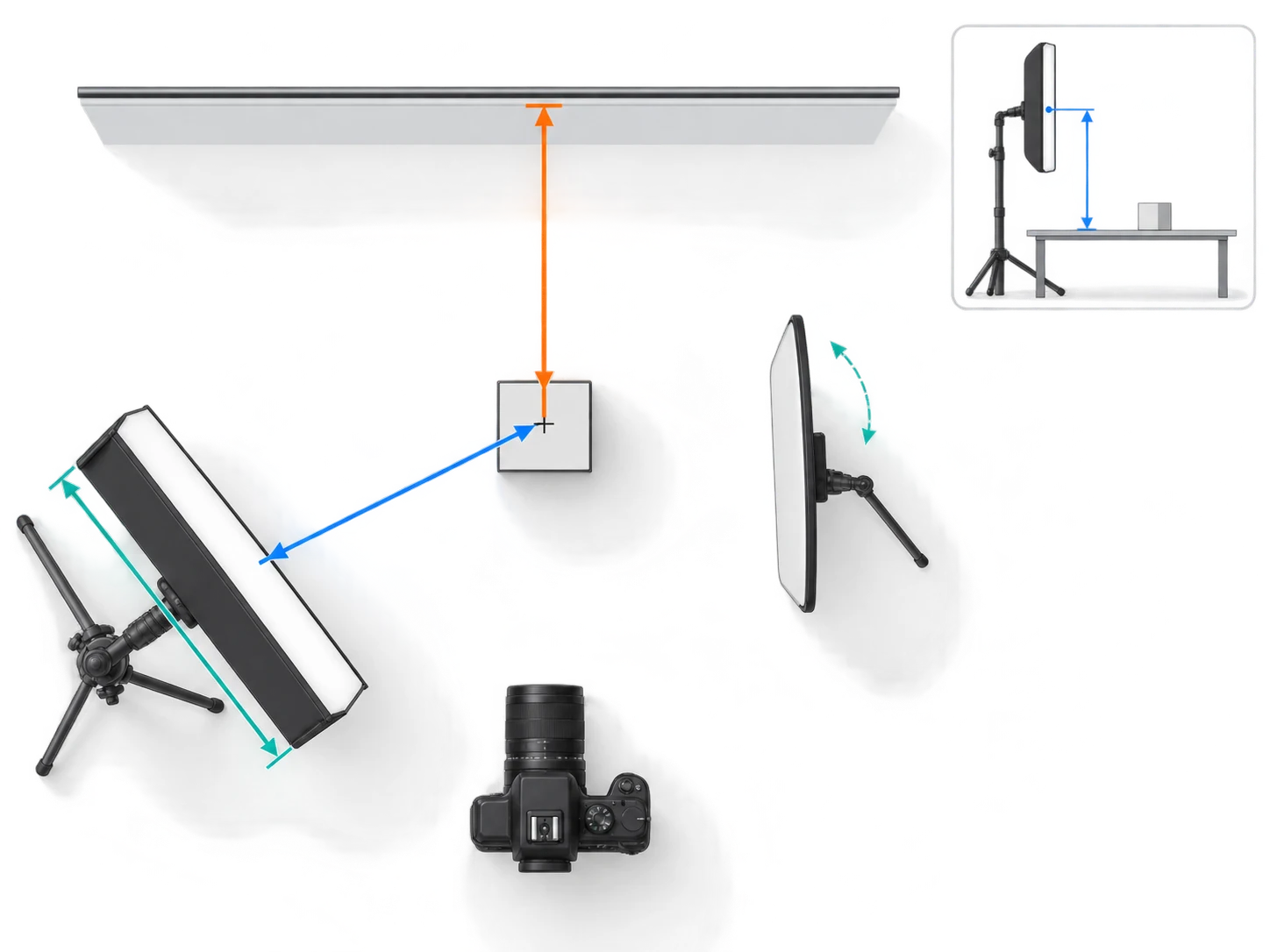
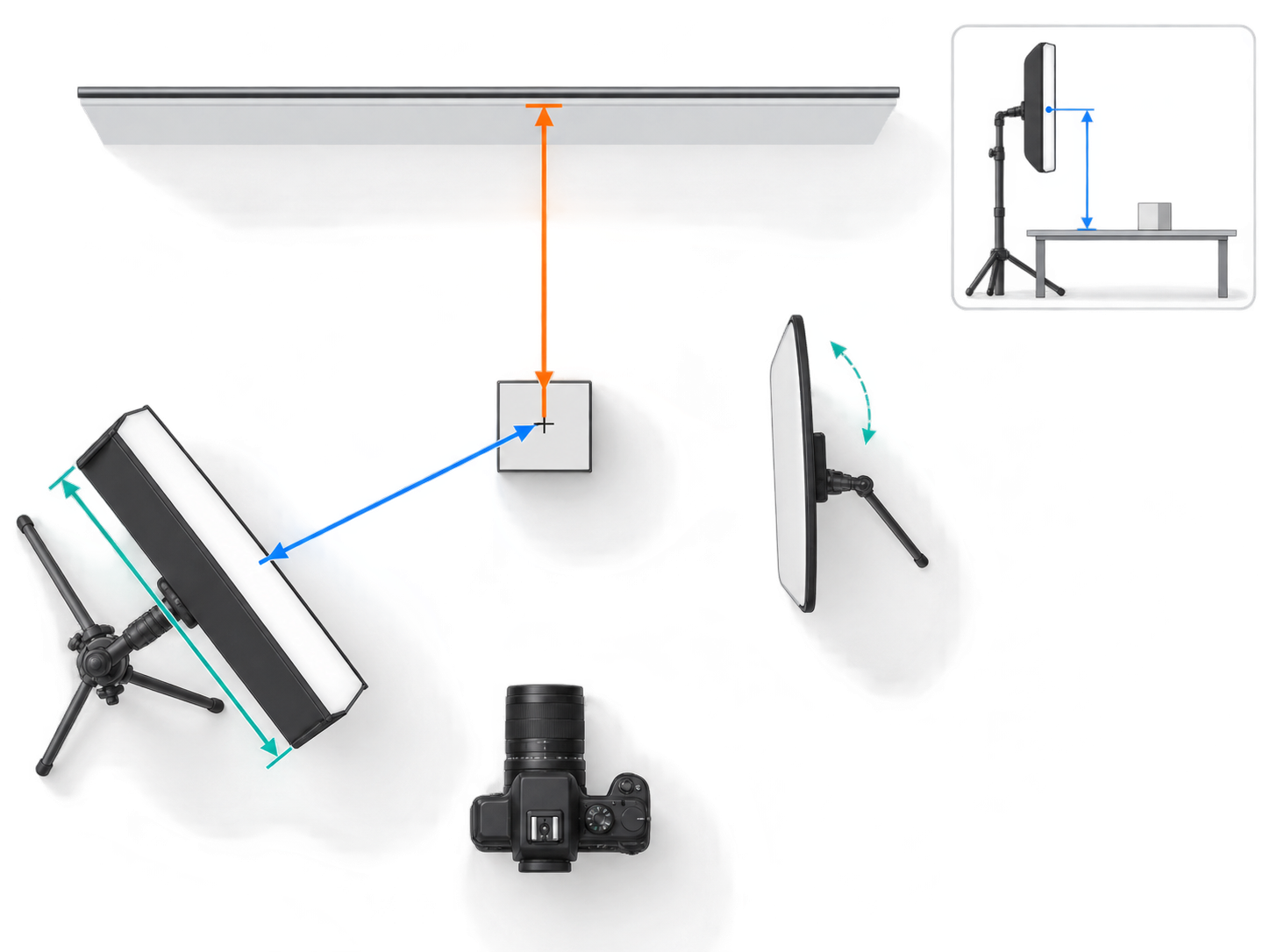
Mark the product and tripod positions. Keep the framing, focal length, camera height, focus point and background consistent. Use the product center as your reference, with the camera direction defined as the front. Record each light's side, height above the table and diffuser-to-product distance. Record product-to-background distance separately, measuring to the upright part of the backdrop.
Alan Ranger's product photography guide recommends consistent equipment and distances, and describes reflectors as a way to fill directional light. This workflow turns those principles into a handover record rather than following the guide's equipment-shopping sequence.
Separate two kinds of comparison:
- Testing a lighting change: within one lighting condition, hold camera exposure steady and move only one light or reflector. Look for changes in shadows, reflections and highlights.
- Comparing usable images: window light and artificial light may have different brightness levels. Adjust exposure for each setup to bring the product's midtones reasonably close, record the change, then compare readability and shape. A brighter image is not automatically better lighting.
Avoid mixing window light with room lighting where possible. Make a new gray-card or neutral-reference frame when changing the light source, and record white balance. A reference helps correction; it does not certify exact product color. Keep RAW files if supported. On a phone, lock exposure, focus and white balance where possible, and note any controls you cannot lock.
Start with a window, then give the second light a purpose
Window light: watch the shadows and the weather
Place the product near a window with light arriving from the front-side area. Around 45 degrees is a trial position, not a rule. If direct sun produces hard-edged shadows, try a sheer curtain or suitable diffusion material and check for a color cast.
Take one frame without fill, then add a white reflector on the shadow side. Keep camera exposure unchanged. Does the darker side become readable, or does the object lose too much shape? Record the time, weather and curtain arrangement. If cloud cover changes substantially, repeat the reference frame rather than treating the window as a constant source.
One light: replace the window with a controllable source
Block or switch off other sources that noticeably affect the image. Start with one diffused light from a similar front-side direction. Record the size and orientation of the emitting or diffusion surface, not just the light's model.
Softness depends on the apparent size of the source from the product's position; moving a light closer does not inherently make shadows harder. Moving it also changes brightness, reflection shape and coverage. Inspect those changes before readjusting exposure. Use diffusion accessories suitable for the fixture, and keep loose paper or fabric away from hot lights.
If the shadow side needs detail, try a reflector first. When that solves the problem, a second powered light may add no useful benefit.
Two lights: fill the product or light the background
Keep the first light in place. Give the second light just one job for the initial test:
- Fill the product's shadow side. Take a frame with the second light off, then on. Retain some direction from the key light. If you introduce a distracting reflection or a second shadow, adjust the fill's position and output first.
- Light the background separately. Try this when the product already looks right but the background needs attention. Watch for spill that washes out the product edge or creates an unwanted rim.
Do not move the key, fill and product in the same trial. Another light should fix a specific shortcoming, not make every part of the frame equally bright.
Keep a setup log someone else can rebuild
This is a blank template, not measurement data. Change one main variable at a time and add a row or version rather than overwriting the previous arrangement. Once you choose a setup, take a behind-the-scenes reference photo showing the camera, product, lights and background.
| Record | Window W | One light L1 | Two lights L2 |
|---|---|---|---|
| File, product and objective | To fill | To fill | To fill |
| Camera position, focal length and focus point | To fill | To fill | To fill |
| Key direction, height, diffuser size and distance | To fill | To fill | To fill |
| Reflector or second-light position and purpose | To fill | To fill | To fill |
| Product-to-background distance | To fill | To fill | To fill |
| Exposure, white balance and reference-frame file | To fill | To fill | To fill |
| Ambient light; time and weather for window light | To fill | To fill | To fill |
| Shadow direction, edge softness and dark-side detail | To fill | To fill | To fill |
| Label glare, outline issues and next adjustment | To fill | To fill | To fill |
A reusable arrangement must be rebuildable at the next session, not merely produce one attractive frame. Recheck it when the next product has a substantially different height or surface.
Different surfaces need different checks
| Symptom | Check first | Suggested single change |
|---|---|---|
| Glare hides text on a reflective pack | Whether the source reflection crosses essential text; whether the camera or clutter is reflected | Move or rotate the diffusion surface; use a black card where needed to block an unwanted environmental reflection |
| A white product merges into a pale backdrop | Whether the edge lacks tonal separation or product highlights are clipped | Confirm highlight detail, then try a different key direction or more product-to-background distance rather than simply increasing brightness |
| A dark product looks gray or loses all detail | Whether excessive fill is washing out its appearance or the shadow side lacks information | Remove fill for a reference frame, then restore it gradually; try a black card to reduce environmental reflections if needed |
These are diagnostic starting points, not complete material recipes. A histogram and highlight warnings help identify clipping, but inspect the product itself at full size: a bright background and missing label text are different problems. A polarizer is not a universal cure for reflective surfaces; check its effect on color and material appearance.
Inspect the capture before editing and export
Compare labels, contours and shadow detail at full size, then check readability at the intended display size. Keep the setup that meets the brief and can be repeated. Save the originals, reference frames and setup log before post-production.
If an existing photo still needs background work or a composition adjustment, you can submit the image and an edit description through the InkRoom image editor. Available models and parameters depend on the current interface. It is not a lighting-validation tool and does not guarantee unchanged subjects, text, structure or dimensions. Compare edited results with both the original and the physical product, including its color and labeling.
Use the destination platform's specifications for export rather than treating one pixel dimension as a universal standard.
Production checklist
- Compare the result with the physical product and original capture: check label text, model details, color and product structure.
- Inspect focus, edge halos, retouching artifacts, clipped highlights and shadow detail at full size; check readability at the final display size.
- Verify dimensions, aspect ratio, crop, margins, format and file size against platform requirements. sRGB is commonly used for the web; follow the destination specification.
- Reopen the exported file to check it. Retain originals, reference frames, the lighting log and a separate delivery copy.
Related articles and cases
- Product Photography Color Accuracy: Gray Cards, White Balance, and Delivery Review
Not every product color error is a white balance problem. Build references for each color variant, check mixed lighting and exposure first, and review background edits separately from the product’s own color.
- Wood Product Photography: Show the Grain, Identify the Piece
A practical approach to photographing wooden bowls and small wooden objects: choose informative views, separate reflection checks from angle changes, and keep each export tied to the correct item's original photographs.
- Leather Product Photography: Grain, Stitching, and Honest Wear
Photograph wallets, belts, and other small leather goods with lighting that reveals material without exaggerating wear. Plan connected detail views and check edits against the original photographs.
- Electronics Product Photography: Screens, Ports, and Product Accuracy
Plan screen-on and screen-off records, readable port details, and consistent variant photos. Diagnose screen artifacts without relying on universal settings, and keep background editing separate from product verification.