Packaging Photography: Show the Structure, Printing, and Actual Contents
Choose useful views for cartons, pouches, and labels, handle foil and window reflections, and check finished images against the physical package and shipping contents.
·
A clean, bright package photograph can still tell the wrong story. Foil may look attractive while glare hides the size. A carefully arranged accessory may look like something the customer will receive, even though it is only a prop.
Good packaging photography should make the pictured package, version, and contents consistent with the item being sold. The approach below is a suggested shooting and delivery method for real product images, not a report of a tested setup.
Decide which sellable item the photograph represents
Before shooting, match the sample to its SKU, packaging version, quantity, and packing list. The name on the front is not enough: capacity, language, or bundle contents may differ under the same product name.
Separate styling materials from included items. For an unboxing view, first photograph only what the customer actually receives. Add a styled scene separately if it helps. A conditional gift should not appear to be a standard inclusion; explain the condition beside any image that shows it.
Keep old and new packaging versions distinct. If both ship, explain the actual fulfillment arrangement rather than combining a new front panel with an old side panel. You can replace an accidentally damaged sample with an intact sample of the same version and reshoot. If the listing sells damaged or older packaging, however, do not retouch away condition details relevant to that sale.
Give each view a specific job
There is no need to give every package the same number of photographs. Add a view when it answers something the front image cannot.
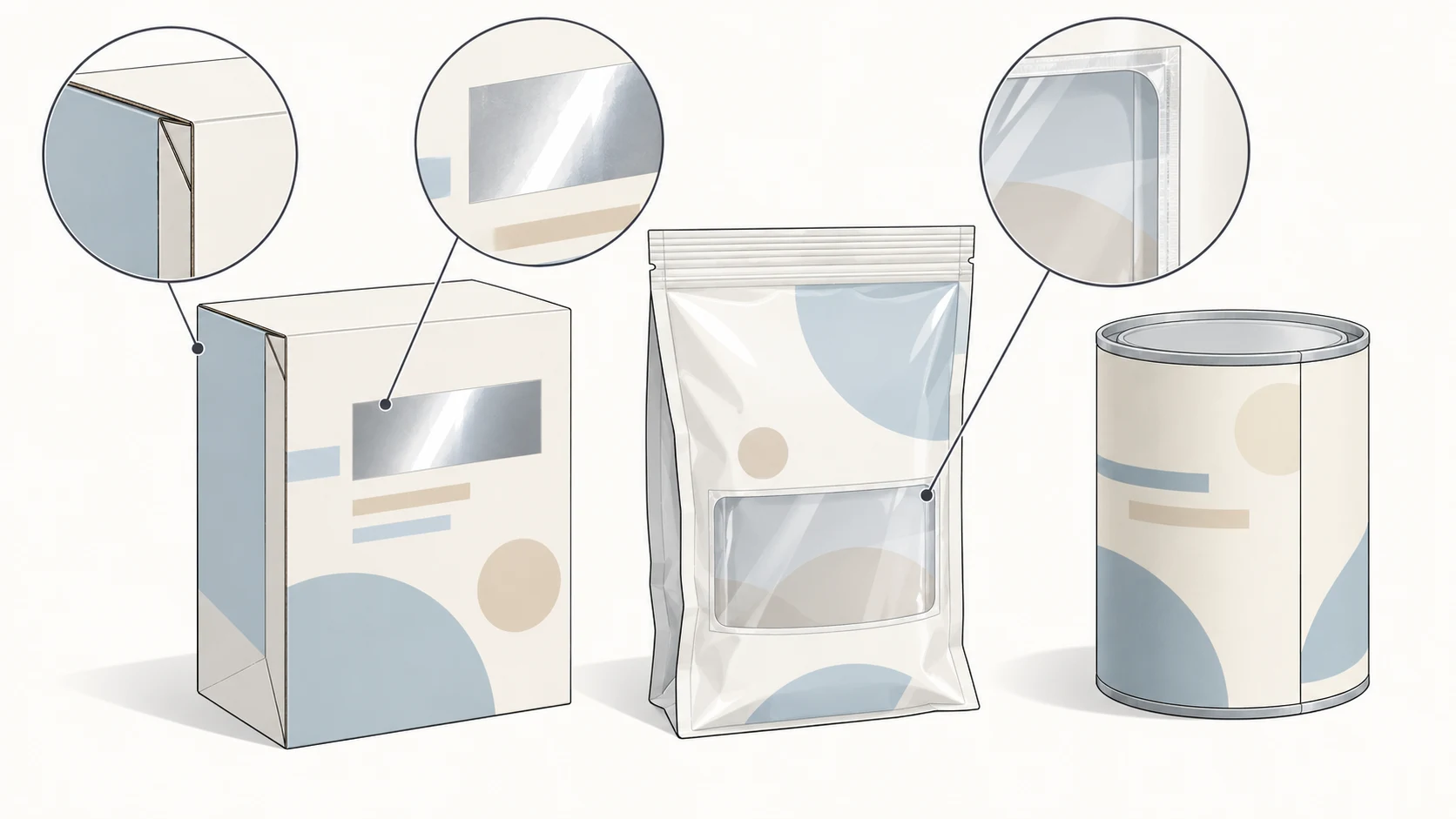
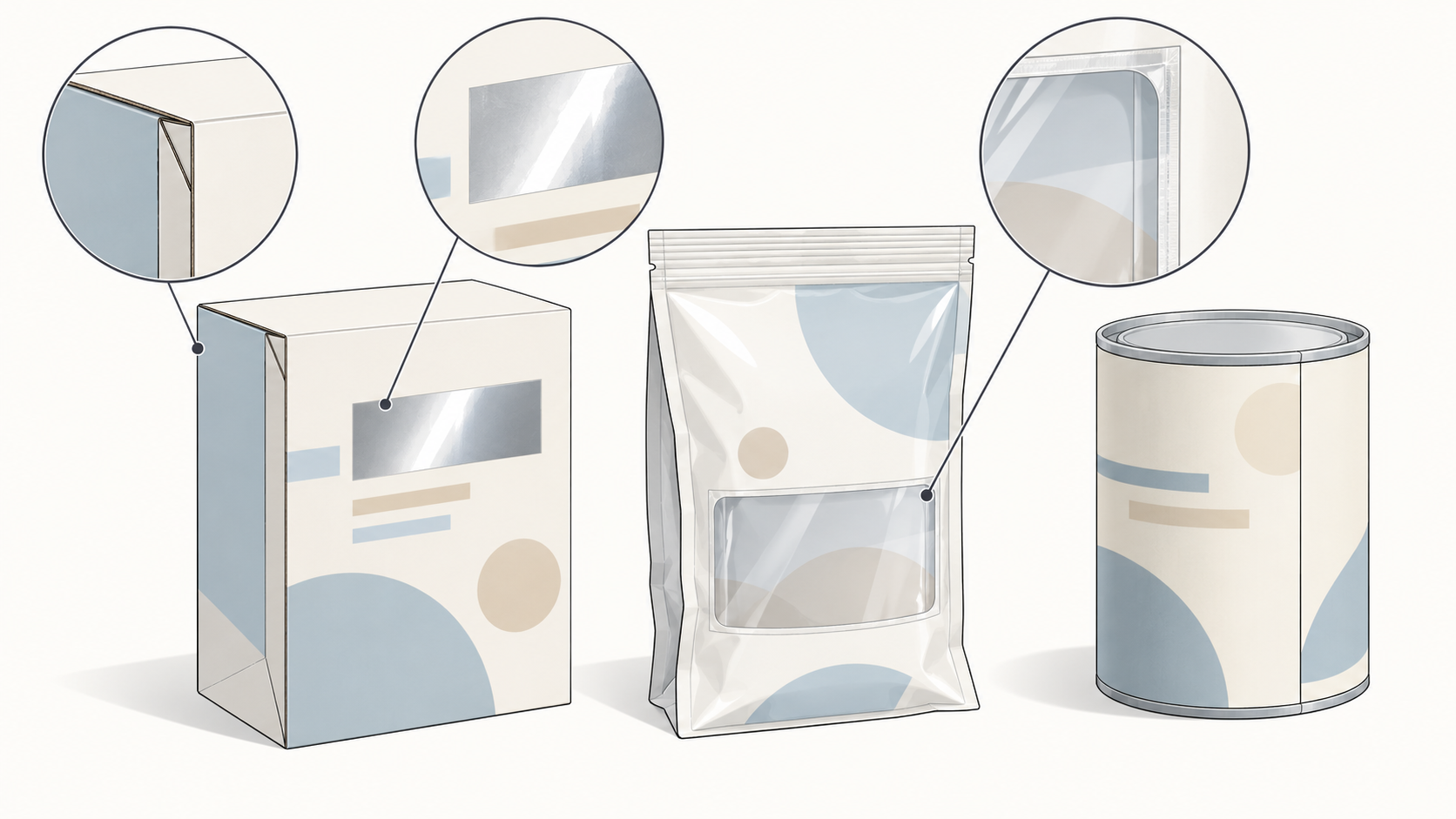
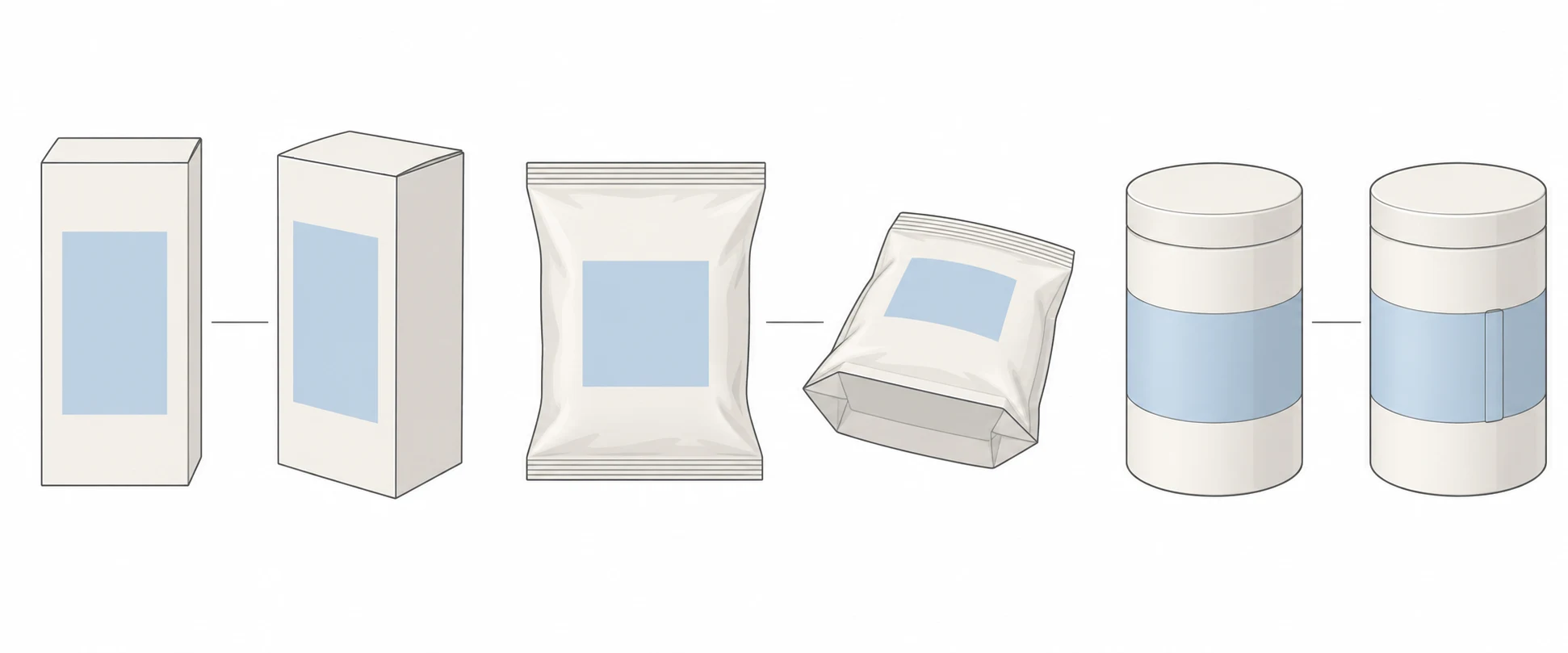
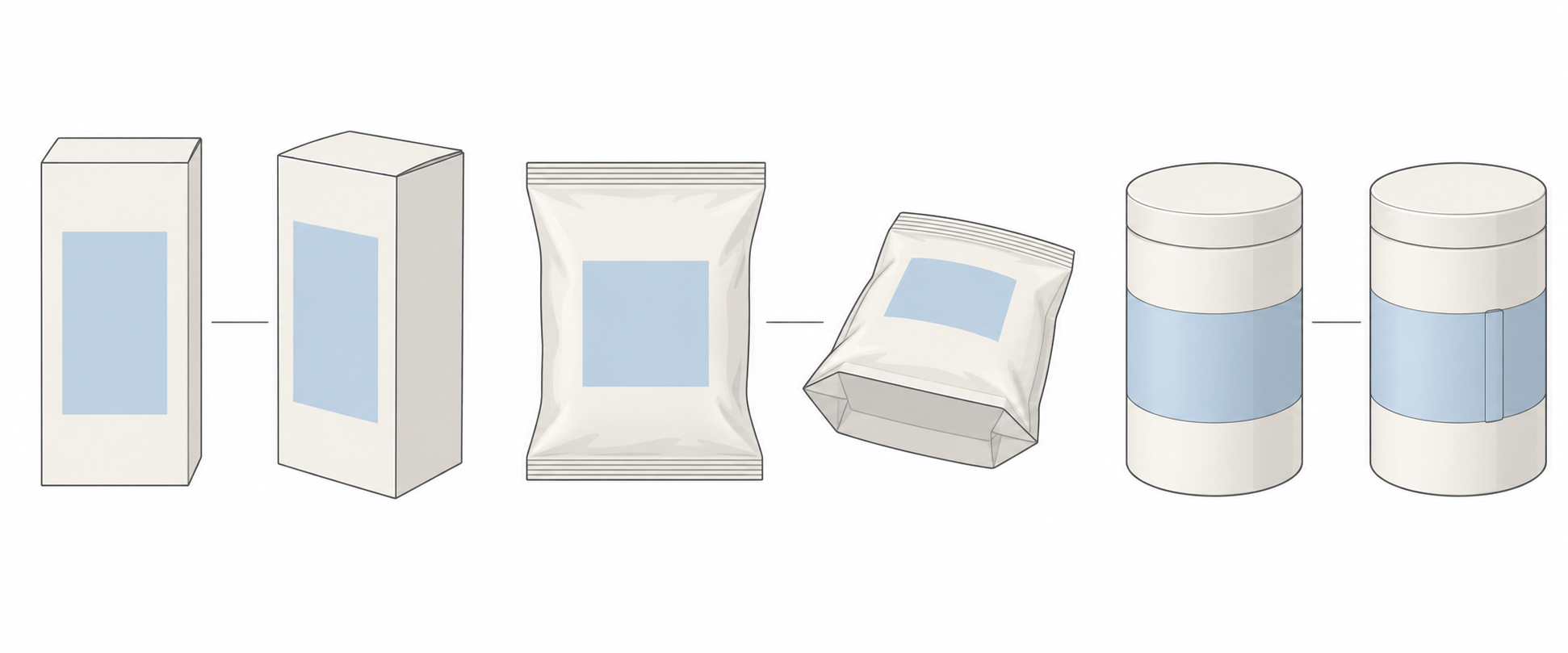
- Cartons: Use the front for identity and size information. A side or angled view can show depth, folds, and the opening. Add a top or bottom detail when the closure condition matters to the listing.
- Pouches: Keep the natural volume in the front view. Show the side or base when it explains the gusset. Add zipper, seal, or tear-notch details when relevant; do not flatten every crease until the pouch resembles an artwork file.
- Labels: Photograph the main information legibly, then add the seam, wrap boundary, or text hidden by curvature. If one view cannot show the full label, use separate views instead of stretching it.
For the main printed face, start with the camera facing it squarely to limit unnecessary perspective distortion. Use another angle to explain structure. Tiny text and package depth do not have to be demonstrated equally well in a single frame.
Move the reflection, not the printed information
Action Packaging’s photography guide recommends getting the lighting right during shooting to reduce editing work later. For packaging, start by checking whether highlights obscure lettering, seals, or window edges—not just whether the background looks bright.
For foil printing, try small changes to the light, package, or camera position and inspect the important wording after each change. Keep a readable view. If you also need to communicate the foil finish, add a detail from another angle rather than forcing one photograph to do both jobs.
A clear window presents two separate questions: what shape is the window, and what can actually be seen through it? Do not brighten or reconstruct hidden contents to make them appear fully visible. If reflections prevent a useful combined view, photograph the exterior and the actual unpacked contents separately.
Creases are not automatically defects. Carton scores, pouch seals, and label seams can explain construction. Tidy and reshoot a sample when a problem is temporary and shoot-related, rather than removing meaningful structure in editing.
Match each check to the right evidence
This is a suggested handoff method, not an industry certification standard. Use the physical sample to confirm the current item, the matching artwork to help identify printing errors, and the packing list to establish what is sold. Resolve version conflicts before retouching.
| What to check | Compare against | Look for in the finished image | If something is wrong |
|---|---|---|---|
| Package structure | Same-version sample and original photograph | Changed flaps, folds, seals, windows, or label placement | Revert structural edits; reshoot if the original is unclear |
| Printing and letterforms | Physical sample and matching artwork | Missing or altered names, quantities, units, characters, or marks | Do not ask AI to invent letters or certification marks; verify and reshoot or revert |
| Color | Same-version sample and a color reference recorded during shooting | Different variants or versions edited into the same color | Compare under consistent viewing conditions; do not promise identical appearance on every screen |
| Included contents | SKU packing list and actual packed items | Incorrect quantities, accessories, or gift conditions | Remove non-included props or distinguish and explain them clearly |
A QR code should not pass because it merely looks convincing. Preserve the photographed code rather than regenerating it with AI. If the delivered image is intended for scanning, test the final export and verify the destination information. A successful scan on one device does not establish universal reliability.
Keep post-production tied to the original
If you already have a photograph and need background or composition adjustments, you can submit it with an editing description in the InkRoom image editor. Available models and parameters depend on the current interface configuration. This is not a guarantee that the subject, structure, or text will remain unchanged, and it is not a substitute for documenting the real product.
Describe a limited edit—for example, changing the area outside the package while retaining the existing package. That instruction expresses intent, not a guaranteed result. Compare the export with the original and the physical sample, then use the appropriate evidence in the table. If text becomes unclear, a mark changes, a fold disappears, or window contents are invented, revert or reshoot rather than asking AI to guess again.
Retain the original photograph and its packaging-version association with the delivery. The next person replacing an image should be able to establish which actual item it represents.
Related articles and cases
- How to Photograph Black Products on a Black Background
Separate a black product from a black backdrop without turning it gray. Control edge light, shadow texture, and reflected highlights as distinct parts of the photograph.
- White on White Product Photography: Keep Edges and Texture Visible
A brighter background should not erase a white product. Use a subject-only reference frame and a separate background-light comparison to find spill, protect texture, and inspect the exported image.
- Metal Product Photography: Show Polish, Brushing, and Real Wear
Shape reflections with diffusion, white cards, and black cards, then check that lighting and editing have not hidden the product’s actual surface condition.
- Glass Product Photography: Clear Edges, Honest Transparency
Make clear cups and bowls readable with bright-field and dark-field lighting. Learn what to check in the rim, walls and reflections—and what not to invent during editing.