How to Photograph Furniture: Proportions, Straight Lines, and Material Detail
A practical furniture photography guide for small teams: give set views, individual pieces, and detail shots separate jobs, then plan camera position, safe handling, lighting, and optional background edits around an accurate product record.
·
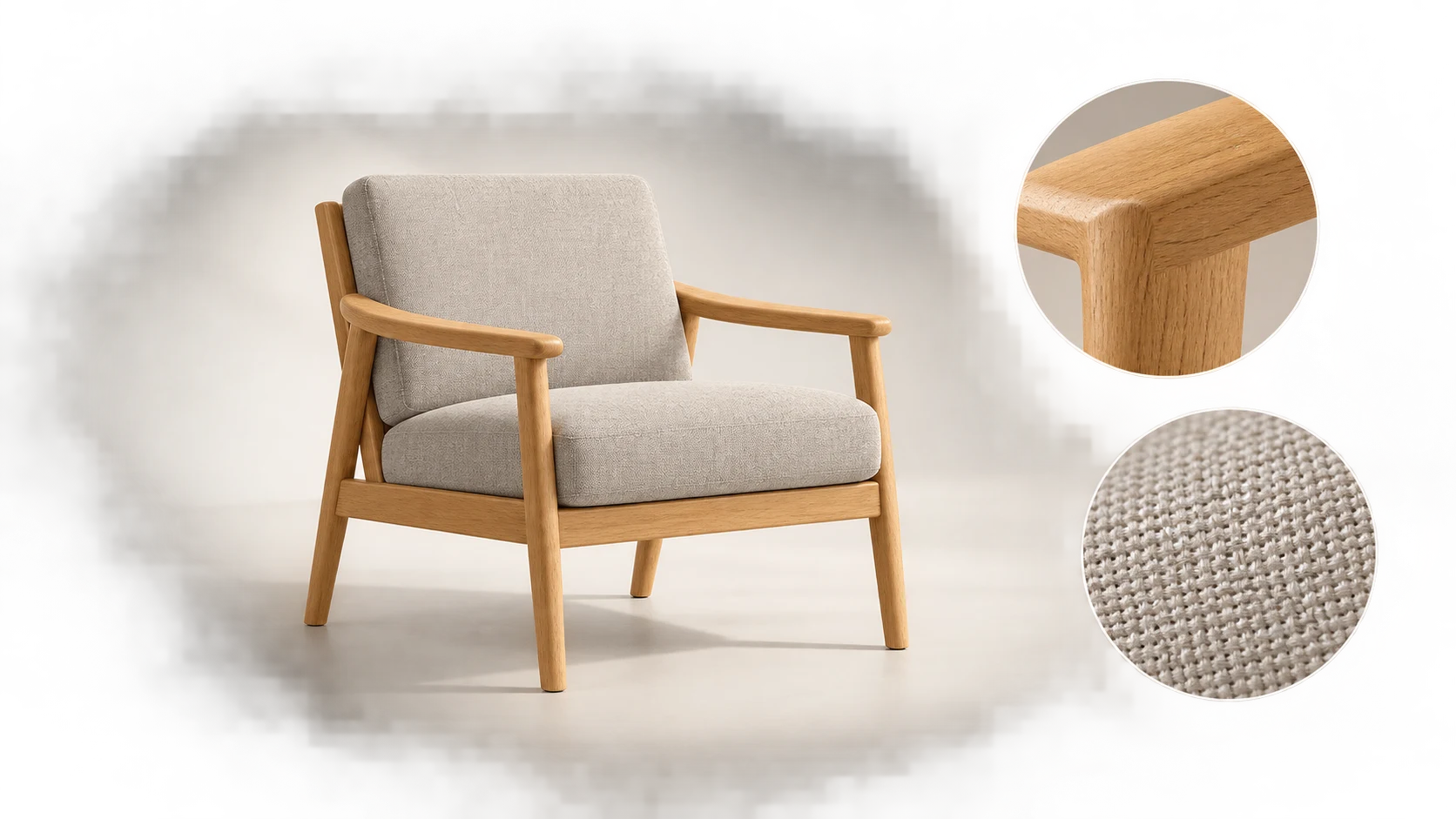
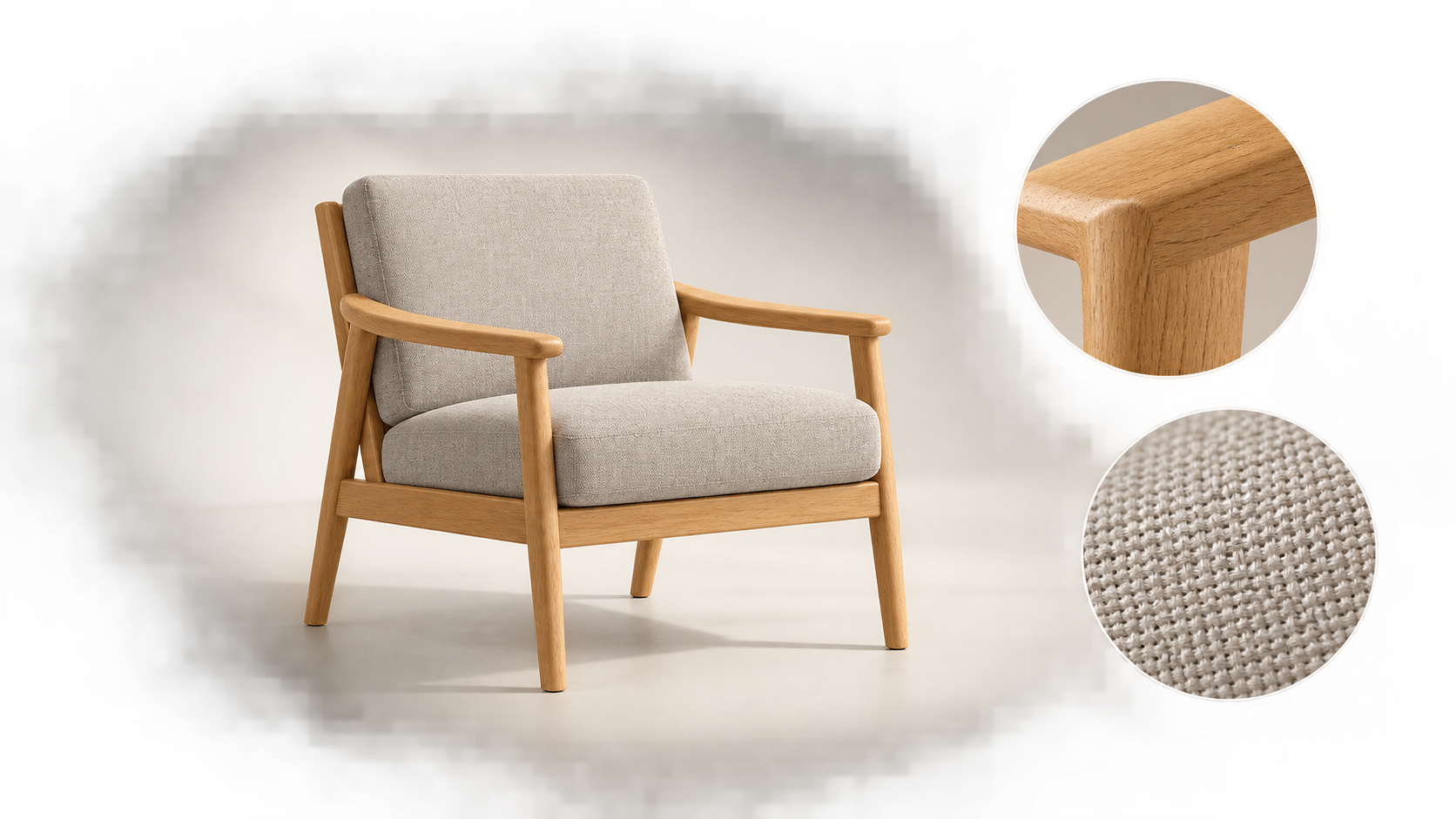
A convincing room photograph does not necessarily explain the furniture in it. Cushions can hide an armrest, a coffee table can obscure sofa legs, and a close wide-angle view can exaggerate the depth of the nearest seat. If you are working out how to photograph furniture, start with what a buyer needs to see—not how much styling you can fit into the frame.
The approach below is a suggested workflow, not a report of a tested shoot. Use photographs to show appearance; use measurements or confirmed specifications to state dimensions.
Give each photograph a specific job
One image should not have to explain the collection, every individual structure, and the upholstery weave. PhotoRobot’s furniture photography guide makes the useful distinction between seeing a collection and inspecting its individual pieces. A small team can address that need with still photographs, without adopting an industrial turntable workflow.
| Image job | Suggested view | Misunderstanding to prevent |
|---|---|---|
| Show the collection | A set view with clear spatial relationships | Props or other furniture appearing to be included |
| Explain an individual piece | Unobstructed front and three-quarter views | Hidden arm depth, back shape, or leg construction |
| Explain construction | Relevant rear views, visible underside areas, or connections | Important structures being omitted for appearance alone |
| Show surface detail | Separate wood, fabric, and hardware close-ups | A distant crop standing in for readable detail |
This is not a fixed shot count. An open bookshelf and a sofa with rear connections need different coverage. State what the set includes in accompanying text as well.
Treat straight lines and proportions as different problems
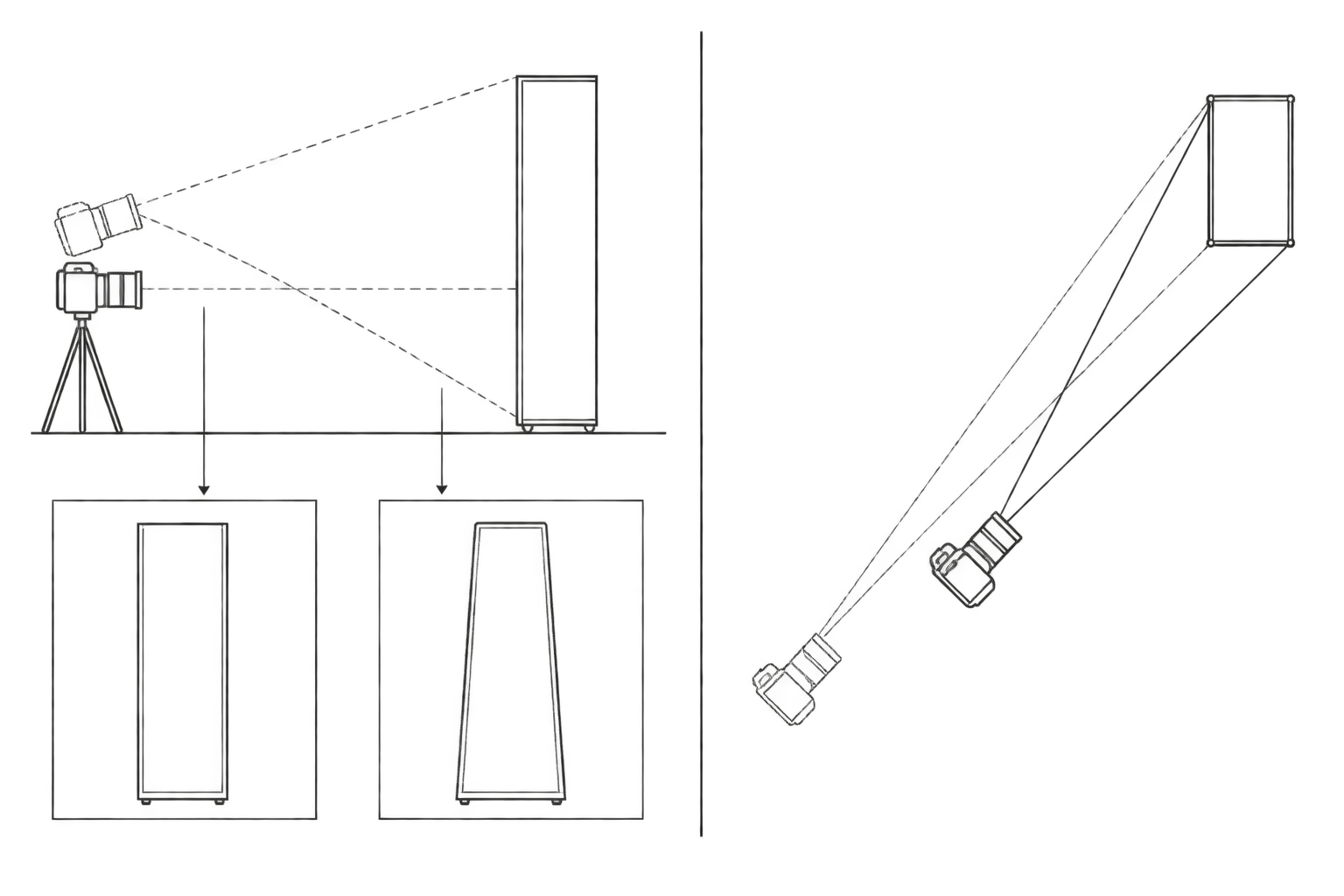
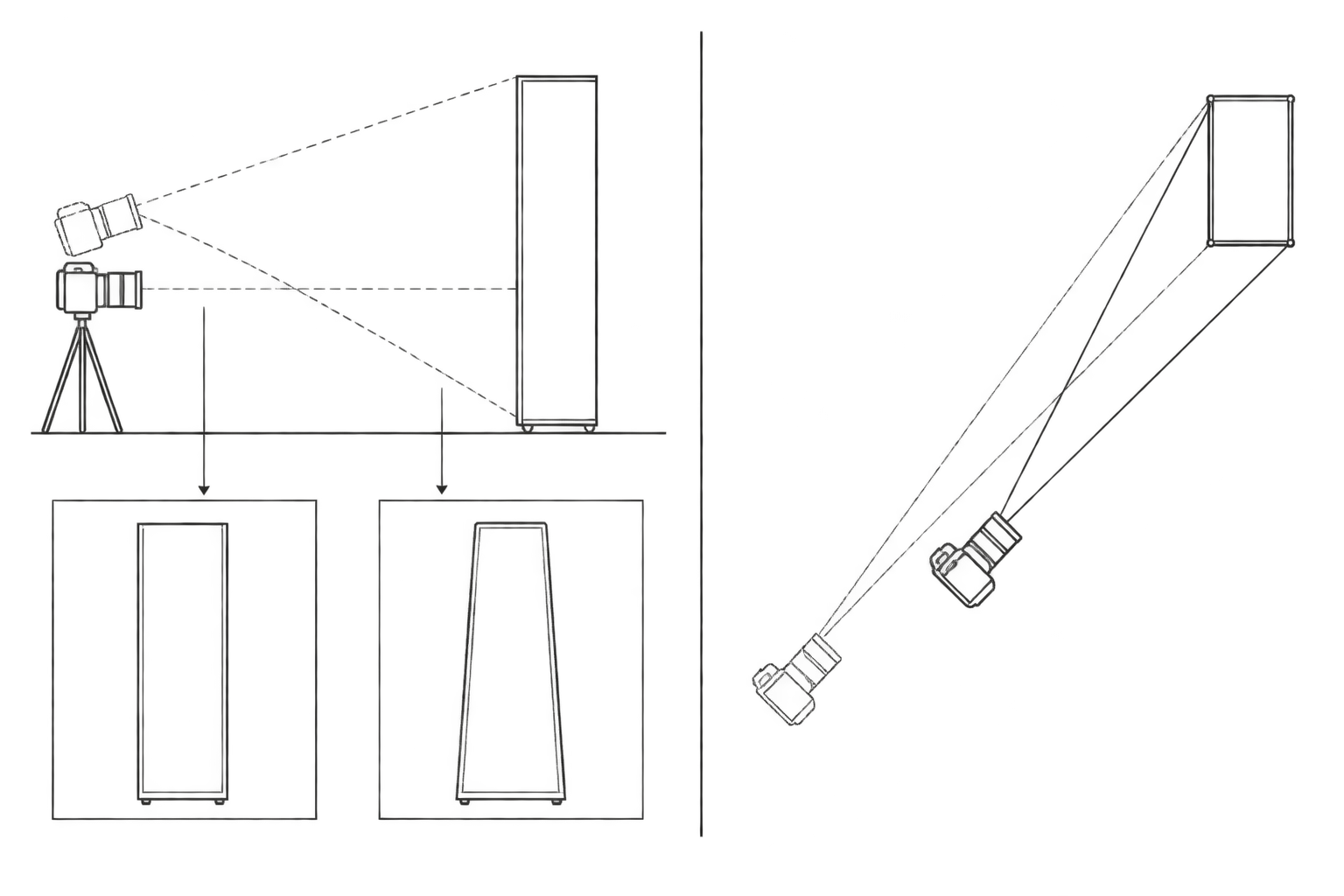
Begin with camera alignment. Turn on a grid and check cabinet edges, table legs, or a reliable vertical in the scene. Keep the camera level where possible. Tilting upward to fit a tall cabinet can make parallel vertical edges appear to converge. Try changing camera height and distance before relying on perspective correction.
Exaggerated proportions are a separate issue. When the camera is close, the nearest armrest or table corner appears larger relative to the parts farther away. If space permits, move back first, then choose a focal length that frames the piece. Changing lenses without changing position does not remove close-view perspective.
The same applies to phones: create working distance rather than defaulting to an ultrawide camera. If you cannot step back, consider another location or additional views. Do not treat a visibly exaggerated room view as dimensional evidence. Leave framing margin if perspective correction may be needed, because it can crop the image.
Plan the space around camera access and safe movement
Choose the furniture position and the direction in which the camera needs to retreat before placing the backdrop and lights. A sofa fitting into the room is only part of the problem. Check doorways, turning space, walking routes, and light stands too.
Remove and label loose components when they can be safely detached. Protect corners, contact surfaces, and the floor. Use enough people and suitable handling equipment for heavy or unstable pieces; do not tip or drag furniture alone just to change the view. Follow the manufacturer’s cleaning instructions rather than polishing or steam-treating every surface.
Once the view works, mark the tripod position and furniture orientation with floor-safe markers. Record the product identifier, camera height, focal length or phone camera, light positions, and confirmed dimensions. Comparable pieces benefit from consistency, but a tall cabinet and a low stool need not share one camera height.
Photograph materials as subjects of their own
Take an overall frame to check exposure and reflections, then adjust the lighting for details. A large, soft source is a useful starting point, but removing every shadow can make texture and shape harder to read.
Wood: capture a close view that shows the grain direction. If finish reflections obscure it, change the light or camera angle rather than simply darkening the entire image. Do not retouch natural grain and variation into artificial uniformity.
Fabric: show the weave separately from seams, piping, or stitching. Gentle side lighting can reveal relief; very low, raking light may exaggerate it. For pile fabrics, note the direction of the nap so that directional shading is not mistaken for a different color.
Hardware: preserve edges, connections, and the finish. Move reflections away from the feature being explained. If an inscription, model marking, or control matters, photograph it clearly rather than asking an editing tool to invent unreadable content.
Avoid mixing light sources with different color temperatures where practical. Photographing a neutral reference card under the same light and keeping white balance consistent can support later comparison, but cannot guarantee identical color on every screen.
Make the set and individual views agree
After the set view, photograph pieces or modules that were obscured. Link overview and detail files with the same product identifier, and distinguish styling props from included items. Place confirmed dimensions beside the images where useful; do not infer furniture size from a vase, a room, or an AI-generated setting.
When selecting images, check the originals for cropped edges, hidden connections, plausible floor contact, and accidentally removed visible legs. Verify the total leg count using other views and specifications when needed. Not every leg has to be visible from a single angle.
Edit the setting only after the product record is complete
If the original photographs already explain the furniture, background or framing changes may be an optional next step. InkRoom’s image editor accepts an existing image and an editing description. Available models and parameters depend on the current interface.
Compare any output with the original: legs, arms, joints, grain, fabric, lettering, and contact shadows all need attention. The tool does not guarantee subject fidelity, unchanged structure, or accurate text. An edited scene cannot verify dimensions. If a purchase-relevant detail changes, keep the original or reshoot rather than replacing the product record with a more attractive but inaccurate image.
Related articles and cases
- Product Photography Focus Stacking: When to Reshoot Instead of Using AI Sharpening
Capture overlapping focus coverage, align and blend real photographs, and use the source frames to decide whether a soft detail needs a mask adjustment or a reshoot.
- How to Choose a Product Photography Backdrop for a Small Space
Choose paper, fabric or boards by the area your camera actually sees—not just the size of the product. Compare maintenance and storage, plan a seamless sweep, and identify problems that need a lighting change or a reshoot.
- Product Image Alt Text: Examples for Main, Detail, and Lifestyle Photos
Write alt text around what each product image contributes. Compare original hypothetical examples for main photos, color variants, texture details, and lifestyle shots, then handle functional images, charts, and CMS entry correctly.
- How to Remove Glare from Glasses in Photos Without Changing the Eyes
Check whether the original eye detail is visible before choosing a reshoot, a local tonal adjustment, or careful retouching. Learn what to change on set and what to check before keeping an edit.