AI Stock Image Generator: From Brand Brief to Commercial Handoff
Turn a brand brief into image candidates, compare compositions, and check crops, content, and usage terms. Add an API only when the workflow needs programmatic integration.
·
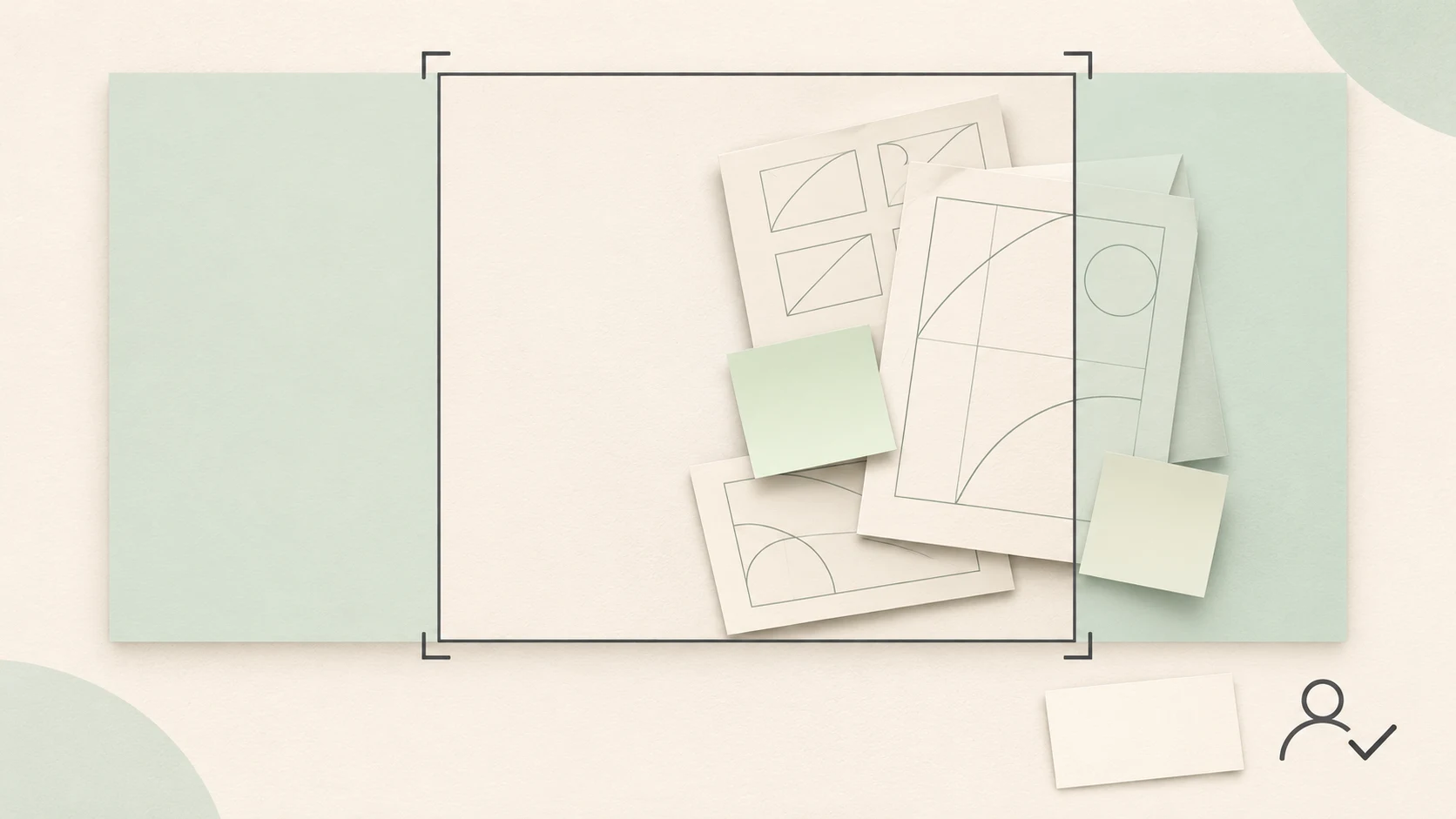
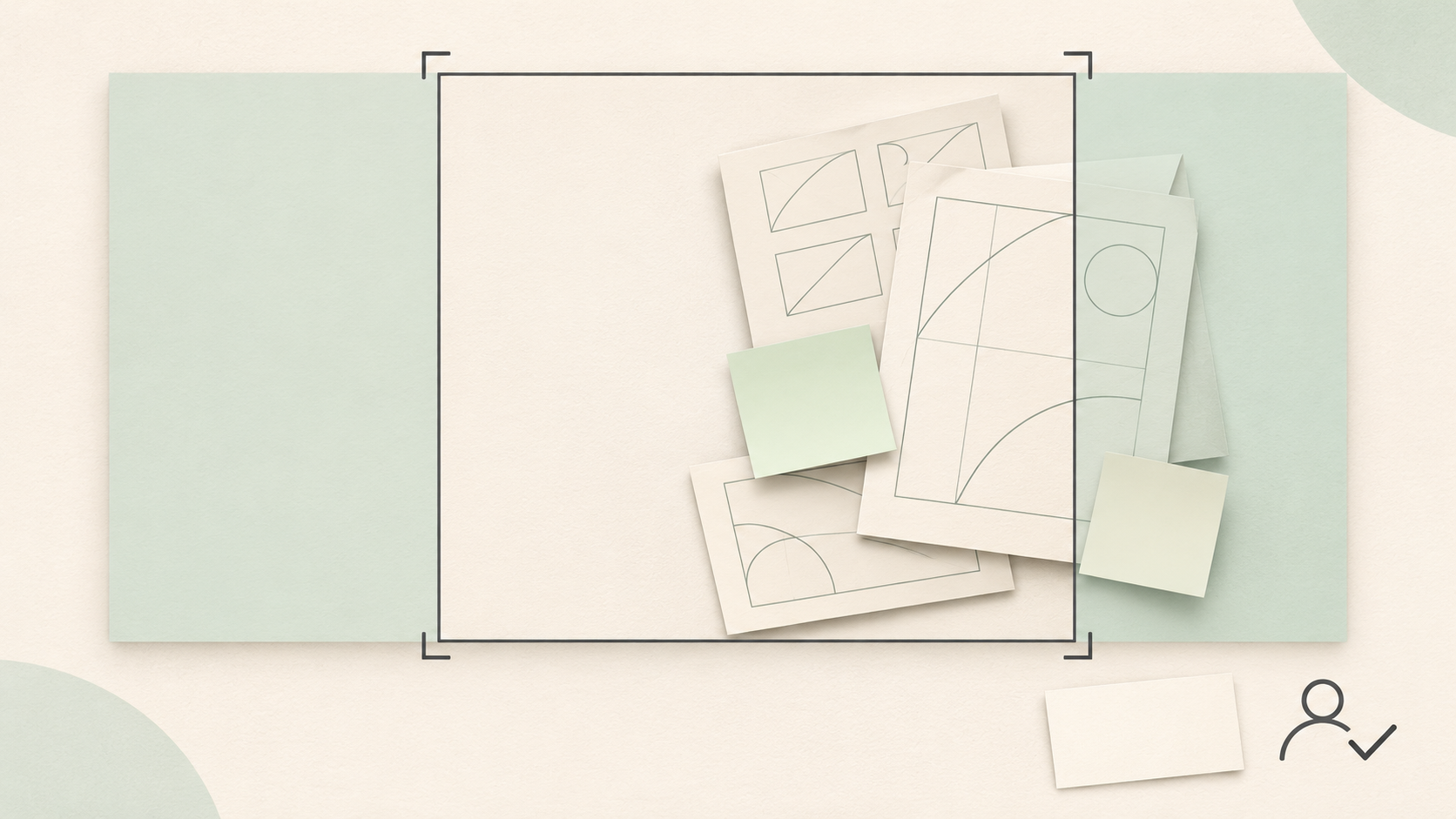
An image that works as a website banner may fail as a square social post. With an AI stock image generator, the deliverable is not simply an attractive picture. It is an asset that fits its placement, does not mislead the audience, and has documented usage checks.
Here, “stock image” means a general-purpose visual for a website, blog, or marketing layout. It does not mean the image has been accepted by a stock library or automatically cleared for commercial use. The following is a recommended workflow, not a product test.
Describe the placement, not just the mood
“Professional, modern, on-brand” leaves important decisions unresolved. Start with where the image will appear, who will see it, and where the subject and headline need to sit.
| Brief element | What to specify | Fictional project example |
|---|---|---|
| Purpose and audience | Placement and what readers should understand | Blog header for a collaboration tool aimed at small design teams |
| Subject and setting | What belongs in the scene—and what does not | An unoccupied desk with paper sketches; no real product interface |
| Composition and text space | Subject position and later text placement | Subject on the right, uncluttered background on the left |
| Dimensions and crops | Final pixel dimensions and required layouts | Example: 1600×900 landscape plus a square version; not a platform specification |
| Brand colors and exclusions | Palette direction and unwanted elements | Warm white and muted teal; no logos or readable text |
A color name in a prompt is a direction, not proof of exact brand-color compliance. If exact colors matter, check the output in the final layout and adjust it in post-production where necessary.
Compare compositions before expanding the batch
The Stockimg.ai generator page recommends clear, detailed prompts and describes choosing image dimensions. That supports specifying the image requirements first. It does not establish that a particular prompt will work, or that another tool offers the same features.
For the fictional brief above, a first prompt could be:
> Create an editorial concept image for a collaboration-tool blog aimed at small design teams. An unoccupied desk in natural side light, with paper sketches and blank sticky notes. Group the subject on the right; leave a simple background on the left for a headline added later. Warm white and muted teal, restrained styling, realistic materials. Landscape composition. No brand logos, readable text, or real software interfaces.
This is an illustrative prompt, not a tested recipe. Instructions such as “no readable text” still require inspection of every output.
For the first comparison, keep the subject and palette fixed. Compare a right-aligned subject with left-side text space against a centered subject with room around it. Once a composition works in the layout, vary the viewing distance or object density. Choose candidate counts according to the actual tool and available review time, not a universal batch limit.
For manual validation, the InkRoom image-generation page lets you enter a prompt and choose a configured model. Availability, parameters, and fees depend on the current interface and account configuration. This entry point neither replaces a licensing check nor guarantees that every composition instruction will be followed.
Judge candidates inside the layout
Place the actual headline and crop frames over each candidate before selecting it. A standalone preview can hide competition between the text and the subject.
Consider a 1600×900 image. Without resizing, a centered 900×900 square crop removes 350 pixels from each side. This is a geometry example, not a platform requirement. If the right-side subject falls into the removed area, move the crop, choose another composition, or generate a separate square candidate rather than forcing one image into every placement.
Review details that could change what the audience understands:
- People and actions: If people appear, inspect hands, limbs, and contact with objects. Check relevant likeness and usage requirements separately; a plausible-looking person is not evidence of clearance.
- Logos and text: Zoom in on clothing, equipment, and backgrounds for apparent trademarks or pseudo-text. Add exact copy during layout rather than treating generated lettering as proofread text.
- Factual scenes: A concept image cannot substantiate a real customer, event, workplace, or product feature. Use verifiable material for those claims, or clearly identify the image as illustrative where it appears.
- Channel-specific layouts: Check headline overlays and subject integrity in square and portrait versions separately. Approval of the landscape version does not approve the others.
What is still missing for commercial handoff?
Being able to download an image is not the same as verifying commercial-use permission. Check the terms applicable to the tool, model, and account plan, along with the rights to reference inputs. Record the terms URL, review date, applicable scope, and unresolved questions. People, brands, and third-party works may introduce additional rights requirements; a generator’s marketing language is not enough to settle them.
Keep the original file, final exports, tool and model identifiers, original prompt, available generation parameters, edit history, and layout-review results with the asset. The licensing record should include both the conclusion and its basis. Mark unresolved permissions as pending rather than handing the asset over as commercially approved. The reference page reviewed here is not sufficient to establish commercial-use rights across tools.
When does an API become useful?
API integration becomes a separate requirement when a business system needs to submit generation jobs, track their status, and associate outputs with assets. Making several candidates manually does not, by itself, require an API.
First stabilize the brief version, composition variables, and review criteria through manual work. Then design a job record linking an internal job ID, brief version, prompt, requested dimensions, model and parameter records, and output assets. Which fields the service actually provides must be checked against its documentation.
In your own workflow, keep “result returned” separate from “reviewed and ready for handoff.” Before resubmitting, check whether the original request is still processing. If status cannot be checked, do not assume failure and immediately submit a duplicate. Automation can move work between stages; it cannot replace content or licensing decisions.
Teams with a clear programmatic or system-integration need can start with the InkRoom image API introduction and verify current scope and account configuration before planning implementation. This article assumes no particular endpoints, concurrency limits, or pricing. Publication should still wait for the asset’s layout and usage reviews.
Related articles and cases
- AI Wedding Invitation Generator: Layout, Names, Dates, and Print Delivery
Turn a wedding brief into an invitation visual without treating the generated image as a finished invitation. Plan text hierarchy, verify event details, and prepare digital and print versions separately.
- How to Choose an AI Image Editing API: Inputs, Masks, Async Results and Cost
Evaluate an image editing API against delivery requirements, not just sample images. A developer-focused method for checking input contracts, recovering uncertain requests, testing preservation and reconciling actual costs.
- AI Floor Plan Generator: From Layout Ideas to Measurement Review
Turn room requirements into a conceptual layout without mistaking an attractive image for a measured plan. Learn what to describe, how to compare arrangements, and what to check against original measurements.
- AI YouTube Thumbnail Generator: From Content Promise to Mobile Readability
Turn a video's actual content into thumbnail concepts, compare meaningful layout alternatives, and check text, contrast, and focus on a phone. An illustrative example shows the method without claiming tested results.