AI Product Recoloring: Separate Color Previews from Listing Approval
Build color concepts from an original product photo, define what may change, and verify each result against the real SKU before naming, approving, or publishing a variant.
·
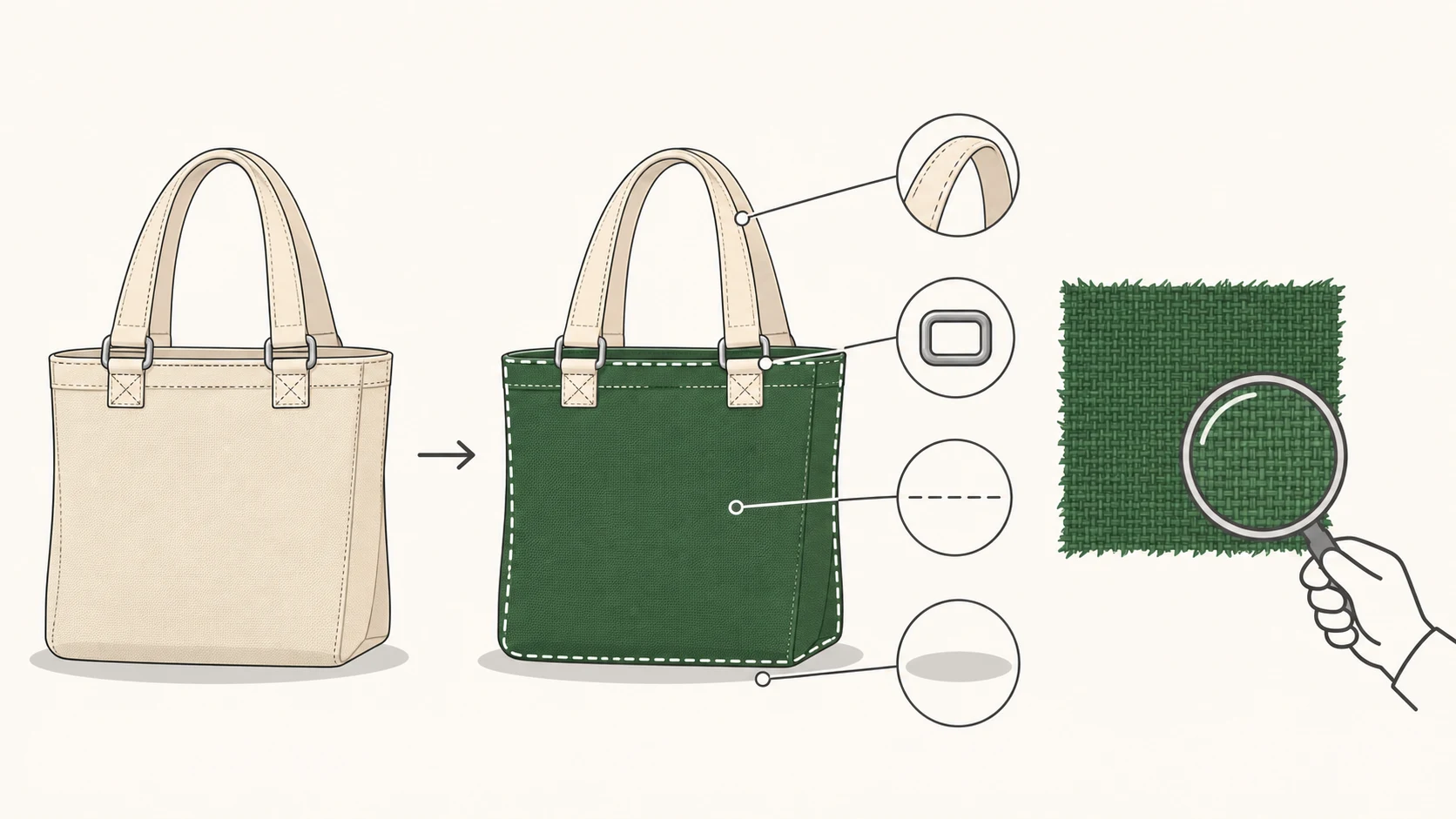
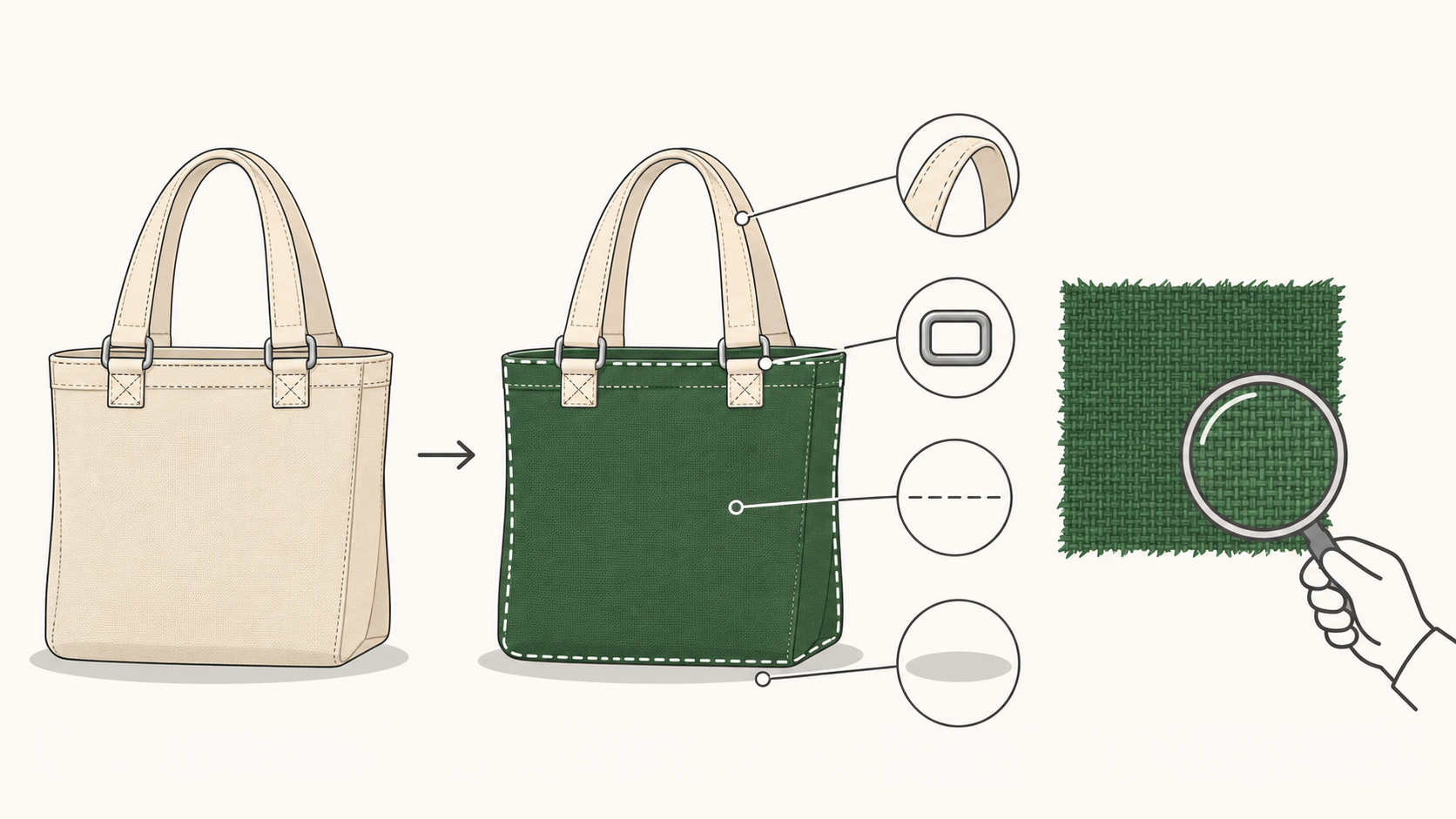
A new color should not turn your product into a different product. That is the useful starting point for ai product recoloring—not how many variations you can generate.
A preview asks, “What might this design look like in another color?” A listing image must also answer, “Does this represent the SKU the customer will receive?” The first is not evidence of the second. The workflow below is a suggested editorial method, not a report of tested tool performance.
An appealing color is not a verified SKU
Blend’s product recoloring page describes choosing a sample color and specifying the part to recolor. It also acknowledges that lighting, materials, and screen calibration can cause color differences. Those input requirements and limitations are useful here; its performance and commercial claims are not evidence for this guide.
A target color value gives direction. It does not, by itself, establish how a fabric, leather, or coating actually looks in a photograph. Keep unproduced colorways in concept review. Move an existing colorway into listing review only when a physical product or confirmed sample is available for comparison.
Define the edit, including what must stay
Prepare the original product photo, the target sample, and a short description of the allowed change. Keep the original file separately. If its lettering, seams, or edges are unclear, newly generated detail cannot serve as evidence of the real product.
For a canvas bag, an edit brief could read as follows. This is an illustrative instruction, not a tested prompt:
> Change only the canvas body to the green shown in the target sample. Leave the handles, hardware, logo, stitching, and background unchanged. Retain the weave, folds, light–dark relationships, and ground shadow. Do not change the bag’s shape or add lettering or accessories. This output is a color concept preview.
“Retain” describes an acceptance condition, not a guaranteed tool capability. Preserving lighting also does not mean every pixel keeps its original color: the recolored area still needs highlights and shaded areas. A single sampled pixel is not enough to judge the whole item.
To work with an existing image, you can open the InkRoom editing entry and check whether the current interface supports the operation you need. The entry is not a promise of dedicated recoloring, exact sample matching, or automatic detail preservation. If the available controls do not fit the task, do not treat it as a suitable recoloring solution.
Compare changes against two different references
Place the result beside the original, zooming in where necessary. Use the original to assess structure and detail. Use the real SKU or its confirmed physical sample to assess color. Neither reference replaces the other.
| Check | Question to resolve | If it fails |
|---|---|---|
| Structure and boundaries | Have the silhouette or seams moved? Has color spilled outside the intended area? | Return to editing; do not use it as the same-product variant |
| Texture and branding | Have weave, stitches, lettering, or logos been erased, redrawn, or tinted? | Keep the original and rework the affected area |
| Lighting and shadows | Are folds and contact shadows still coherent? Have unsupported highlights appeared? | Rework the edit rather than hiding local errors with a global color adjustment |
| SKU color | Is there a traceable product or sample, and does the image represent it? | Without evidence, keep it conceptual; with a mismatch, stop publication |
Different tones within one image do not automatically mean a failed edit. First distinguish lighting variation from an unwanted color patch. For glossy, transparent, or mixed-material products, do not substitute one flat swatch for a judgment about the whole object. When the result cannot be verified, retain suitable real photography or arrange another shoot rather than continuing to generate alternatives.
Give each variant a traceable name
A useful naming convention records the model, color, source revision, edit revision, and review state:
BAG01_GREEN_src01_v02_concept.jpg
The model and color are examples. You could use concept for exploration, review for pending verification, and approved after human review. These are team-managed states, not automatic certification. Record the actual SKU, sample reference, and reviewer separately when approving an image.
Before publishing, check the model–color pairing, review state, uploaded revision, and fallback file. An original photo of one color is not a valid substitute for an unverified new colorway. If the new variant is not confirmed, hold its image. Rolling back means restoring a truthful, applicable image—not relabeling the original as a different SKU.
Related articles and cases
- AI Product Mockup Generator: Where Concept Visuals Stop
Explore presentation ideas with product photos and brand references without treating a concept mockup as a product photograph or print proof. Choose the right deliverable and check proportions, text, logos, materials, and lighting.
- Consistent Character AI Generator: Build a Character Sheet That Helps You Review
Separate character identity from scene changes. Use a clear reference, a compact character sheet, and targeted comparisons to review the same character across poses, angles, and lighting.
- AI Comic Storyboard Generator: Make Each Panel Follow the Story
Use an invented short scene to turn a script into panel descriptions, establish character and setting references, and review generated roughs for continuity before lettering and layout.
- AI Background Remover for Product Photos: White, Transparent, and Clean Edges
A white background is not the same as a transparent file. Learn how to check exported product photos, inspect handle openings, glass, fine fibers, and shadows, and flag areas that need manual editing.