AI Makeup Generator: Try the Makeup, Not a Different Face
Preview lip color, eye makeup, and blush on your own photo without confusing a flattering face edit with a useful makeup idea. Includes natural and stage-makeup briefs plus practical checks against the original.
·
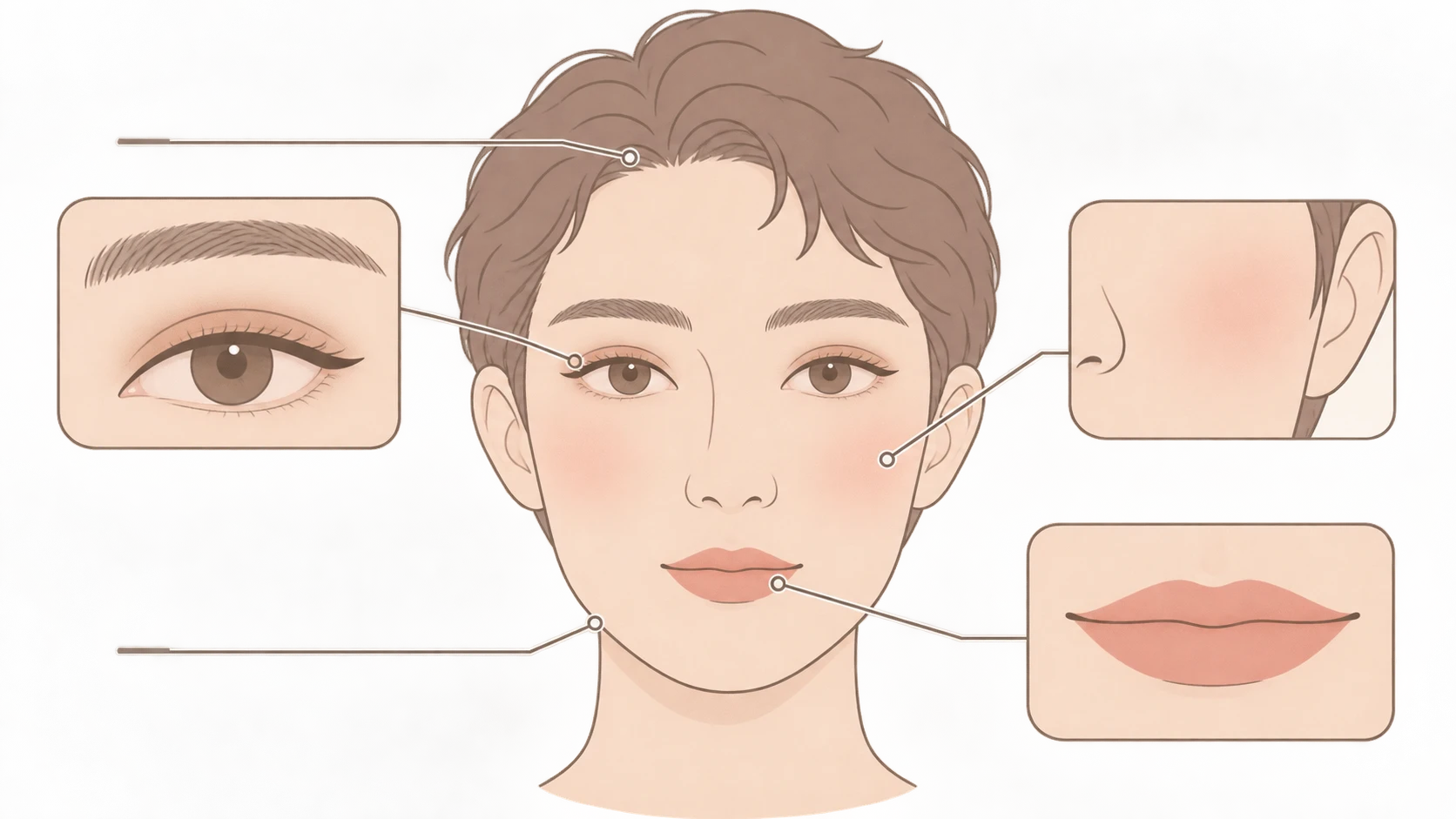
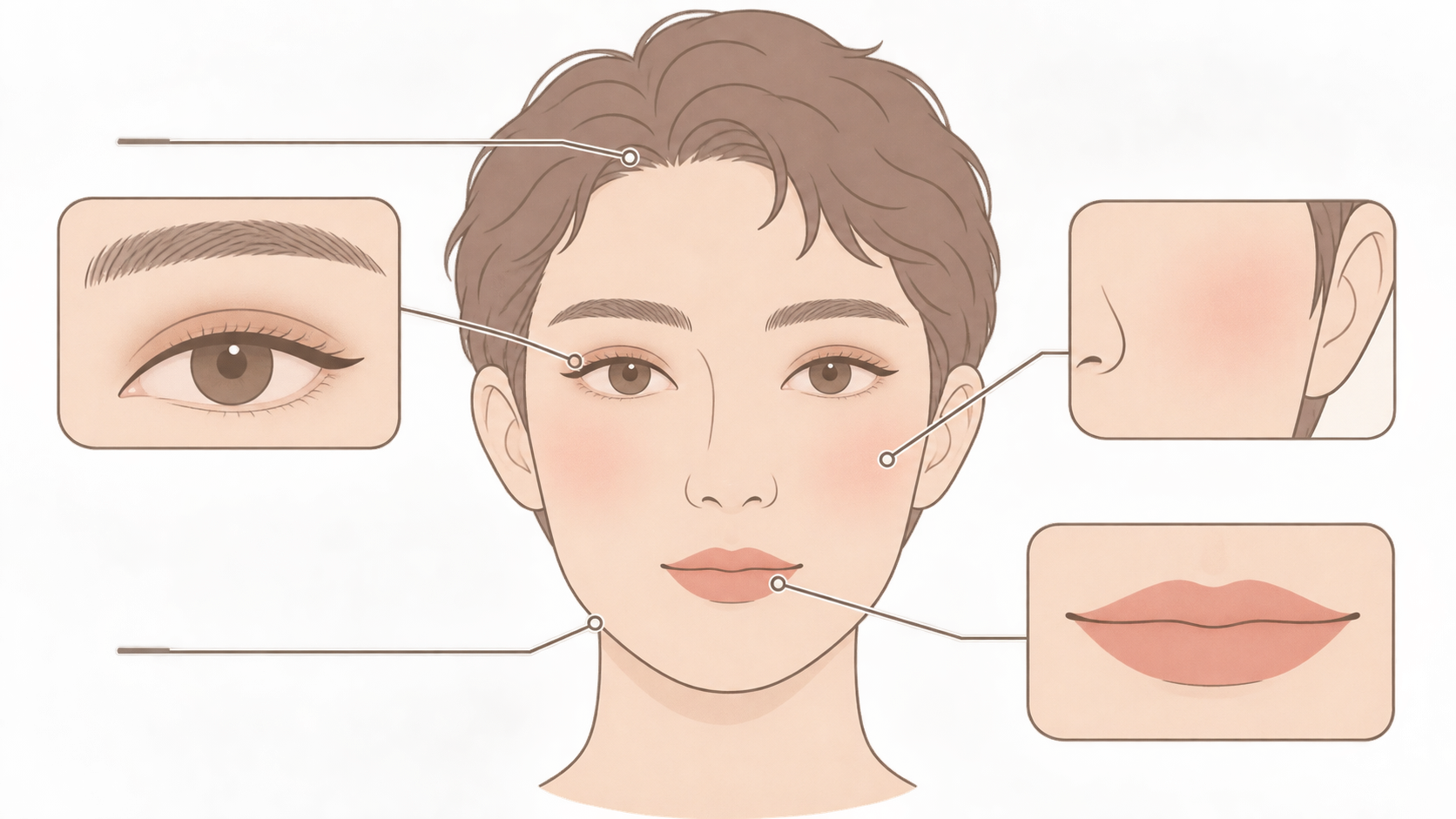
Would a berry lip suit you? Would a stronger wing change the look? An ai makeup generator preview is most useful when it shows a makeup idea on a recognizable version of your own face—not simply a more flattering portrait.
Treat the image as a sketch for practice or a conversation with a makeup artist, rather than a product swatch. A generated picture cannot establish the real on-skin color of a lipstick shade or show how a look will perform under venue lighting.
Do you like the makeup—or the edited face?
If the eyes are larger, the jaw is narrower, or the complexion is lighter, the lipstick may not be the only reason the result looks appealing. Separate the intended makeup changes from changes elsewhere.
| Area | Makeup changes to assess | Unintended changes to flag |
|---|---|---|
| Lips | Color family, matte versus glossy finish, intensity | Moved mouth corners, reshaped Cupid’s bow, redrawn outline |
| Eyes | Shadow placement, liner direction and thickness | Different eye size, iris color, or spacing |
| Cheeks | Blush position, spread, and intensity | Whole-face lightening, altered nose or facial contours |
| Skin outside the makeup target | Similarity to the original tone and texture | Color shifts across the forehead or neck, widespread texture removal |
| Hairline and face outline | Original position and shape | Moved hairline, altered face shape or ears |
These are manual screening suggestions, not a promise that a tool will preserve identity. Set aside results with obvious unintended changes before judging their color combinations.
Start with visible boundaries and a specific brief
Choose a clear, front-facing photo with reasonably even light across both sides of the face. Keep the eyes, lip outline, and hairline visible. Avoid a heavily beautified or strongly color-filtered starting image: it makes it harder to tell whether the next result is changing makeup or extending an existing filter.
NeonSnap’s makeup page also recommends clear, well-lit photos, unobstructed facial features, and detailed makeup descriptions. Those are useful preparation suggestions; the page’s performance claims are not results verified for this article.
If you have a reference look, specify what to borrow: “Use only the lip color family and finish, not the model’s face shape, skin tone, or lighting.” Supply the reference image only if the tool supports it; otherwise describe those visible details in text. “Make me look like this” leaves too much unspecified.
Describe lips, eyes, and cheeks separately, followed by the areas you want left unchanged. If you need an editing entry point, open the InkRoom image editor page and check whether the current interface offers the upload and editing options your task requires. This is a general editing entry point, not a claim of dedicated virtual try-on, exact shade matching, or identity locking. Availability, parameters, and fees depend on the current interface and account configuration.
Two briefs with different priorities
These are editable writing examples, not tested presets. Instructions to preserve features express your intent; they do not remove the need to inspect the output.
Natural makeup: judge subtle color on your existing complexion
> Try a light everyday makeup look on this original photo. Use a muted rose lip with a slight satin finish, following the existing lip outline. Add a sheer light-brown eyeshadow and thin liner without enlarging the eye shape. Place a small amount of softly blended blush at the center of the cheeks. Keep the original skin tone, visible skin texture, iris color, face shape, hairline, lighting, and background unchanged.
Do not award extra points just because the skin looks smoother. First assess whether the lip and blush colors work with the original complexion, then check whether the liner follows the original eyes.
Stage makeup: judge stronger shapes without substituting lighter skin
> Try a stage-makeup direction on the same original photo. Use a rich matte berry lip while retaining the original lip shape. Add deep-purple eyeshadow and a defined upward wing, emphasizing the makeup lines without enlarging the eyes. Place blush along the outer cheekbones with visible but controlled edges. Keep the original skin tone, facial proportions, hairline, lighting, and background. Do not replace stronger makeup contrast with overall skin lightening.
Use this to discuss shapes, coverage, and color combinations. A photo preview does not validate visibility from the audience, sweat resistance, or performance under stage lights; those require a real makeup trial.
Make the next comparison easier to interpret
If you cannot tell whether the lip or eye makeup is the problem, return to the same original photo and change one dimension at a time. Keep the eye and blush descriptions constant while switching rose lips to berry, for example. Compare matte with satin in a separate round. This is a comparison method, not a guarantee of model consistency.
Manually place the original and candidate images side by side at a similar face size. Check overall resemblance first, then inspect the eyes, lip outline, and hairline more closely. If unrelated areas change, narrow the requested edit or try a clearer source photo. If the problem persists, do not use that result to judge color suitability.
When sharing a selected image with a makeup artist, add a precise note: “Keep this lip-color direction, but not the lighter complexion or altered eye shape.” That says more about the makeup you want than a polished image alone.
Related articles and cases
- AI Poster Generator: Turn an Event Brief into a Publishable Layout
Use a hypothetical event to plan the title, date, colors, dimensions, and text space—then separate visual generation from proofreading and layout for each placement.
- AI Image Style Transfer: Change the Look, Keep the Details
Separate content references from style references, then handle color, brushwork, and composition as distinct choices. Use two editing rounds to check identity, product shape, text, and logos.
- AI Hairstyle Changer: Compare the Hair Without Changing the Person
Prepare a clear portrait, describe the cut precisely, and compare hairstyle candidates without overlooking changes to your face. Includes a proposed comparison table and checks for hairlines, ears, edges, and lighting—not a tool test or a haircut guarantee.
- AI anime art generator: brief a character and scene you can actually review
Build a single-image anime brief around stable character traits, a readable action, and a specific scene. Then review clothing, hands, props, and storytelling without mistaking a concept image for a reusable character asset.