AI Image Style Transfer: Change the Look, Keep the Details
Separate content references from style references, then handle color, brushwork, and composition as distinct choices. Use two editing rounds to check identity, product shape, text, and logos.
·
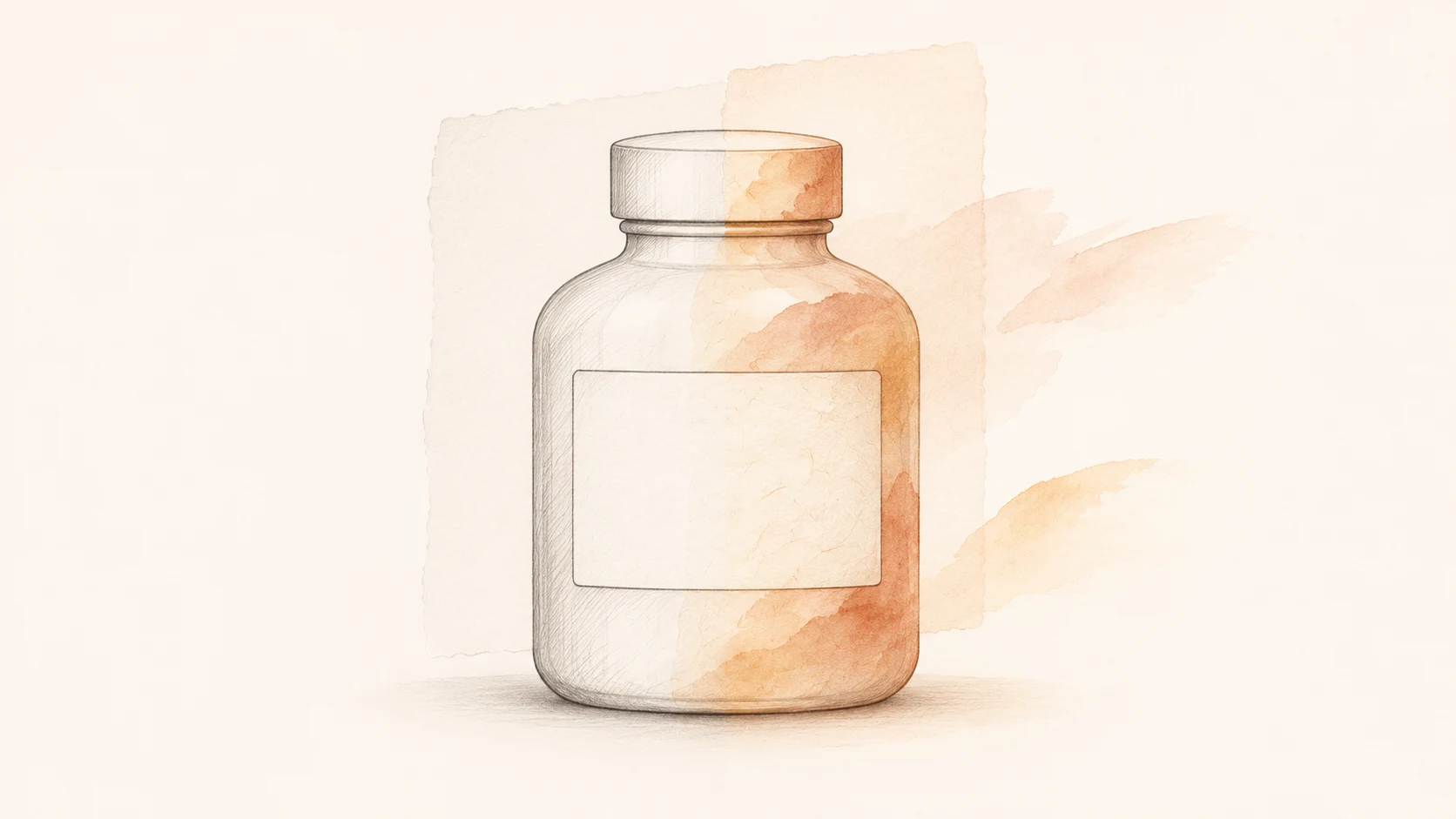
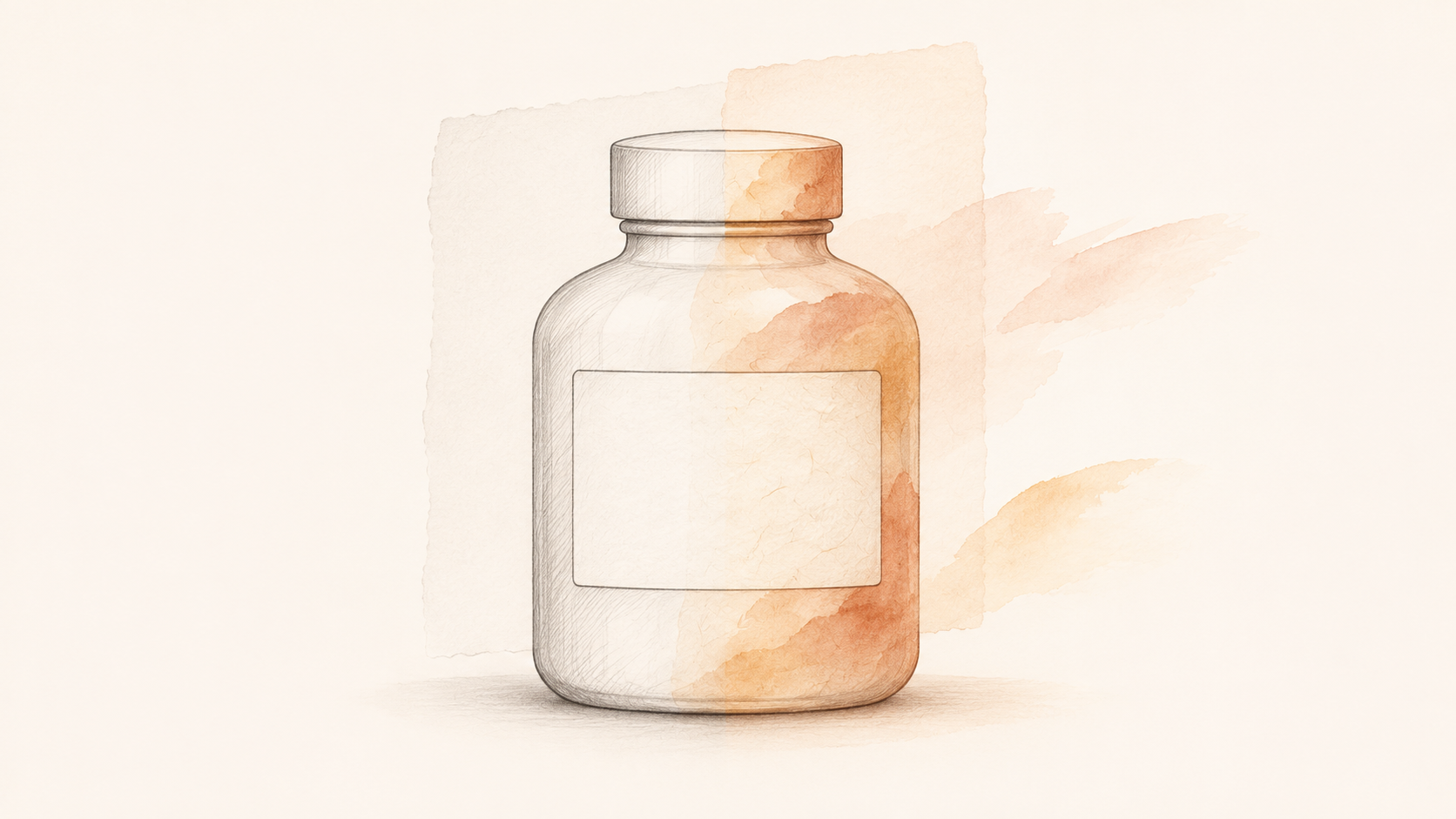
A photo can take on a watercolor look and still fail its purpose if the face changes or the product label becomes unreadable. With AI image style transfer, “matches the style” and “preserves the subject” are separate requirements. Decide which details must remain accurate before pushing the visual treatment further.
Fast Image AI’s style library describes the task as applying the style of a reference photo or artwork to your own image. That establishes the basic idea, but it does not establish how faithfully text, logos, or shapes survive. The workflow below is editorial guidance, not a tool test or a promise of results.
Borrow the treatment, not the subject
A content reference answers “what must be in the image?” It can establish identity, product outline, component count, pose, and the relationships between objects. A style reference answers “how should it be depicted?” It can guide palette, linework, brush texture, shading, and paper effects.
One reference can contain both, but your instructions should separate them. Borrowing an illustration’s warm palette does not require borrowing its face shape, bottle proportions, or camera angle. “Make it like this” leaves those choices unresolved.
Identify the details that matter to the intended use. For a portrait, that might mean the facial outline, hairline, and glasses. For a product, it might mean the cap, handle, opening, packaging text, and logo. The goal is not to freeze every pixel; it is to name what cannot become inaccurate.
Treat style as a set of choices
| Dimension | Possible style request | Check alongside it |
|---|---|---|
| Color | Warm background; lower overall saturation | Whether product color and skin tone remain appropriate for the use |
| Brushwork and texture | Paper grain; simplified background strokes | Whether small text stays readable and edges remain distinct |
| Light and shade | Softer shadows; gentler tonal transitions | Whether grooves, openings, and other structural details remain visible |
| Composition | More negative space or a different crop | Whether proportions, component count, and relative positions change |
Composition is more than a surface treatment. If you only want a new visual style, keep the viewpoint, crop, and layout unchanged in the first round. Make composition changes separately so you can distinguish a styling problem from a layout problem.
Round one: establish the visual direction
Write the request as preserved content, desired treatment, and explicit exceptions. For example:
> Give this bottle photo a warm, paper-based illustration treatment. Keep the bottle outline, cap structure, label position, and existing composition. Allow paper texture and visible brushwork in the background. Do not rewrite the label or redesign the logo. If the text cannot remain accurate, reduce the styling in the label area.
This is an example instruction, not a tested preset. Asking for preservation does not guarantee that a tool can lock those details. If your tool has no separate style-reference input, describe the palette, lines, and texture rather than assuming such a control exists.
If you already have an image to edit, you can open the InkRoom image editing entry, check which operations the current interface supports, and then provide your image and request. This recommendation does not assume a dedicated style-transfer feature, reference-weight control, or detail lock. No unverified prefill parameters are included.
Review the first result for direction: does the treatment fit, and is the subject still recognizable? If the facial structure or product outline has drifted, reduce the scope of the transformation before adding stronger brushwork.
Round two: correct differences, not the art direction
Place the original and the first result side by side at the same display size. Compare layout and silhouette, then enlarge the text and logo areas. For each problem, specify its location, what the original shows, and what should be restored.
For example: “The two lines of text at the lower left of the label became decorative marks. Restore the original wording while keeping the current background texture.” This communicates a more specific target than “make it more accurate,” but it still does not guarantee a successful correction.
Avoid adding a new viewpoint, a new background, and heavier brushwork in the same revision. Those changes make it harder to tell which instruction affected the subject. If essential text remains wrong, use original label artwork in an editor that supports compositing, if suitable tools and assets are available. Otherwise, leave the issue unresolved rather than treating the image as an approved product visual.
Inspect the result at two scales: at its intended display size for readability and visual fit, and enlarged against the original for identity, lettering, logos, shape, and component count. An attractive overall image is not evidence of accurate details.
For a poster or concept presentation, label the image as a stylized illustration and retain the original for comparison. When the purpose is to document actual product color, material, packaging, or condition, use a verifiable original photograph rather than treating the stylized result as a factual product record.
Related articles and cases
- AI Hairstyle Changer: Compare the Hair Without Changing the Person
Prepare a clear portrait, describe the cut precisely, and compare hairstyle candidates without overlooking changes to your face. Includes a proposed comparison table and checks for hairlines, ears, edges, and lighting—not a tool test or a haircut guarantee.
- AI anime art generator: brief a character and scene you can actually review
Build a single-image anime brief around stable character traits, a readable action, and a specific scene. Then review clothing, hands, props, and storytelling without mistaking a concept image for a reusable character asset.
- AI Food Image Generator: Keep Menu Images True to the Dish
Build a generation brief from the food you actually serve, separate plating concepts from fixed dish facts, and review ingredients, portions and presentation before a menu image goes live.
- AI Pose Changer: Check Identity and Clothing After a Pose Edit
A convincing new pose is only part of the job. Describe the movement precisely, distinguish clothing details from changing folds, and compare hands, joints, and newly exposed areas with the original.