AI Image to Prompt: Editable Descriptions and Privacy Boundaries
Turn a reference image into a description you can inspect and revise. Separate visible details from guesses and new creative requirements, then check upload permissions and data handling before using a service.
·
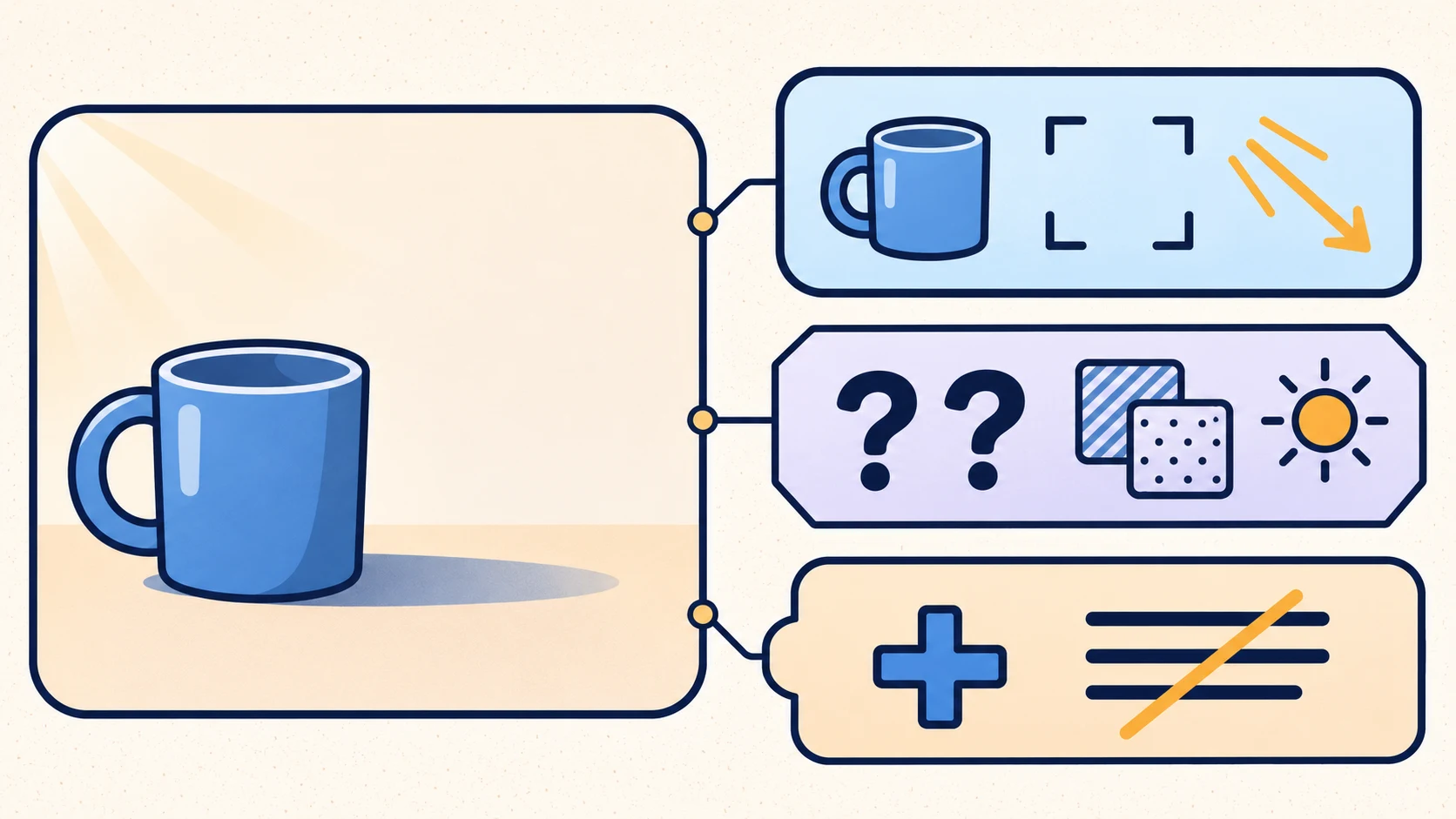
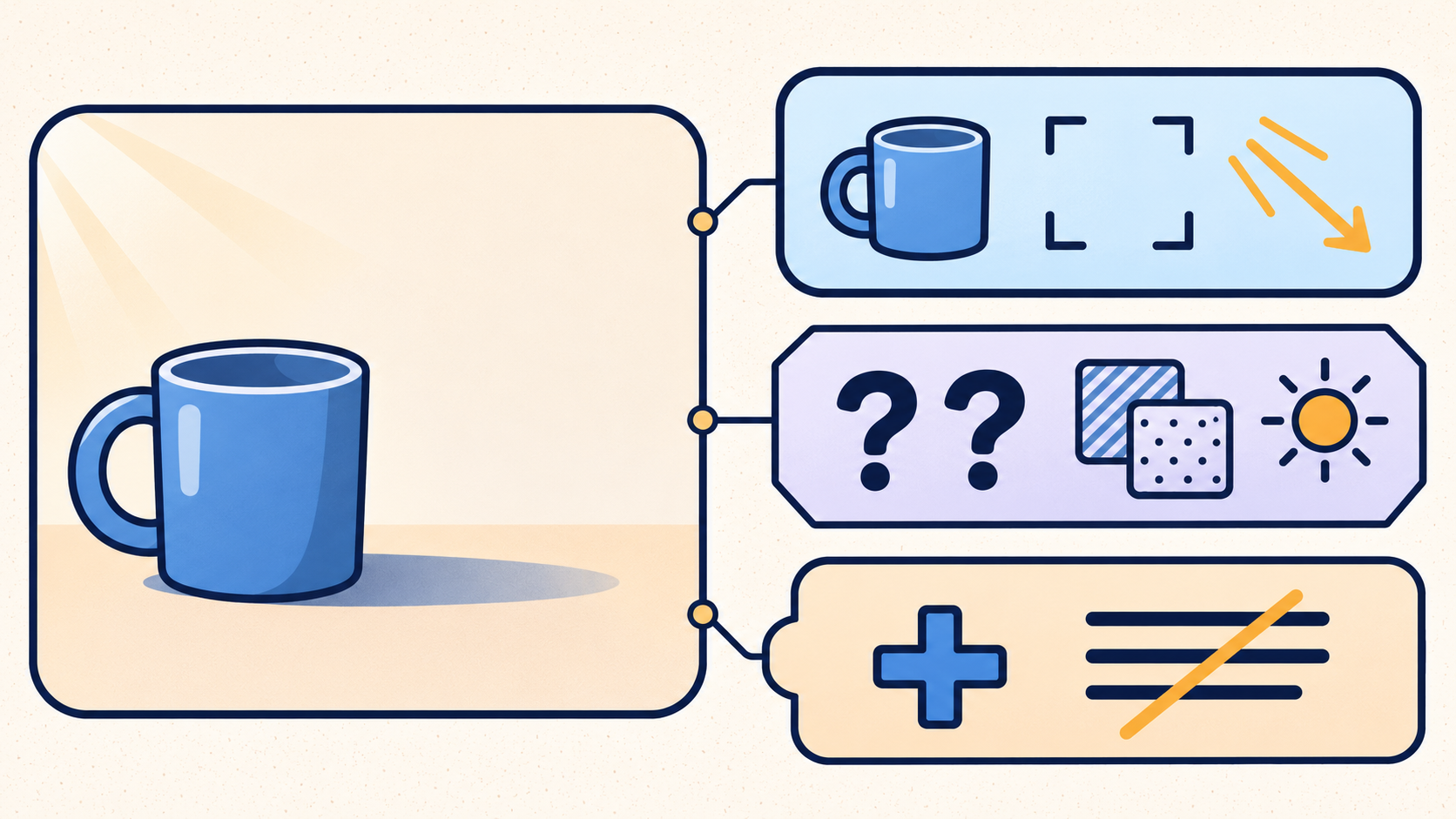
The useful result of an AI image to prompt task is not a long sentence that sounds technical. It is a description you can check against the reference and edit with a clear purpose. Treat generated text as a draft, not as a recovered original prompt.
Dzine’s Image to Prompt page describes generating a descriptive prompt from an image and letting the user customize it. That is a product description, not a test conducted for this article. It does not establish that the tool can recover how an image was originally made. The method below focuses on making descriptions traceable and keeping unknowns visible.
Decide what can leave your device
Before uploading a portrait, an unpublished client concept, or an image containing internal information, confirm that you have permission to submit it to the chosen service. Possessing a file is not enough to assume that permission; check the source material and project agreements.
Then read the service’s current data terms. Look for retention periods for uploads and outputs, training use, access, deletion options, and whether the terms cover your particular account and feature. The supplied product page does not establish those conditions, so it cannot support a claim that confidential material is safe to upload.
If the rules are unclear, pause and ask the provider or project owner. Cropping unrelated areas, masking names, or using a non-sensitive substitute may reduce exposure. None of those actions, by itself, guarantees anonymity or compliance.
Describe appearances without inventing their causes
Start with observation notes rather than a polished prompt. Review the subject, composition, lighting, style, and constraints. Leave a field open when the image does not support an answer.
| Element | Useful observations | Where to stop |
|---|---|---|
| Subject | Count, position, pose, visible colors and shapes | Do not invent an identity, brand, or material |
| Composition | Relative size, viewpoint, crop, depth relationships, empty space | Do not assign an exact focal length from appearance alone |
| Lighting | Brightness direction, shadow edges, warm or cool appearance | Do not assert a particular fixture or number of lights |
| Style | Visible photographic, illustrative, or painterly traits | Do not present a guessed model or creator as provenance |
| Constraints | What the next image must preserve or avoid | Label new requirements separately from observed content |
The distinction is simple: what an image looks like is not evidence of how it was made. A soft highlight is something you can describe. The exact lighting equipment requires other evidence.
If wording is the obstacle, InkRoom’s prompt references offer creative expressions and examples to consult. Adapt the wording to your reference rather than importing its assumptions. This is a reference resource, not a claim that the page analyzes uploaded images or retrieves original prompts.
Keep uncertainty outside the confident description
Consider this fictional example. It is not based on an inspected image or a generation test: your notes describe a blue cup on the left side of a pale table, empty space on the right, brighter light from the left, and a soft-edged shadow.
An editable description could be:
> A blue cup sits on the left side of a pale tabletop, with open space on the right. Light comes from the left, casting a soft-edged shadow across the surface. Keep the cup as the main visual subject.
Keep a separate note: “Exact cup material unknown; light source type unknown.” If the next image must contain no lettering, add “Do not add text” as a new creative requirement—not as a recovered instruction from the reference.
Do not add “ceramic,” “85mm lens,” or a model name just to make the prompt sound complete. Unsupported specifics make later discrepancies harder to explain.
When a tool returns a description, compare it directly with the reference. Look for relationships it omitted and details it added without support. A useful revision note might read:
> Missing: empty space on the right. Unsupported addition: ceramic material. Revision: restore the space requirement and remove the material claim. Still unknown: exact light source.
That gives you a clearer edit than “make it more detailed.” If you later generate an image, consider changing one relevant description at a time to help interpret the difference. This is a suggested working method, not a guarantee of composition or output reproducibility.
Reuse the record, not a promise of reconstruction
For a handoff, keep the reference identifier and permission scope alongside the first description, revised description, uncertainty notes, and reasons for changes. If a tool was actually used, also record the tool or model name shown at the time, available settings, and date. Leave unavailable values unknown. A complete prompt alone does not establish reproducible output.
For an API workflow, these are possible internal record fields, not documented request parameters for a product. The supplied material includes no API endpoints, authentication details, upload limits, error handling, or deletion mechanisms. It therefore cannot support working integration code. Obtain the target service’s official API documentation and applicable data terms before deciding which images can enter an automated workflow.
Related articles and cases
- AI Wedding Invitation Generator: Layout, Names, Dates, and Print Delivery
Turn a wedding brief into an invitation visual without treating the generated image as a finished invitation. Plan text hierarchy, verify event details, and prepare digital and print versions separately.
- How to Choose an AI Image Editing API: Inputs, Masks, Async Results and Cost
Evaluate an image editing API against delivery requirements, not just sample images. A developer-focused method for checking input contracts, recovering uncertain requests, testing preservation and reconciling actual costs.
- AI Floor Plan Generator: From Layout Ideas to Measurement Review
Turn room requirements into a conceptual layout without mistaking an attractive image for a measured plan. Learn what to describe, how to compare arrangements, and what to check against original measurements.
- AI YouTube Thumbnail Generator: From Content Promise to Mobile Readability
Turn a video's actual content into thumbnail concepts, compare meaningful layout alternatives, and check text, contrast, and focus on a phone. An illustrative example shows the method without claiming tested results.