AI Image Prompt Generator: Turn a Vague Idea into a Testable Brief
Define the image’s job and essential details before adding style keywords. Use a reusable brief, compare short and structured prompt examples, and revise one variable at a time without mistaking a clearer prompt for proven image quality.
·
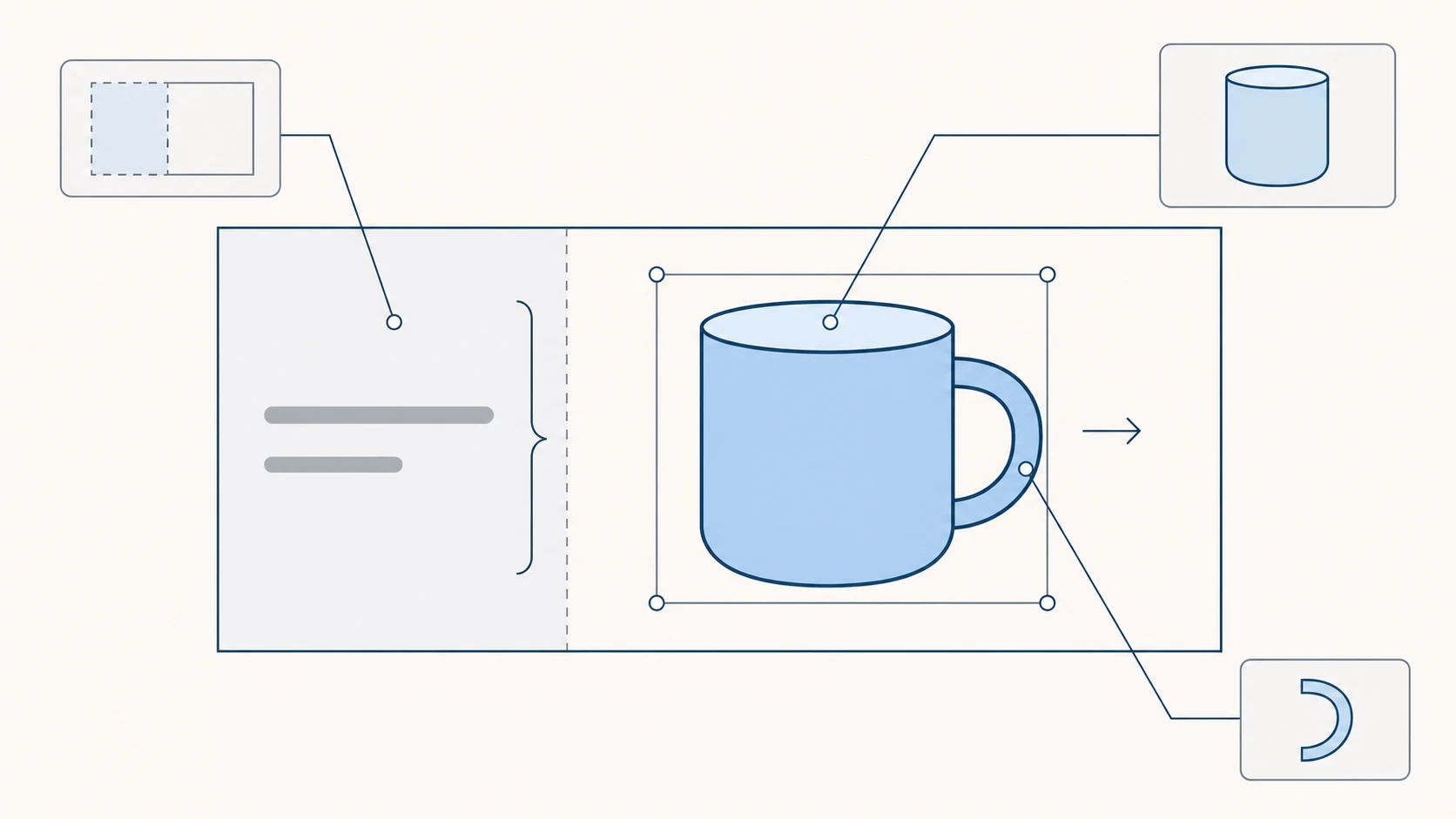
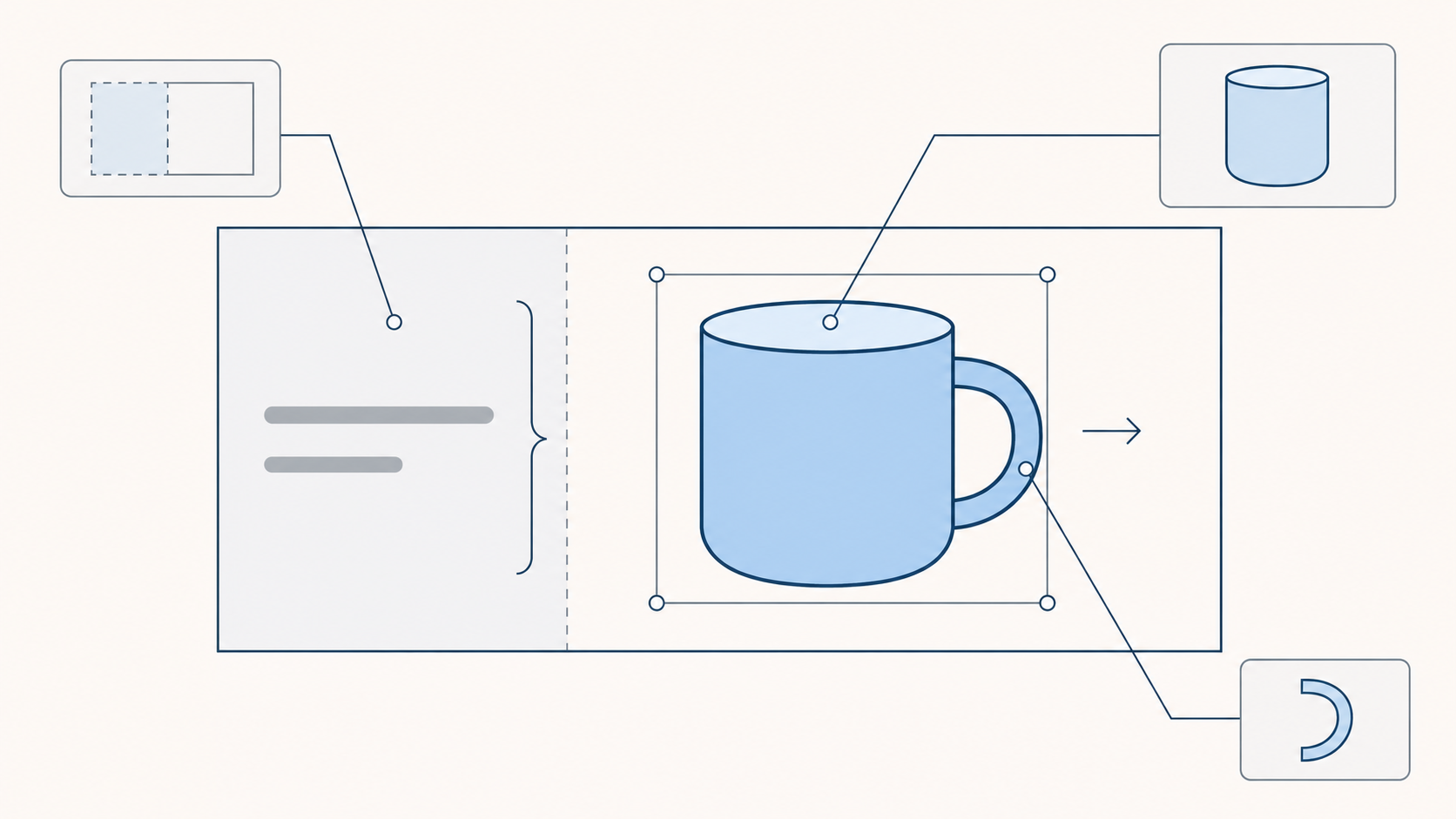
When you search for an ai image prompt generator, you may already know the feeling you want but not how to describe the picture. More words such as “stunning” or “premium” will not resolve a missing decision about placement, subject details, or space for a headline.
A useful prompt starts as a brief you can check against an image. A generator can help organize the description; it cannot decide whether the requirements are right. The fictional blue-mug example below shows a writing method, not a generation test. No output images were produced or compared for this article.
Start with the image’s job
“A beautiful blue mug” leaves the intended use open. For an email header with a headline added later, the important questions are different: Where should the mug sit? Is there usable space for text? Will the background interfere with reading?
Write those requirements before choosing decorative language.
| Decision | Example requirement | What to inspect |
|---|---|---|
| Use and layout | Landscape email header; mug on the right; roughly the left third reserved for a headline | Whether the left area is clear and continuous |
| Subject and essentials | One blue ceramic mug; one curved handle facing right; no branding | Count, color, material appearance, and handle placement |
| Setting and style | Pale tabletop, simple still-life photography, soft side light | Background clutter and reflections that obscure the outline |
| Reference role | If an authorized reference is available, use its composition only | Unwanted text, logos, or other reference elements |
These are editorial criteria, not settings a model is guaranteed to follow. For a real product, check color, proportions, branding, and construction against authorized product materials. Describing a detail does not establish that a generated image reproduces it accurately.
Build a description, not a pile of modifiers
VAKPixel’s prompt guide recommends starting with the subject and adding context, style, and details. That supports writing specific descriptions; it does not establish that a particular camera term or keyword combination will work equally well across models. This article does not adopt the page’s cross-model performance claims.
Use this adaptable pattern:
> Create a [type of image] for [use]. Show [subject and essential details] at [position], in [setting]. Use [style, lighting, and palette]. Reserve [area] for [content added later]. If a reference is supplied, use only its [specified attribute], not its [unwanted elements].
Delete fields that do not apply. Do not imply that a reference exists when none has been supplied. Before using one, check both the tool’s reference-input support and your permission to use the image. For a portrait, essential details might describe authorized subject characteristics, but the wording is not an identity-consistency guarantee.
If you need help finding descriptive language, browse InkRoom’s prompt examples, then adapt the subject, setting, and constraints to your own brief. This is a reference library recommendation, not a claim that it automatically generates or enhances prompts.
One goal, two descriptions
Short prompt:
> A blue ceramic mug on a pale tabletop, simple still-life photography.
This identifies a subject and mood, but not the email header’s layout requirements.
Structured prompt:
> Create a landscape still-life image for an email header. Show one unbranded blue ceramic mug on a pale tabletop, with one curved handle facing right. Place the mug on the right side, leaving roughly the left third clear for a headline added later. Use simple still-life photography, soft side light, and a pale background. Do not add text or other props.
The second version makes room for a headline an inspectable requirement. It is more explicit, not proven to produce a better image. If the tool offers an aspect-ratio setting, select the required ratio there as well rather than relying only on the word “landscape.”
Revise the requirement that missed
The short and structured versions change several things at once. They illustrate completeness, not the effect of an individual keyword.
For a more focused iteration, keep the structured version as a baseline. Suppose a future output gets the mug details right but crowds the left side. Change only the placement sentence:
> Keep the entire mug within the right third of the frame; leave the left third as empty background, with no subject or props.
This addresses a hypothetical mismatch, not an observed result. Leave other wording unchanged. Where supported, keep the model, dimensions, seed, and other settings consistent, and record the prompt version and settings. A single different image still does not establish a reliable improvement.
To try the finished description, InkRoom’s image-generation entry lets you enter a prompt and select a configured model. Availability, parameters, and fees depend on the current interface and account configuration. Inspect the targeted requirement first, then check whether previously correct details have changed.
A missed requirement does not always call for a longer prompt. Remove conflicting instructions, adjust available tool settings, or add exact text later in a layout editor when appropriate. For real products, people, or publication, manually verify product details, personal characteristics, permissions, and usage restrictions. Prompt optimization cannot guarantee image quality, factual accuracy, or clearance for a particular use.
Related articles and cases
- AI Image Generator for Social Media: From Visual Brief to Format Review
Separate the image you want to generate from the information that must stay exact. Build a base image, add approved copy, and review each placement as its own design.
- AI Product in Hand Generator: Keep the Grip and Packaging Consistent
Create a handheld scene from product references without confusing a plausible image with verified product evidence. Learn what to specify and how to review fingers, contact shadows, scale, occlusion, and packaging text.
- AI Product Recoloring: Separate Color Previews from Listing Approval
Build color concepts from an original product photo, define what may change, and verify each result against the real SKU before naming, approving, or publishing a variant.
- AI Product Mockup Generator: Where Concept Visuals Stop
Explore presentation ideas with product photos and brand references without treating a concept mockup as a product photograph or print proof. Choose the right deliverable and check proportions, text, logos, materials, and lighting.