AI Image Prompt Engineering: Describe the Goal, Layout, and Editing Constraints
Use a vase-banner example to turn purpose, subject, composition, style, and constraints into a readable prompt. For existing images, separate requested changes from details to preserve. These are writing examples, not tested image results.
·
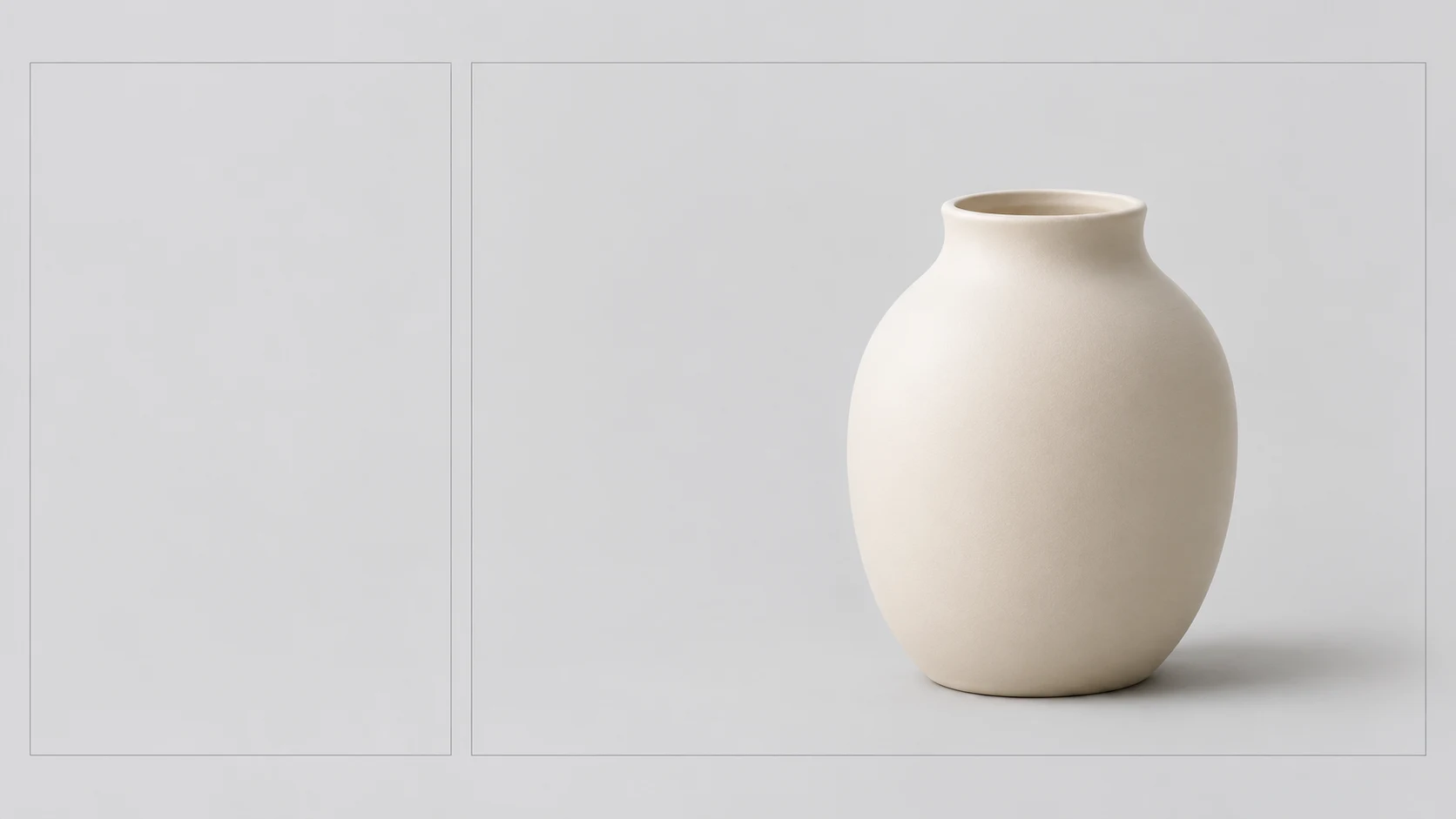
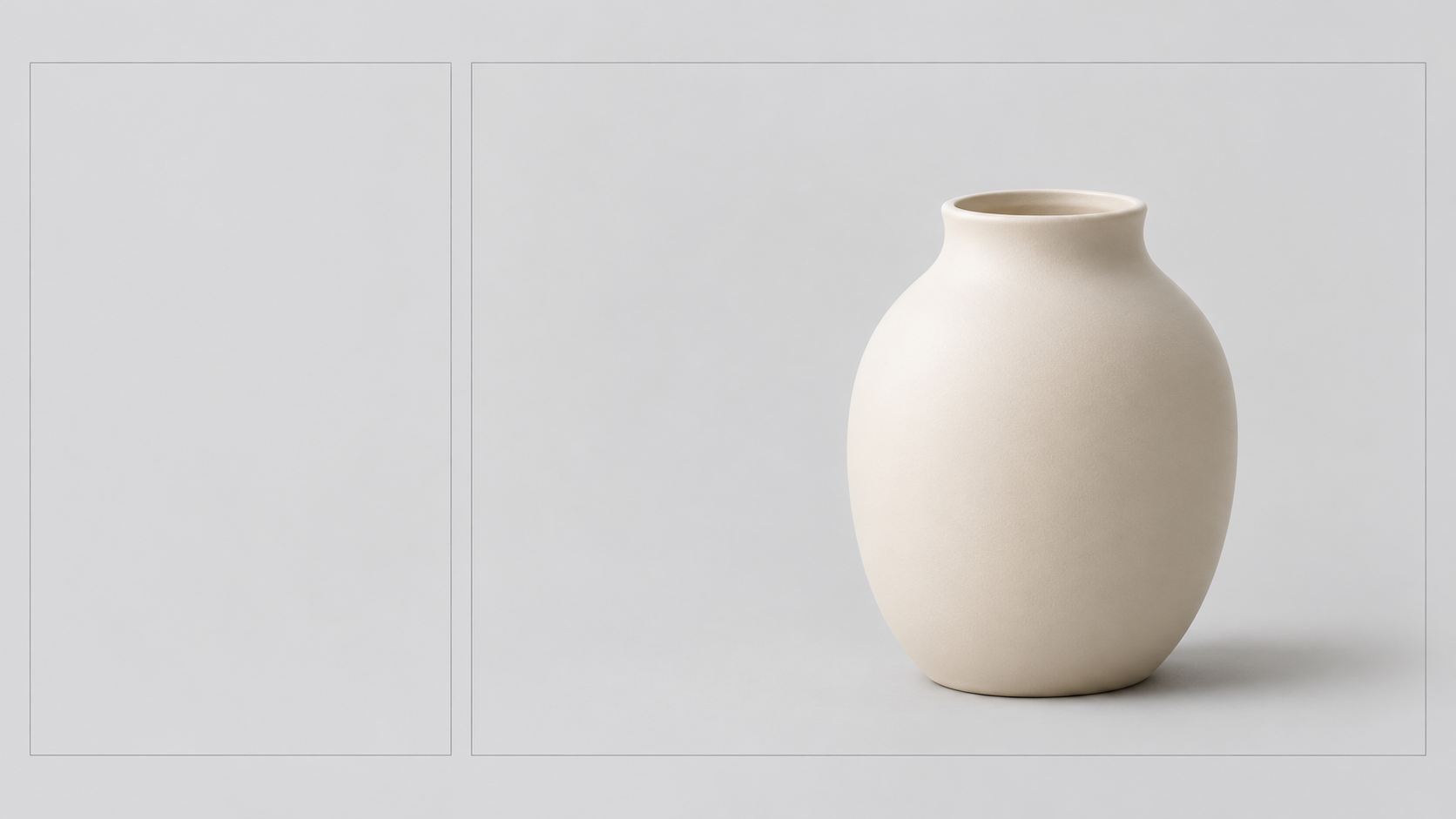
A vase image can look attractive and still fail on your website: the vase blocks the headline, the background competes with the copy, or unwanted lettering appears in the image. Adding “premium,” “beautiful,” and “ultra-detailed” does not explain any of those problems.
AI image prompt engineering is about translating an intended use into visible relationships, then stating which conditions are not negotiable. Consider a website banner with a headline on the left and a vase on the right. The same example can show how to describe a new image and how to request a focused edit later.
The method reference is OpenAI’s image prompting guide. That page is marked as archived and may contain outdated model or API information. This article uses its general prompting principles, not its model recommendations or parameters. The prompts below are original writing examples, not generation tests.
Decide what the vase needs to do in the layout
“Generate a ceramic vase” identifies an object, but not its job. A product detail image, an editorial illustration, and a headline banner need different amounts of background detail and different subject placement.
For this banner, the headline should occupy the left side while the vase anchors the right. The image itself does not need to contain lettering.
| Decision | Description for this example | Why it matters |
|---|---|---|
| Purpose | Website banner; headline added afterward | Avoids leaving the text workflow ambiguous |
| Subject | One unbranded matte ceramic vase, without flowers | Defines count, material, and content |
| Composition | Entire vase on the right; roughly the left third left clear | Gives the copy a usable location |
| Style | Photorealistic still life, light-gray background, soft side lighting | Replaces vague taste words with visible properties |
| Constraints | No lettering, logos, or extra props | Excludes content that does not serve the layout |
The “left third” is a layout request, not a guarantee of exact positioning. If the placement requires specific dimensions, use supported size controls and inspect the image in the actual layout rather than relying on prompt wording alone.
Replace a string of adjectives with a readable brief
A vague version:
> Generate a premium, minimalist, beautiful ceramic vase with professional photography quality.
A version tailored to the banner:
> Create a photorealistic still-life image for a website banner. The headline will be added afterward; do not generate lettering. Show one unbranded, unpatterned matte ceramic vase without flowers. Keep the entire vase visible on the right. Leave roughly the left third simple and clear for the headline, without the vase or a prominent shadow entering that area. Use a light-gray background and soft side lighting, retaining subtle ceramic texture. Do not add logos or other props.
The second prompt is not better merely because it is longer. It explains the purpose and spatial relationships. Its material, lighting, and exclusions all support the same layout.
OpenAI’s archived guide recommends including intended use and specifying placement when layout matters. It also allows multiple prompt formats, provided intent and constraints are clear. Ordinary creative work does not require JSON or special tag syntax; short labeled lines can be easier to maintain.
If you need help describing materials, lighting, or composition, browse InkRoom’s prompt references, then adapt the wording to your subject and layout. Examples can help you articulate a request; they do not guarantee a result.
Resolve competing requirements before generating
“Keep the vase exactly centered” and “reserve a large area on the left for the headline” can compete in a narrow banner. For this example, protect the copy area first, then choose the vase’s position and scale. Do not mark every preference as equally essential and leave the design decision unresolved.
Decide who handles the text, too. If the headline must be exact and will change across languages, adding it afterward separates typography from image creation. The prompt then needs a clear area, not a rendered headline. If you do need lettering inside the image, provide the exact copy, placement, and readability requirements, and check every character afterward. A written instruction is not proof of correct text rendering.
Before adding another constraint, ask whether it affects the intended use. Unnecessary camera specifications or conflicting style terms can make it harder to identify what to revise next.
For an existing image, describe the edit rather than restarting the brief
Suppose the composition already works, but the vase needs to change from cream to dark blue. Repeating the entire generation brief can make the request sound like a new image assignment.
Separate the request into two parts:
> Change this round: Change only the vase’s glaze color from cream to dark blue, retaining its matte finish.
>
> Preserve: The vase silhouette, opening, size, position, camera angle, background, and clear area on the left. Do not add lettering, flowers, or props. Do not apply a global color grade.
These are preservation targets, not a promise of pixel-identical output. Compare the edited image with the original, including the opening, outline, and background—not just the requested color.
The archived guide’s editing advice separates changes from invariants and recommends restating important preservation conditions during iteration. As a working method, address one issue at a time: change the color before also changing the lighting, background, and object scale. This makes troubleshooting more focused, although separate generations are not necessarily controlled comparisons.
If you already have an image, check the currently available options at InkRoom’s editing entry before applying this approach. The entry does not establish support for the reference guide’s particular models, parameters, or preservation performance.
If the background picks up a blue tint, narrow the next request to restoring its original color while retaining the accepted vase color and composition. Where the tool allows it, continue from an earlier suitable version. Carry forward the preservation conditions that still matter, and introduce only one new editing objective.
Related articles and cases
- AI Wedding Invitation Generator: Layout, Names, Dates, and Print Delivery
Turn a wedding brief into an invitation visual without treating the generated image as a finished invitation. Plan text hierarchy, verify event details, and prepare digital and print versions separately.
- How to Choose an AI Image Editing API: Inputs, Masks, Async Results and Cost
Evaluate an image editing API against delivery requirements, not just sample images. A developer-focused method for checking input contracts, recovering uncertain requests, testing preservation and reconciling actual costs.
- AI Floor Plan Generator: From Layout Ideas to Measurement Review
Turn room requirements into a conceptual layout without mistaking an attractive image for a measured plan. Learn what to describe, how to compare arrangements, and what to check against original measurements.
- AI YouTube Thumbnail Generator: From Content Promise to Mobile Readability
Turn a video's actual content into thumbnail concepts, compare meaningful layout alternatives, and check text, contrast, and focus on a phone. An illustrative example shows the method without claiming tested results.