AI Image Generator for Email Marketing: From Brief to Review
Plan visuals for welcome emails, promotions, and product updates without inventing product details. Build a focused brief, then check the image inside the email—not just as a standalone file.
·
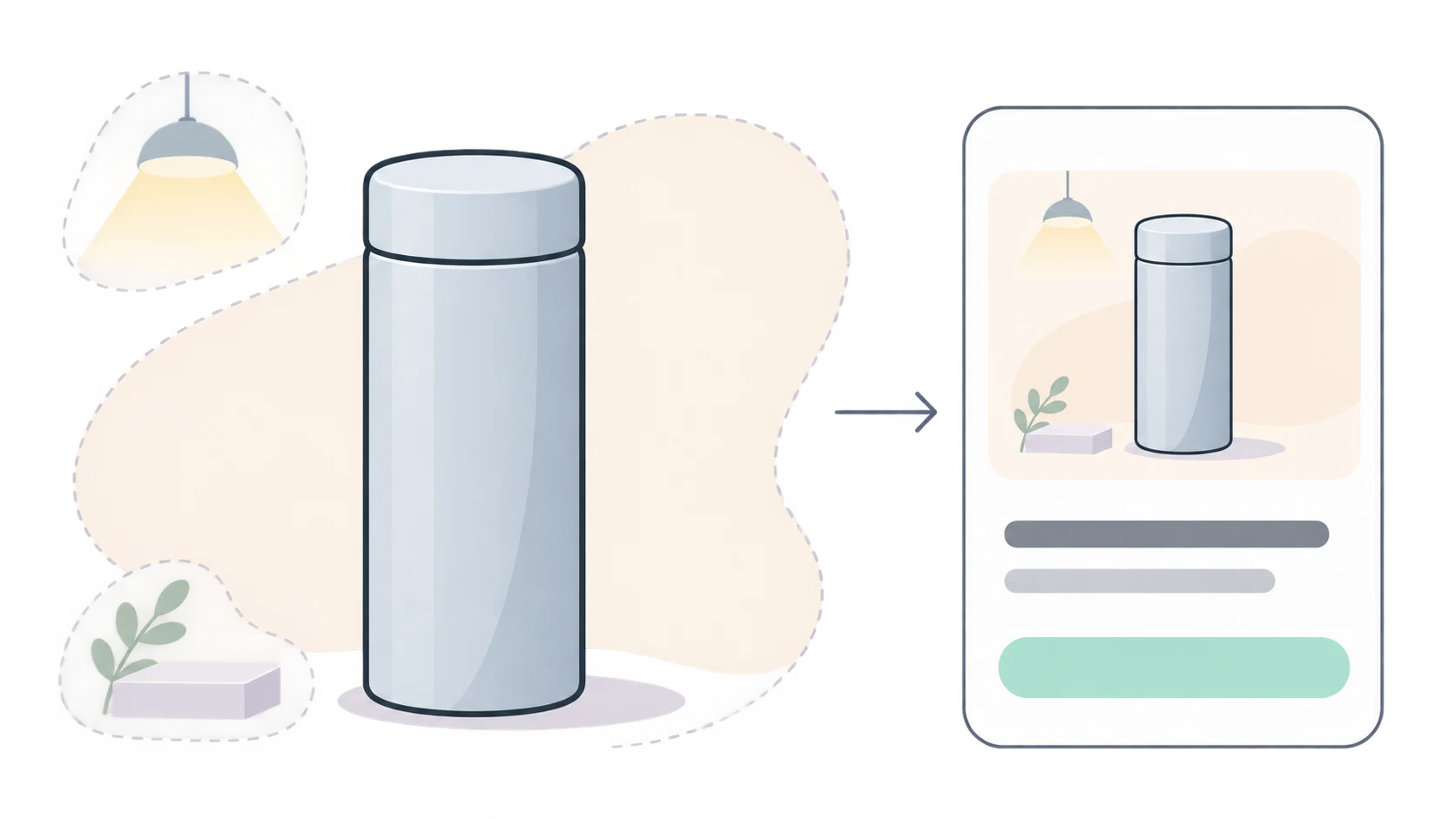

A polished promotional banner can still make the wrong promise. A single item becomes a gift set. A welcome message looks like a clearance sale. The problem is not always image quality; it is the gap between what the picture suggests and what the email actually offers.
When choosing an AI image generator for email marketing, start with the image's job. The following is a proposed workflow with hypothetical examples, not a tested campaign or evidence of conversion gains.
Give each email a different visual job
Write down the reader's next action before describing the scene. The image should support that action rather than illustrate every selling point.
| Email type | What the image should clarify | What belongs in the brief | Misleading detail to avoid |
|---|---|---|---|
| Welcome | The brand and the category worth exploring | Brand mood, featured category, relationship to the headline | Props that look like included gifts |
| Promotion | Which products the offer covers | Participating items, single item versus bundle, space for offer copy | Invented bundles, gifts, or discount badges |
| Product update | What has actually changed | Version differences, updated component, confirmed color or configuration | Decorative changes presented as functional upgrades |
Product updates need particular restraint. If the announcement is a new color, the image should not also change the ports, packaging, or accessory count. Visual novelty is not a substitute for confirmed product information.
Write the facts the image must not change
“An elegant promotional image” describes a look, not a boundary. A useful brief connects the approved product reference, the environment that may change, and the intended email placement.
Here is a hypothetical brief for a travel-mug promotion. Replace the placeholders with verified product information and the dimensions of the actual email slot:
> Purpose: an opening image supporting an offer on one travel mug. Product reference: approved photography and the matching SKU record. Do not change the body shape, lid construction, logo, color, or packaging text. Show one mug only; add no gifts. Background, non-sale props, and lighting may change. Place the mug on the right and leave space on the left for a headline added in the email editor. If the generation workflow cannot reliably preserve the product, use a separate atmospheric visual alongside the real product photo.
A brief is not a guarantee that a model will follow every instruction. It is a creative constraint and a review reference. Keep the approved photo, SKU, and version with the production files so reviewers can compare against the correct item.
Once the brief is ready, readers creating a new visual from text can use the InkRoom image-generation entry to enter a prompt and choose a configured model. Availability, settings, and fees depend on the current interface and account configuration. The entry does not guarantee product fidelity or email-ready results.
Decide how much of a real product photo to change
A background can carry a seasonal mood; the product itself carries purchase information. For intricate packaging, complex shapes, or reflective surfaces, consider keeping the approved product photo and limiting generation to environmental concepts. If accuracy cannot be confirmed, use the real photograph.
If you already have an image, the InkRoom existing-image editing entry is the relevant place to check whether the current tools meet your background or composition needs. Do not assume that an editing entry means product details will automatically remain intact.
Migma's article on email image generators also warns that generated images can get logos, colors, or proportions wrong and should be reviewed as drafts. That specific caution is useful here; its tool rankings, prices, and performance judgments are not adopted.
Do not use a generated visualization of an unphotographed feature as if it were verified product photography. Where a concept illustration is genuinely useful, label it clearly and keep the description grounded in confirmed specifications.
Review the image inside the email
Put the draft into the actual template. Do the headline, image, and button support the same action? If the image fills most of the opening screen, can the reader still identify the message and the next step?
Next, inspect the mobile preview. Checking that an image shrinks is not enough: the template may crop out the lid, label, or updated component. Review desktop and mobile crops separately when they differ.
Check brand details at two scales. At full size, compare the logo, packaging text, and product color with the approved reference. At email display size, check whether essential details remain legible. An on-screen comparison alone is not proof of production-grade color matching.
Keep prices, deadlines, and button copy as editable email text rather than placing them only inside the image. This makes offer changes easier and preserves essential information when images are unavailable. Preview the assembled email in the sending tool and relevant clients; a standalone image cannot establish email compatibility.
Alt text should describe the image's purpose. If the hypothetical image really shows one mug, a description such as “Single travel mug featured in the offer, on a light background” is more informative than repeating “Shop now.” If the image is purely decorative and the surrounding text already conveys its information, use the email tool's decorative-image accessibility setting where supported. Preview the message with images disabled: the offer, participating product, and next step should still make sense.
These are image-production and email-assembly tasks. The InkRoom entries described here are not presented as email sending, scheduling, or conversion-measurement tools.
Related articles and cases
- Using an AI Image Generator for Blog Posts: Briefs, Crops, and Credits
Turn a blog argument into an image brief, then handle aspect ratios, attribution, rights, and alt text. A hypothetical cable-management example shows where an illustration helps—and where real evidence is needed.
- AI Image Generator for Educational Materials: From Learning Goals to Diagram Review
Use a worked design example about equivalent fractions to turn a learning goal into visual requirements, then review proportions, labels and alternative text before classroom use.
- AI Image Generation Seed: Reproduction, Variations, and Fair Comparisons
A seed controls starting noise, not image quality or guaranteed reproduction across services. Separate reruns from variation searches and parameter comparisons, then record enough context to interpret the results.
- AI Image Negative Prompts: When to Use Them and How to Test
Start with a specific unwanted feature, not a universal negative-prompt list. Check model support, compare controlled conditions, and look for lost details as well as improvements.