AI Image Negative Prompts: When to Use Them and How to Test
Start with a specific unwanted feature, not a universal negative-prompt list. Check model support, compare controlled conditions, and look for lost details as well as improvements.
·
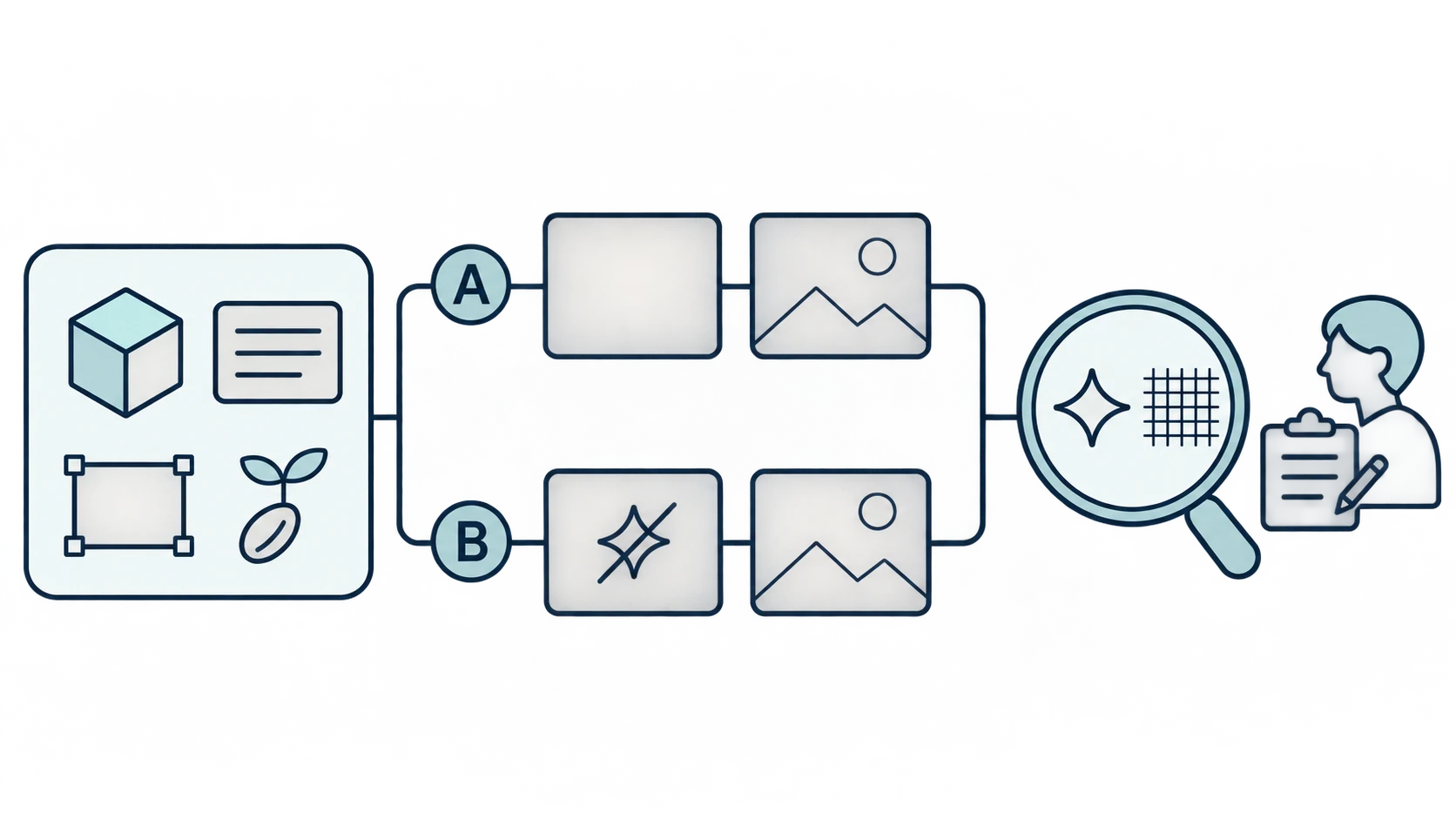
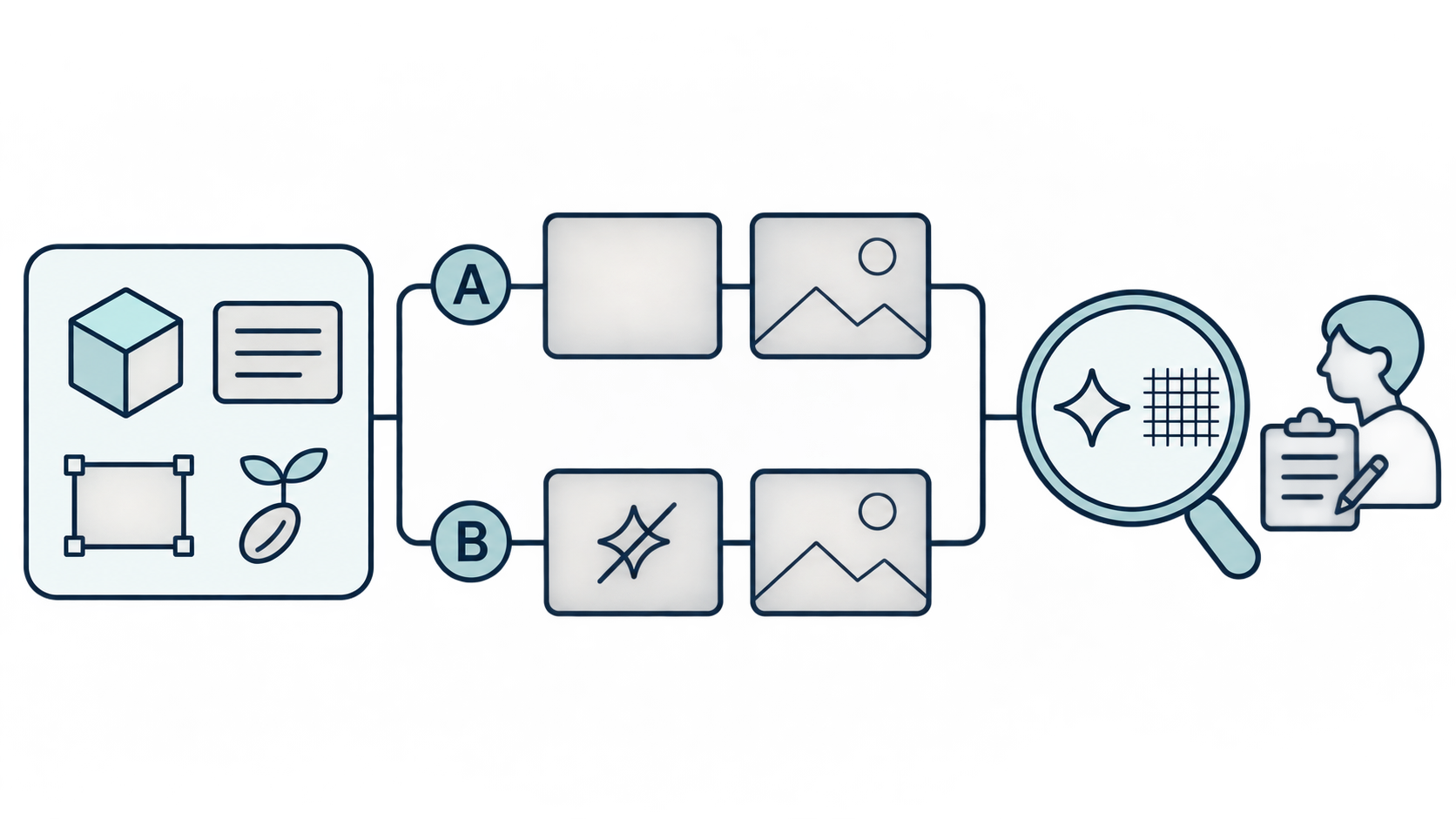
Unwanted lettering appears in an image background. Should you immediately add a long negative prompt? A more useful starting question is what change you want to observe—and whether your selected model supports that input at all.
AI image negative prompts express visual features you want to avoid. Whether they are supported, and how to submit them, depends on the current model and interface. Writing a requirement does not guarantee its enforcement, and it does not replace output review.
The reference guide cautions against copying an entire negative-word checklist. This article takes that idea into a narrower task: designing a comparison around one observable problem. The method below is a recommendation, not a report of completed tests.
Turn dissatisfaction into something you can observe
“The image looks bad” is a poor test target. It may combine composition, lighting, and style, leaving you unable to explain what changed.
Try this instead: “Check whether extra lettering appears in the background, while making sure the subject’s label remains intact.” That identifies both an unwanted feature and a detail you must preserve. If your main prompt asks for a package label, not all text is a defect.
You might test a single candidate phrase such as background lettering. This is an illustrative input, not a claim that a particular model understands or responds to it. Keeping the candidate narrow makes it easier to judge whether adding anything else is worthwhile.
Check support, not just the presence of a field
Read the documentation for the selected model, version, and generation mode. Check whether a dedicated negative-prompt parameter is supported, what format it accepts, and whether any modes exclude it. A visible input box does not establish support for every model selectable in that interface.
If support cannot be confirmed, pause the parameter-specific test. You can still revise the main prompt, but that tests a different input method. It cannot establish whether a dedicated negative-prompt parameter works.
To start a new image, InkRoom’s image generation page lets you enter a prompt and select a configured model. Availability, parameters, and fees depend on the current interface and account configuration. This does not establish that a negative-prompt field or seed control is available; check those before attempting the comparison.
Make the two conditions differ in one place
Save the main prompt and resist polishing it during the comparison. Leave the negative prompt empty in condition A. Add only the candidate phrase in condition B. Keep every other controllable setting unchanged.
| Item to record | Recommended handling |
|---|---|
| Model and version | Use the same selection and record its displayed name |
| Main prompt and reference inputs | Save the exact text; use the same reference image if applicable |
| Seed | Where supported, use the same seed within each pair, then repeat with another seed |
| Dimensions and other generation settings | Keep them unchanged and record visible values |
| Negative prompt | Empty in A; the same candidate phrase in B |
| Outputs | Save every output with its condition, not only the appealing ones |
A shared seed is one control, not a cross-platform reproducibility guarantee. Model revisions, backend processing, or other uncontrolled conditions can still matter. If seed control is unavailable, generate equal numbers in both conditions and retain all outputs, but describe the exercise as exploratory. Random variation may contribute to the difference; one pair cannot isolate the cause.
Do not stop after the first pleasing image. Where practical, repeat paired comparisons with different seeds. If you revise the negative phrase, start a new round rather than pooling it with the earlier one.
Check what disappeared—and what was lost
Review the target feature first, then inspect the subject’s label, composition, and required details. Record an unclear result as unclear rather than forcing it into a success or failure category.
If background lettering disappears but the product label becomes unreadable, that is not automatically an improvement. If the subject looks better but the unwanted lettering remains, the original problem has not been resolved. These are hypothetical evaluation examples, not observed results.
If you report counts, include the total number of outputs, the defect definition, and the tested conditions. Fewer affected images in a small sample describe that sample; they do not establish a success rate across models. “No clear improvement observed” is a useful result when the evidence does not support a stronger conclusion.
Before delivery, separately review content suitability, privacy, rights, and the accuracy of text and visual details. A negative prompt records a request. It does not certify that the output meets it.
Related articles and cases
- AI Fashion Lookbook Generator: From Product Photos to Collection Visuals
A practical approach for fashion brands and small content teams: organize garment references, collection direction, casting and layouts, then review every page without confusing concept imagery with product evidence.
- AI Image Aspect Ratio Guide: Generate, Crop or Pad?
Choose an image ratio for the actual placement, then decide what content you can afford to lose. Worked geometry explains cropping and padding, with practical guidance on subject placement, text and output dimensions.
- AI Image Color Grading: Correct a Cast or Create a Look?
Separate color correction from creative grading before you edit. Record the original, the reference and what must stay unchanged, then compare skin, whites, shadows and product colors without assuming AI can restore exact real-world color.
- AI Pet Portrait Generator: Change the Style, Not the Pet
Build a portrait around the markings, coat colors, and ear shapes that make your pet recognizable. Learn how to choose a reference, write a focused editing prompt, and check the likeness and final file.