AI Pet Portrait Generator: Change the Style, Not the Pet
Build a portrait around the markings, coat colors, and ear shapes that make your pet recognizable. Learn how to choose a reference, write a focused editing prompt, and check the likeness and final file.
·
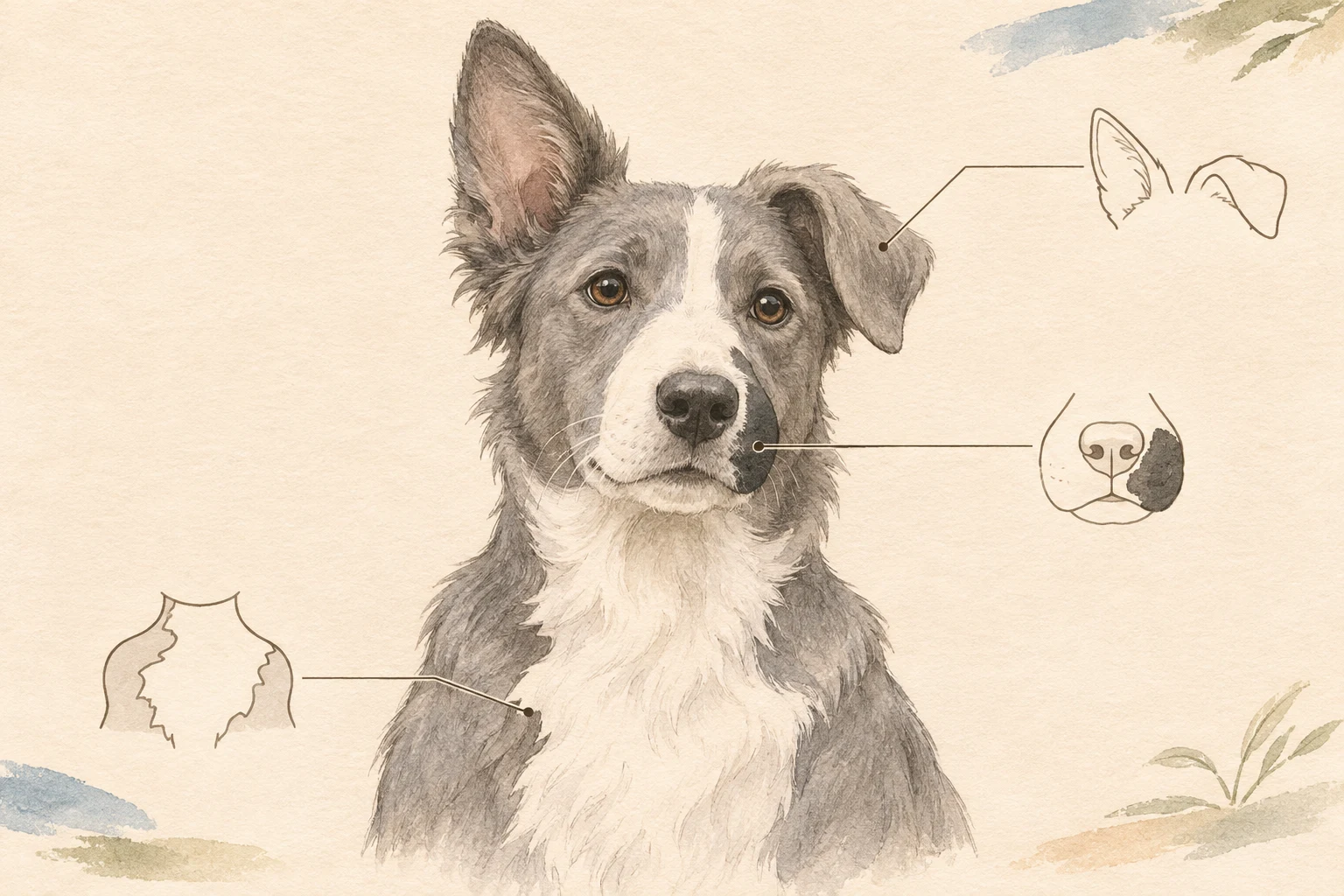
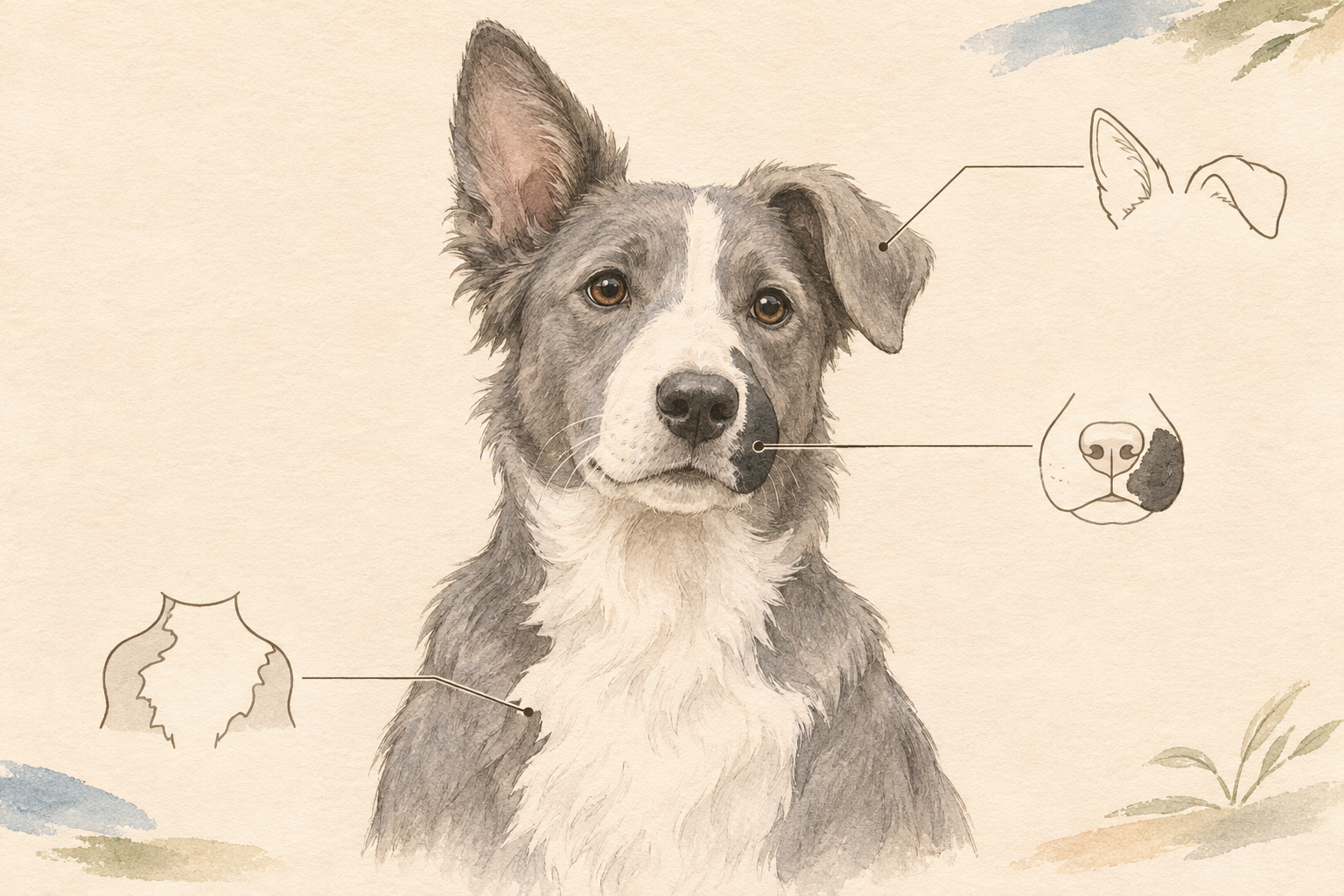
An ai pet portrait generator should help you make a portrait of your pet—not simply an appealing animal of the same breed. The paint texture can change. The background can disappear. The familiar patch on the muzzle should not casually move to the other side.
If you already have a photograph, look for a tool that supports reference-photo editing rather than relying on a breed description alone. Decide what must remain recognizable before choosing the artistic treatment.
DogPrompt's page similarly emphasizes clear reference photos and recognizable features. That is the site's description of its own service, not evidence that other tools deliver the same results. Its pricing, download specifications, and likeness claims are not adopted here.
Describe what makes this pet recognizable
Open the photograph and describe the animal without naming its breed. Where does the white chest patch end? Is the muzzle marking off-center? Do the ears have different outlines?
Use only what the photograph actually shows. A hidden paw or an indistinct eye color is not a detail you can reliably preserve by guessing.
Separate your notes into two groups:
- Keep: visible coat colors, marking locations, ear outlines, facial proportions, and a recognizable expression.
- Change: artistic medium, background, lighting, clothing, or framing.
“Keep it cute” gives little guidance. “Keep the small dark patch on the right side of the muzzle” gives you something specific to compare afterward.
Choose the photograph around those details. As a practical recommendation, favor a clear face, visible ear edges, and lighting that does not wash out the fur. For a head-and-shoulders portrait, a distant full-body shot is not necessarily the better reference. Anything the photograph conceals leaves more for the generation process to invent—and less for you to verify.
Give the style room without hiding the subject
Start with one main transformation, such as watercolor texture against a pale background. Adding a crown, cape, dramatic backlight, and elaborate setting at once makes problems harder to diagnose. Did the ear change shape, or did the costume merely hide it?
Here is an illustrative prompt, not a tested recipe or a description of a generated result. Replace the bracketed details with observations from your own photograph:
> Use the pet in the reference photograph as the subject of a head-and-shoulders watercolor portrait. Preserve the visible [boundary of the white chest patch], [position of the dark muzzle marking], [different outlines of the two ears], and facial proportions. Change only the painting texture and background, using a simple pale paper background. Do not add clothing, other animals, or extra limbs. Keep the visible pose and do not invent hidden body parts.
These are editing goals, not guarantees. If your chosen tool supports image editing, use the photo alongside your instructions. Check its current interface and official documentation for reference-image support, available settings, and charges.
Readers with an existing image can visit InkRoom's image editing entry to inspect the currently available options. The entry alone does not establish support for a particular pet style, feature locking, or an external model; this article makes none of those capability claims.
If the result loses the likeness, try removing costume and background complexity before adding more instructions. Change one issue at a time so you can better judge what the revision affected. This is a troubleshooting suggestion, not a promise that another attempt will improve the image.
Judge resemblance separately from beauty
Place the reference and result side by side with the heads displayed at roughly the same size. Compare coat regions, marking positions, ear shapes, and facial proportions before judging the overall appeal. Lighting can alter perceived color, so not every tonal shift is a changed coat—but attractive brushwork should not excuse a relocated marking.
Trace the boundary between body and background. Look for duplicated paws, a tail attached in the wrong place, or furniture and fabric merged into the animal. Check the anatomy that is actually visible: a cropped portrait does not need four visible legs. Do not request invented paws simply to make a head-and-shoulders composition feel “complete.”
Then inspect the setting. Leaves beside an ear, decorations near a collar, or dark furniture behind the body can obscure the silhouette. If those elements add nothing meaningful, a simpler background is an easier version to assess.
Let the destination decide the crop
An avatar needs a recognizable face at a small display size. A framed portrait needs the right aspect ratio. A print also needs an appropriate pixel count. The word “high-resolution” in a prompt is not a file specification.
For a preparation calculation, pixel dimensions equal print dimensions in inches multiplied by the target pixels per inch. An 8 × 10-inch print prepared at 300 PPI calls for 2400 × 3000 pixels. That is arithmetic, not a generator's output specification or a guarantee of print quality. Confirm requirements with your print provider.
A 2:3 image will need cropping or borders to fit a 4:5 frame. Before filling the frame, check whether the crop removes ear tips, a tail, or part of the face.
For a portrait that includes a person, obtain permission to use their photograph and check the upload service's current privacy, retention, and usage rules. Do not assume automatic deletion without verification. When sharing a composite that could be mistaken for a documentary photo, identify it as an AI-generated or AI-edited portrait. It depicts a creative scene, not proof that the moment occurred.
Related articles and cases
- AI Image Color Grading: Correct a Cast or Create a Look?
Separate color correction from creative grading before you edit. Record the original, the reference and what must stay unchanged, then compare skin, whites, shadows and product colors without assuming AI can restore exact real-world color.
- AI Image Generation for Automotive Marketing: Vehicle Accuracy Before Approval
Separate concept campaigns from actual inventory photography, then review vehicle identity, paint, trim, reflections, plates, and permissions against a traceable source.
- AI Image Generation Privacy: Check Uploads, Retention, Training and Deletion Separately
Review input photos, generated images, prompts and metadata as separate data objects. Use human approval points for portraits and client product images, and leave unsupported provider policies marked as unknown.
- AI Images for Presentations: From Slide Argument to Readable Visual
Write image briefs for concept illustrations, imagined scenes, and backgrounds. Keep generated visuals separate from evidence, then check cropping, projection readability, and source notes.