AI Game Asset Generator: Check Style Across Characters, Props, and Scenes
A polished image is not necessarily part of a usable asset set. Define shared visual rules, compare assets in context, and keep visual approval separate from engine-readiness checks.
·
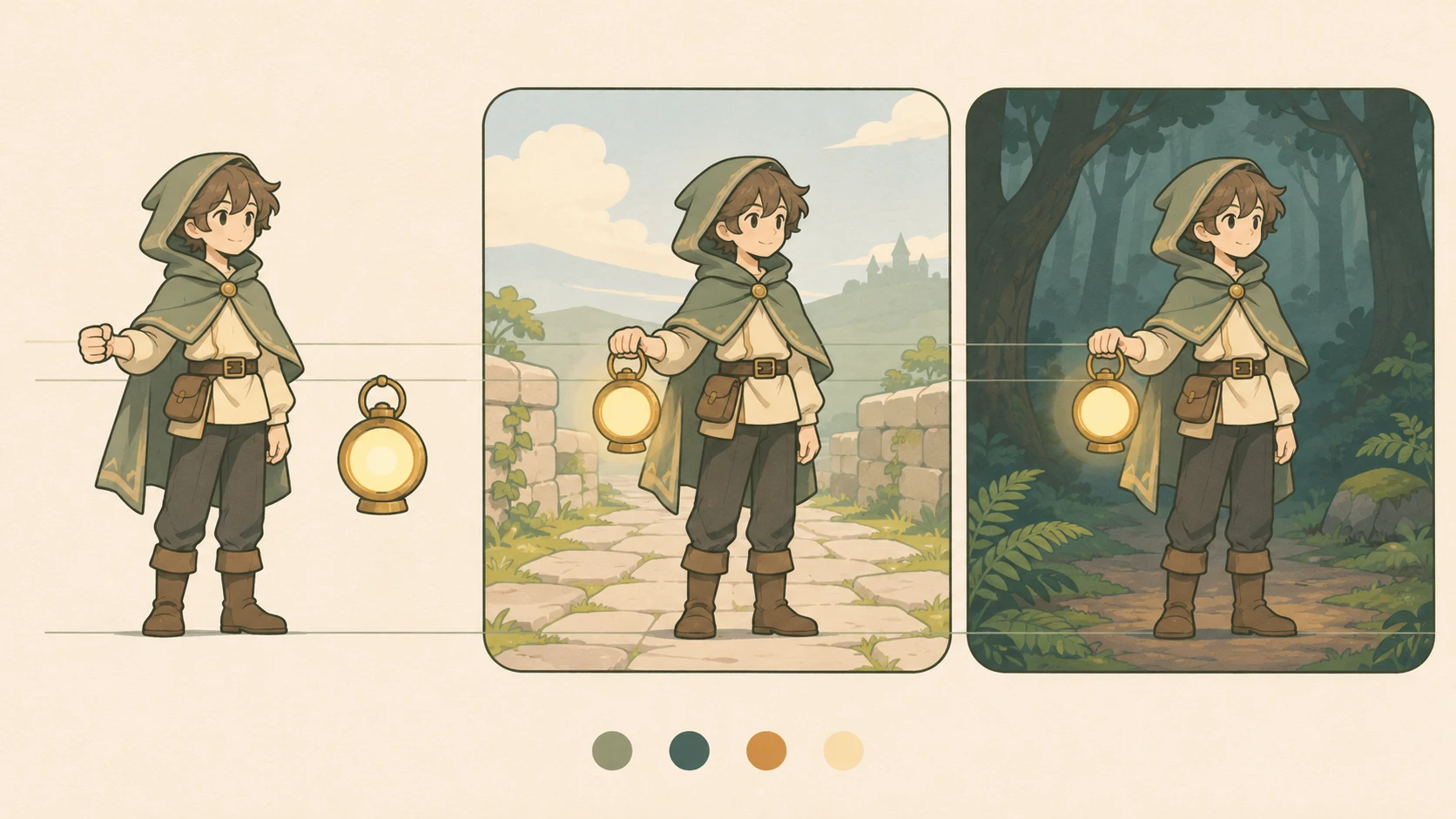
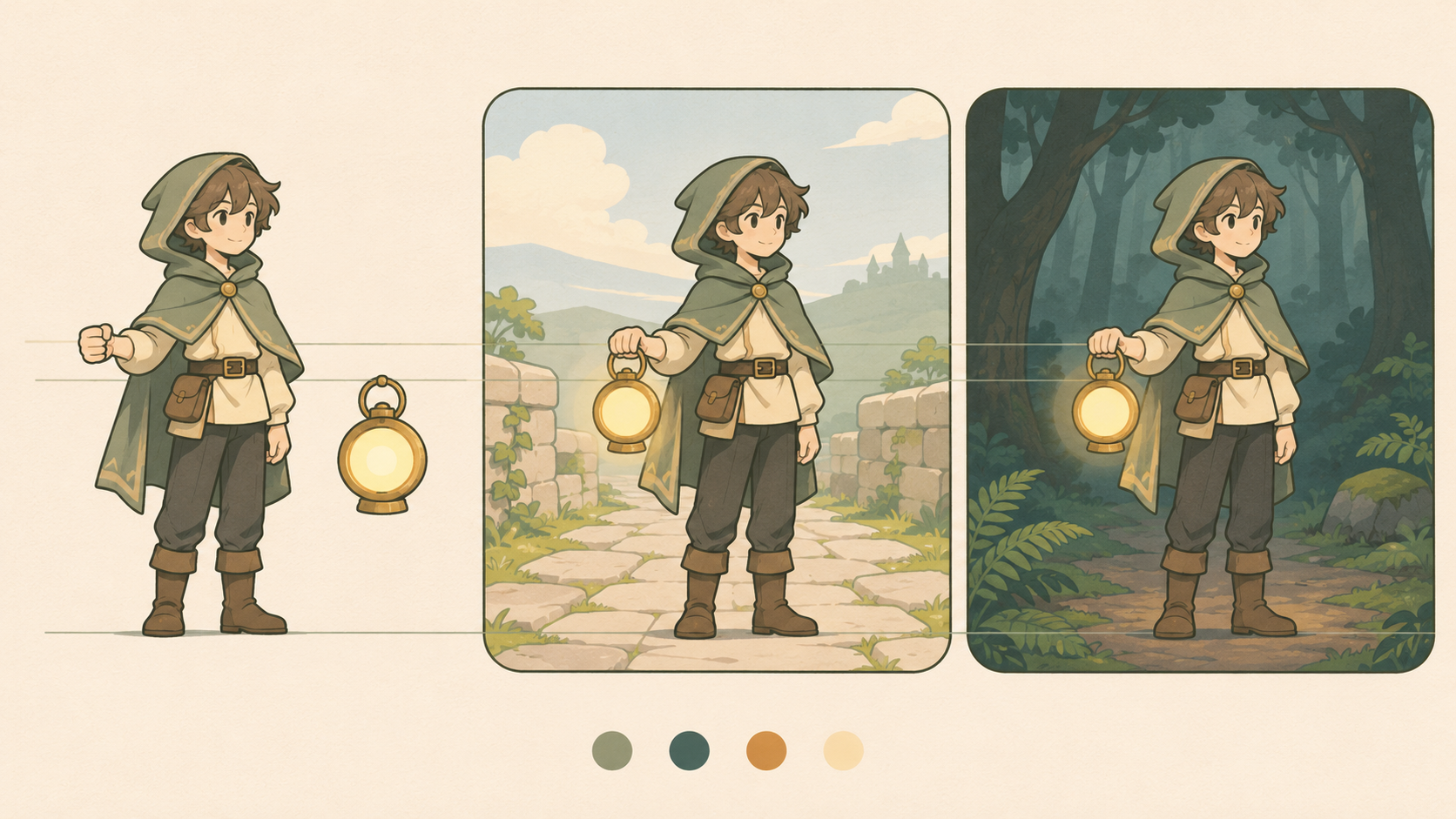
The character looks finished. So does the lantern. Put them together, though, and they seem to belong to different games: the handle is too thick for the hand, the feet do not sit on the ground plane, and the background texture competes with the character. When using an AI game asset generator, judge how images work together—not just how impressive each one looks alone.
The following is a suggested review method for independent creators and small teams producing character, prop, and environment images. The lantern example is hypothetical, not a reported production test.
Define the rules where assets meet
“Consistent fantasy style” leaves too much open. Specify what reviewers can actually compare: rounded or angular silhouettes, stepped or soft shading, where detail is concentrated, the viewing direction, and which colors should draw attention.
Recraft’s game asset page discusses palette adjustments and style references as parts of creation. That supports making visual requirements explicit; it does not establish that generated outputs will automatically match or pass your project’s checks.
Start with a compact asset specification. Fill in the values for your project rather than treating these fields as universal production standards.
| Asset | Style and palette | View and proportions | Size and framing |
|---|---|---|---|
| Character | Fix contour treatment, shading structure, main colors, and the role of accent colors | Define viewing direction, body proportions, and standing baseline | Record canvas dimensions separately from visible character height; allow room for movement |
| Prop | Match the character’s outline treatment and material simplification; avoid arbitrary new glow colors | Define the grip, handle thickness, and size relative to the character | Separate inventory-icon and held versions; record bounds and padding |
| Environment | Continue the same material language; control competing high-contrast detail | Match the ground orientation and camera elevation to the character | Record the target display area, walkable space, and foreground occlusion |
Equal canvas sizes do not establish equal scale. A character can fill one image and occupy half of another with identical dimensions. Record both the canvas and the subject’s occupancy, then compare assets at their intended in-game scale.
Keep each candidate traceable
Use a team-approved character image as a visual anchor, alongside a palette and notes on the ground plane and prop scale. A reference used by reviewers is not necessarily an image input supported by a model; check the selected tool separately.
A filename such as lantern_hand_front_styleA_v02 can identify the object, use, view, style specification, and revision. Keep an accompanying record of the prompt, model, canvas dimensions, reference identifiers, and intended change. Avoid calling an unchecked candidate “final.”
Once the specification is ready, you can enter the style, viewpoint, palette, and composition requirements in InkRoom’s image generation interface and choose a currently configured model. Availability, parameters, and fees depend on the current interface and account configuration. This entry point does not establish automatic consistency, transparent-background output, sprite slicing, or animation readiness.
For review, concentrate on one variable at a time where practical. For example, keep the intended proportions and view fixed while exploring how simply to depict the lantern’s material. This makes the design decision easier to discuss; it is not a promise that a model will preserve every other property.
Review relationships, not isolated images
Check silhouettes before detail. On review copies, reduce the character and prop to solid shapes and inspect them at the intended display size. Is the pose readable? Is the lantern recognizable? Does the gap between hand and handle remain clear? Do not enlarge the review image merely to make its detail look better.
Check scale and contact. Place the prop by the hand and the character on the ground plane. Can the hand plausibly grip the handle? Do the feet align with the surface? Does the lantern keep a sensible size when moving from a held version to a placed scene object? Shared colors and outlines cannot compensate for broken contact relationships.
Check the same assets across backgrounds. Place the same character and prop over the bright, dark, or heavily textured backgrounds your project expects. Do not substitute different generated characters between comparisons. Look for disappearing contours, accent colors blending into the scene, and prop detail overpowering the character. Record whether the issue belongs to the background, the character palette, or a legitimate need for a scene-specific variant. Different scenes need not share identical lighting.
Separate visual approval from engine readiness
“Concept approved” can mean that form, palette, and visual relationships are settled. “Engine-ready” needs to refer to actual project import and use requirements, not just an attractive preview.
For assets requiring transparency, inspect partially transparent edges, leftover background color, and halos against both light and dark backgrounds. A checkerboard preview alone does not verify the exported file’s alpha channel. Slicing also requires checking object bounds, padding, pivots, and the project’s atlas layout rules.
If animation is required, specify actions, directions, frame counts, and playback requirements separately. Review volume, foot baselines, and prop positions across frames. Several similar character pictures do not automatically form a continuous animation. Likewise, a static 2D picture with a three-dimensional appearance is not a 3D asset with a mesh, materials, and rig.
Use precise handoff states: “visual specification approved; alpha edges unchecked; animation frames not produced,” for example. If nobody has imported the file, leave import verification pending. That tells the next person more than an undifferentiated “done.”
Related articles and cases
- AI Wedding Invitation Generator: Layout, Names, Dates, and Print Delivery
Turn a wedding brief into an invitation visual without treating the generated image as a finished invitation. Plan text hierarchy, verify event details, and prepare digital and print versions separately.
- How to Choose an AI Image Editing API: Inputs, Masks, Async Results and Cost
Evaluate an image editing API against delivery requirements, not just sample images. A developer-focused method for checking input contracts, recovering uncertain requests, testing preservation and reconciling actual costs.
- AI Floor Plan Generator: From Layout Ideas to Measurement Review
Turn room requirements into a conceptual layout without mistaking an attractive image for a measured plan. Learn what to describe, how to compare arrangements, and what to check against original measurements.
- AI YouTube Thumbnail Generator: From Content Promise to Mobile Readability
Turn a video's actual content into thumbnail concepts, compare meaningful layout alternatives, and check text, contrast, and focus on a phone. An illustrative example shows the method without claiming tested results.