Batch AI Image Generation: From an Approved Sample to SKUs and Scenes
Turn an approved sample into explicit requirements, expand only the combinations you need, and separate job completion from image acceptance. Add an asynchronous API workflow only when programmatic scaling is actually needed.
·
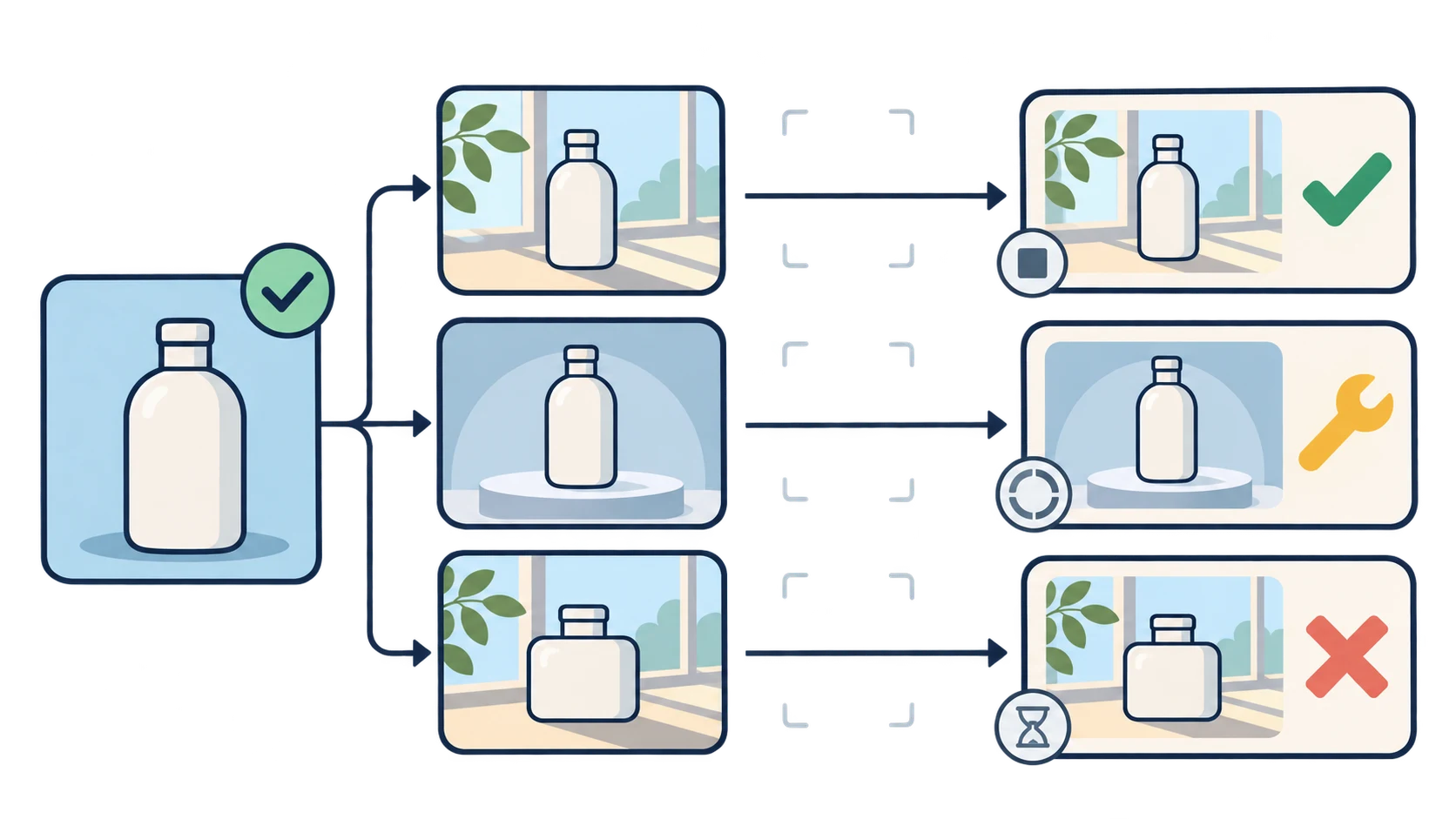
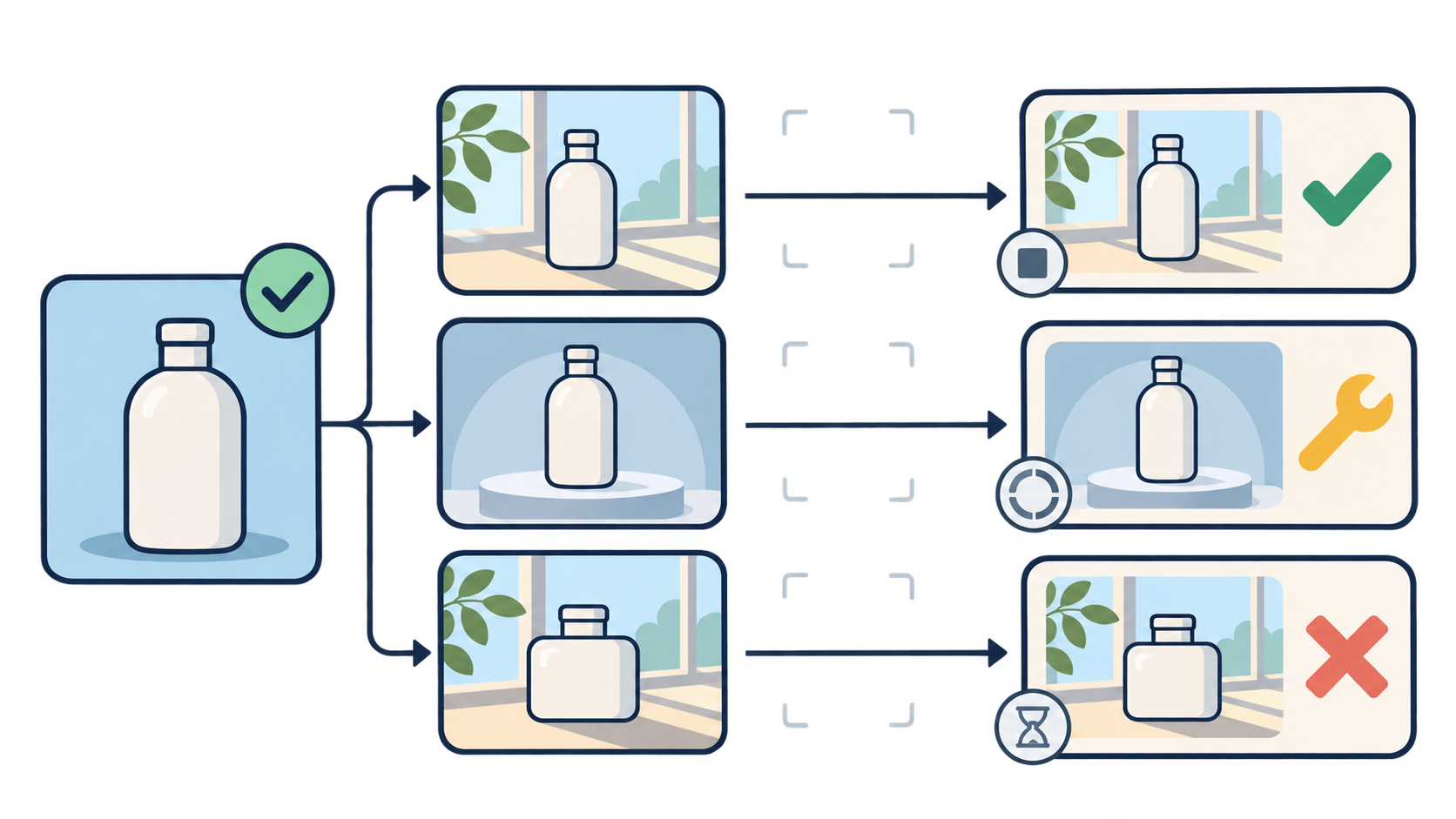
An approved sample proves that one image meets your requirements. A different package, lighting setup, or aspect ratio still needs review. Batch AI image generation is about making those requirements checkable across outputs—not simply copying a prompt into more requests.
The workflow below is a proposed production method, not a test report. Its record fields are recommendations, not observed job data.
What exactly does sample approval cover?
Separate product facts from visual choices. Product facts include the SKU’s shape, color, packaging text, component count, and accessories that must not be invented. Visual choices include aspect ratio, subject placement, background, lighting, and space reserved for brand copy. “Keep everything consistent” is too vague to cover both.
When moving a product from a white background to a window-side scene, the lighting and background may change. The cap shape and packaging text should not change with them. If a product detail lacks a reliable reference, obtain that information rather than allowing the generated image to define it.
Once those requirements are clear, you can enter a prompt and select a configured model on the InkRoom image generation page to create a sample. Model availability, parameters, and charges depend on the current interface and account configuration. Save the prompt version, settings, references, and specific approval conditions alongside the approved image.
Expand the required combinations, not every possible combination
Plan deliverables by SKU, scene, and aspect ratio. You do not need their entire cross-product: a SKU that only needs a white-background listing image does not automatically need every lifestyle scene.
Start with one necessary change: keep the product requirements fixed while changing the scene, or keep the scene fixed while switching SKUs. This is a way to make revision causes easier to trace, not a guarantee of consistency. Every output still needs review, even when the prompt stays the same.
| Record layer | Suggested fields | What it establishes |
|---|---|---|
| Deliverable | Your own deliverable ID, SKU, scene, aspect ratio, specification version | What is required |
| Generation attempt | Attempt number, prompt version, settings, job ID if available | Which attempt produced the result |
| Actual result | File or result identifier, retrieval status, job status | What was actually received |
| Human decision | Usable, failed, or needs rework; reason; selected version | What can be delivered |
These are internal record suggestions, not InkRoom API response fields. A deliverable can have several attempts, and a job can return several results. Preserve earlier records rather than overwriting them when you regenerate.
A completed job is not an accepted image
Job completion describes execution. Correct packaging text, recognizable product details, suitable framing, and usable copy space are acceptance questions.
Classify reviewed images as usable when they meet the deliverable requirements, needs rework when an existing result has an actionable defect, or failed when no valid image was obtained or the result cannot serve that deliverable. Keep pending or unretrieved results separate. A timeout alone does not establish generation failure.
Make revision reasons specific: “Side-label text does not match the product reference” is more useful than “poor quality.” At handoff, link each deliverable to its selected file and retain rejected versions with their reasons. Reconcile missing deliverables, not just the number of files in the output folder.
Add an asynchronous workflow only for programmatic scaling
If you need software calls or system integration, the InkRoom image API introduction is a relevant next step. Producing several images manually does not, by itself, require an API.
The supplied InkRoom API and MCP documentation describes a REST asynchronous batch sequence. With an authorized API Key, request a preview at /api/async/image-batches/preview; inspect quoteId, expiresAt, and estimatedChargeMillis; then, after explicit confirmation, submit quoteId, a stable requestId, and confirmed=true to /api/async/image-batches. Query the original job through /api/async/image-batches/JOB_ID.
The preview is not the final settlement. Charges must remain within the confirmed quote and applicable account limits; reconcile the final amount with the actual settlement record. Also, a zero in an example is not evidence of free generation. An expired quote requires another preview. HTTP 200 does not mean the images are complete; results, permissions, and charges follow the task receipt. After a connection timeout, check the original accepted task before creating another request. Do not repeat an accepted paid request merely because the connection timed out.
This is a summary supported by the supplied excerpt, not a complete integration recipe. Check the current full documentation, account authorization, and available configuration before submitting. Example fields do not prove that a feature is currently enabled. Nor should this batch sequence be treated as a prerequisite for every /v1 image request.
The documentation also separates credentials: REST asynchronous batches use an API Key; MCP uses an MCP Token. With MCP, discover the available tools and follow the receipt’s nextAction. Do not transplant the REST payload, credentials, or polling path into MCP. The supplied excerpt does not establish complete parameters for particular MCP tools, so no tool-specific recipe is given here.
Automation can handle submission and status retrieval. Whether an image is ready for delivery still depends on its product, scene, and layout requirements.
Related articles and cases
- Midjourney V8.2 vs GPT Image 2.6: Compare the Workflow
Compare documented versions, editing paths and delivery needs, then design a task-level review without inventing a quality or cost winner.
- AI Image-to-Video Workflow: First Frame, Motion and Review
Plan bounded motion from a clear first frame, then review subject continuity, the timeline, loops and delivery requirements.
- GPT Image 2.6 SVG: API Boundaries and Asset Review
Understand GPT Image 2.6 SVG API boundaries, separate provider parameters, and review vector files for display, editing and delivery.
- How to Review AI Image Bias: Prompts, Samples and Human Checks
Plan a reviewable image sample, keep generation conditions and failures, and examine role assignment and visual representation without inventing a model fairness score.