ai vectorizer: How to Check Paths and Text After PNG-to-SVG Conversion
An SVG download is not proof of an editable vector asset. Learn what to inspect inside the file, how to check contours and text, and what changes when the result is headed for a large screen, print, or an icon.
·
Your PNG is now an SVG, and the preview looks sharp. Why might a collaborator still be unable to change the wording or edit individual shapes? The answer lies inside the file—not just in its extension.
After using an ai vectorizer, open the exported file and check what is actually editable, whether transparent areas behave correctly, and whether the text meets the handoff requirements. The following is a suggested inspection method, not a test report for a particular tool.
An SVG is not necessarily a collection of editable paths
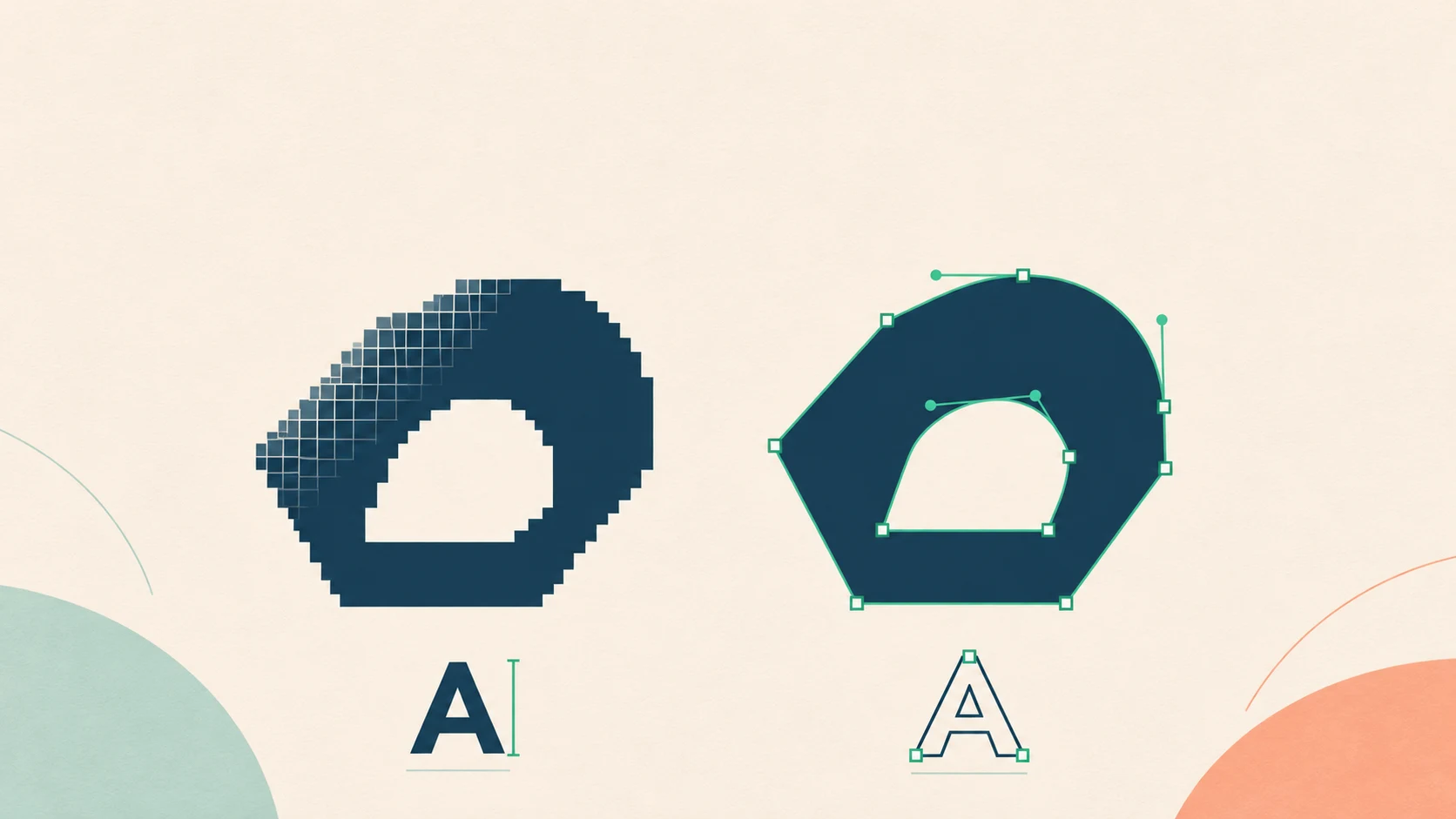
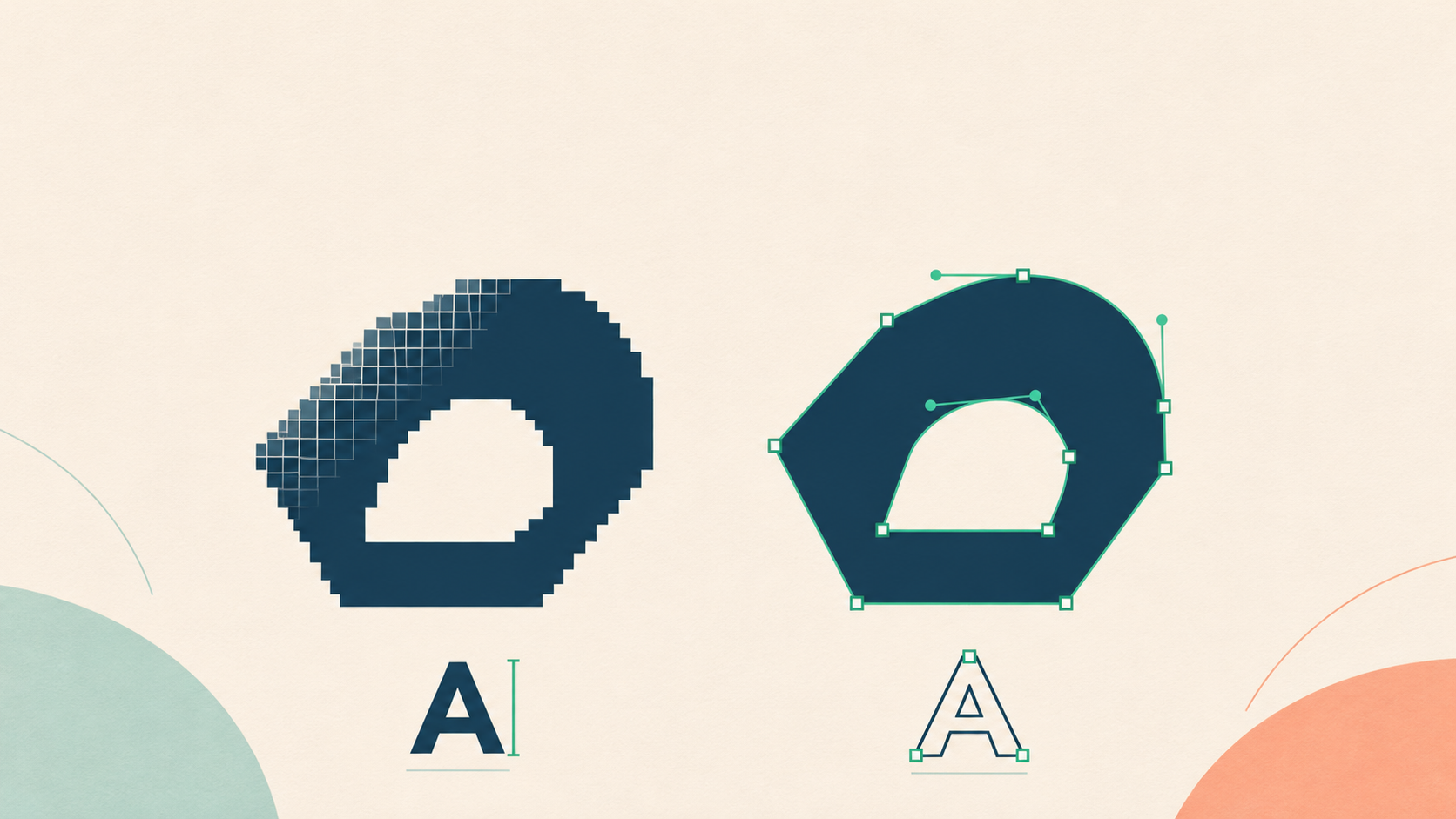
Raster vectorization reconstructs paths and shapes from an existing image’s pixels. ArtSmart’s introductory guide describes the same basic distinction. But conversion does not recover the original design document: missing contours, blurred lettering, and the original layer structure do not automatically return.
Generating SVG directly is a different task. It creates SVG content from a description or other input, rather than necessarily tracing a particular source image. Its geometry and editability still need inspection.
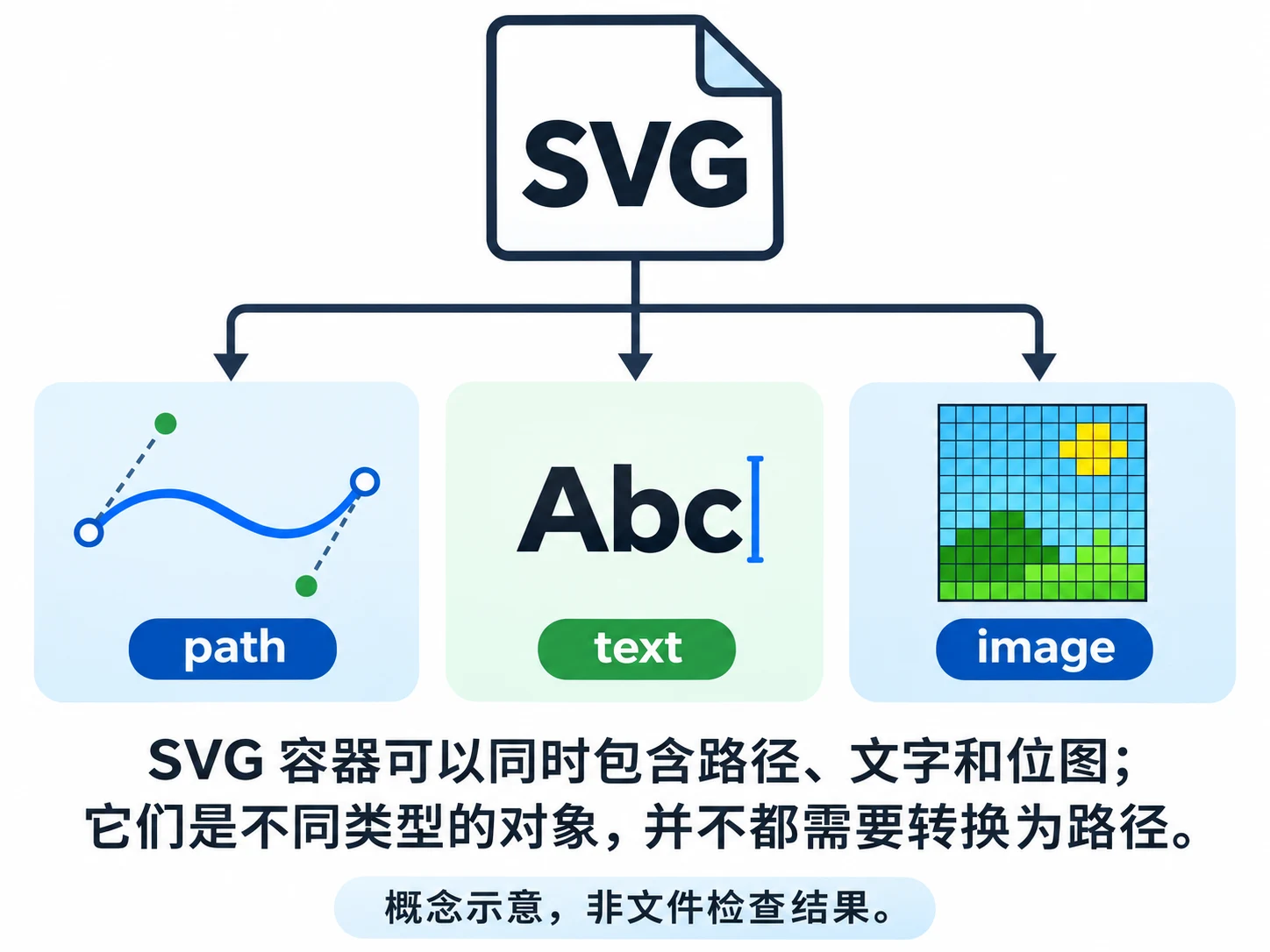
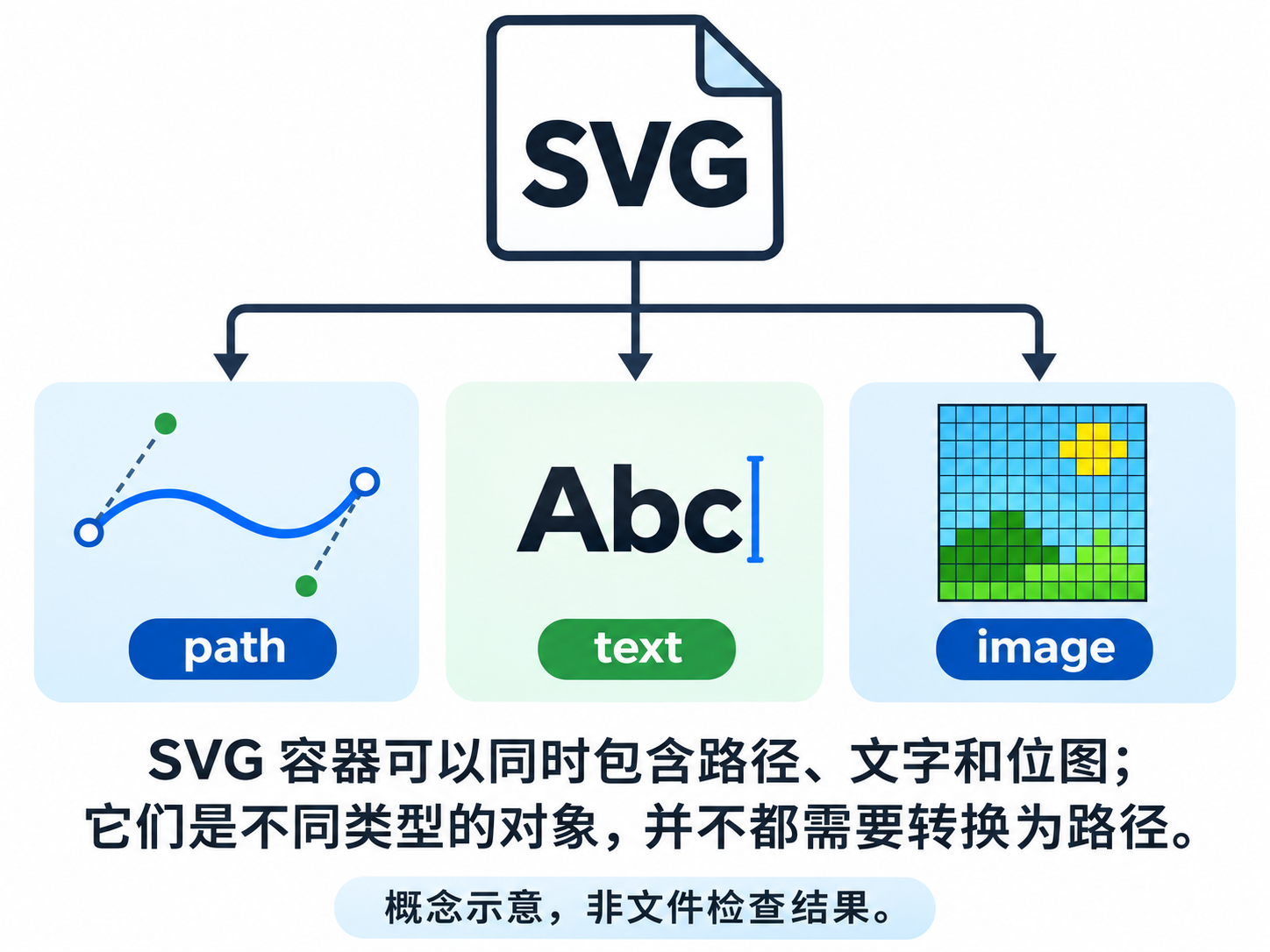
SVG can also contain raster images. Placing a PNG inside an SVG container does not turn that PNG into paths. Receiving a .svg file and receiving suitable vector objects are separate outcomes.
Decide what should become paths
Simple artwork with clear contours and limited color regions is generally a better fit for path-based editing. Turning photographic texture, noise, and continuous tones into many shapes may make a file harder—not easier—to maintain. If the job is simply to display a photograph, a vector conversion may not be necessary.
Treat text as a separate requirement. If someone must later change a name, language, or date, specify editable text rather than visual resemblance alone. The reference guide also warns that automatic conversion can miss detail or distort small text; that general warning is not an accuracy guarantee for any tool.
Keep the untouched source and work on a copy. Before converting, note the intended use, display or output size, and elements that must remain editable. Those requirements give you a reason to accept or reject changes instead of merely chasing a smoother preview.
Inspect the export at three levels
Object structure: what can you select?
Open the SVG in an editor that supports SVG objects. Try selecting the subject, background, and lettering separately. Use the object list and, if needed, the SVG source to distinguish paths, text, and image objects. Selecting the whole artwork with one click is not conclusive: separate objects may simply be grouped.
In the source, <path> identifies a path element, <text> a text element, and <image> a referenced or embedded image. These can coexist. Finding one path does not prove that the whole image has been vectorized, and element names alone do not establish that the rendering is correct.
Path count is a complexity clue, not a universal pass mark. A low count may hide incorrectly merged shapes; a high count may represent necessary detail. Also inspect the nodes: are supposedly straight or smooth edges covered in dense points, fragments, or tiny color patches? Compare before and after simplification so that fewer nodes do not come at the cost of the correct silhouette.
Contours and transparency: zoom in and change the background
Compare the source and SVG at the same displayed size, then enlarge curves, corners, narrow gaps, and internal holes. Look for wavy edges, spikes, unintended gaps, or regions that have merged.
A filled-looking shape is not proof of a closed path: an open path can still display a fill. If a downstream process requires closed contours, inspect the node connections rather than relying on the filled preview.
Place the result on both light and dark backgrounds. Check for leftover background shapes, edge halos, and holes that should reveal the background. A checkerboard preview is useful, but the exported file’s behavior matters more. If a thin seam appears, recheck at other zoom levels or in the destination application before deciding that the objects have a real gap.
Text: editing shapes is not editing words
Try changing one character with the text tool. If you can only move nodes or an outlined group, the lettering may have become paths. You can edit those shapes, but not rewrite them as normal text.
If text objects remain, check font availability and look for substitution, changed line breaks, or altered spacing in the destination application. Make these checks on a copy.
When a handoff needs both future wording changes and a fixed appearance, consider retaining an editable-text version and a separate outlined version, labeled by purpose. Outlining does not correct spelling: check the characters, punctuation, and letterforms in both versions.
The final check depends on the destination
| Destination | Suggested viewing method | Problems to prioritize |
|---|---|---|
| Large-screen display | Open the actual layout in the target player or application; inspect key contours up close as well | Wavy outlines, incorrect proportions, and continued dependence on a low-resolution raster image |
| Confirm accepted formats, dimensions, and production requirements with the printer; arrange the agreed proof | Fine lines, reversed text, internal holes, and the treatment of color and transparency | |
| Icons | Preview at the actual pixel dimensions inside the interface, not only enlarged | Crowded details, uneven strokes, disappearing holes, and an off-center visual balance |
Scalable geometry does not guarantee a clear icon at every size, nor does it make SVG universally ready for every print workflow. Details that look smooth on a large display may need simplification for a small icon. Print delivery formats depend on the production process.
For a few contour errors, manual path corrections may be enough. For a text-editing mismatch, return to text objects or reset the lettering. If a photograph has become a mass of difficult-to-maintain fragments, reconsider whether the task needs a fully vector version at all. The goal is not to maximize the number of paths; it is to give the next person a file they can actually use.
Related articles and cases
- AI Image to 3D Model: How to Verify You Received a Mesh
Separate attractive previews from editable geometry, then assess the delivered asset in your target software. Includes suggested validation practices and API handoff records, not vendor performance claims.
- AI Menu Design Generator: Review Images, Names, and Prices Separately
A polished menu draft is not a verified menu. Use one approved dish record to review food images, names, prices, and dietary information, then check the mobile and printed versions separately.
- AI App Icon Generator: From Concepts to Delivery Checks
Turn an app idea into icon candidates, compare them at small sizes, and keep visual design separate from platform asset preparation. This guide offers a working method, not unverified store specifications.
- AI Product Shadow Generator: From Cutout to Contact-Shadow Review
Adding a shadow should ground a product without changing it. Learn how to prepare a cutout, describe the lighting and surface, and compare the edited image with the original.